> For the complete documentation index, see [llms.txt](https://docs.clearfeed.ai/clearfeed-help-center/llms.txt). Markdown versions of documentation pages are available by appending `.md` to page URLs; this page is available as [Markdown](https://docs.clearfeed.ai/clearfeed-help-center/clearfeed-ai/ai-agents/use-ai-agents.md).
# Use AI Agents
This guide explores how you can utilize GPT Powered Answers to its maximum capability
AI Agents help support teams respond faster and more consistently in Slack and Microsoft Teams Collections. They can answer questions using your knowledge, and in Slack, they can also take actions in connected tools and help keep documentation up to date - all while giving your team control over how AI interacts with customers.
Each AI Agent can be configured per Collection, so different teams can tailor AI behavior, data access, and integrations to match their workflows.
## What can AI Agents do?
AI Agents are used in three main ways:
### **Answer questions using Knowledge Sources**
AI Agents generate accurate, context-aware answers by searching your connected Knowledge Sources (docs, help centers, internal tools, etc.).
Answer Agents can also read images shared in Slack conversations, allowing them to use screenshots and other visual context when answering questions.
How answers appear depends on the Conversation Mode:
* Virtual Agent → AI replies directly to requesters in supported request channels
* Agent Assistant → AI drafts replies privately for agents to review and send
This helps:
* Reduce repetitive questions
* Improve response speed
* Maintain consistent answer quality
### **Take actions in connected integrations**
AI Agents can perform actions directly from Slack by connecting to integrations like Jira, Zendesk, HubSpot, Okta, JumpCloud, and more.
Examples include:
* Creating or updating Jira issues
* Searching or updating Zendesk tickets
* Creating or modifying HubSpot deals and contacts
* Managing users, access, and devices in IT systems
* Updating employee or asset records
This allows teams to resolve requests without switching tools or leaving Slack.
### **Identify documentation gaps**
AI Agents can also run as Doc Updater Agents, analyzing support conversations to:
* Detect missing documentation
* Flag outdated or incorrect content
* Identify opportunities to improve help resources
These agents work in the background and do not participate in live Slack conversations.
## Conversation Modes
Each Collection uses exactly one Conversation Mode, which determines:
* Where AI responses appear
* Who can see them
* Whether AI replies directly to customers or assists agents privately
### Quick comparison
| Feature | Virtual Agent | Agent Assistant |
| ---------------------- | ------------------ | -------------------- |
| Channel Type | Request channels | Triage channels |
| Who sees the response? | Customer directly | Internal agents only |
| Response Flow | Fully automated | Agent-reviewed |
| Use case | Self-serve support | Assisted support |
| Control over messaging | Low (auto) | High (manual) |
### Virtual Agent - Public AI responses
In Virtual Agent mode, AI responds directly to customers in request channels. Virtual Agent is supported for Slack request channels and Microsoft Teams Collections.
**Best suited for:**
* Automating answers to common or straightforward questions
* Reducing inbound support volume
* Providing fast, real-time responses
**How it behaves:**
Virtual Agent intelligently detects questions or issues and monitors request channels, responding based on how you configure it:
**Trigger Mode** — Choose when the Virtual Agent responds to questions:
* Automatically — AI responds as soon as a question is detected
* On emoji reaction — AI responds only after a specific emoji is applied to the request message
{% hint style="info" %}
**Important:** To trigger the Virtual Agent with an emoji, always apply it directly on the request message — not on replies in the thread.
{% endhint %}
**Timing (when automatic ticketing is enabled)** - Choose when the Virtual Agent generates responses:
* Before ticket creation — AI responds before the ticket is submitted
* After ticket creation — AI responds after submission and can use ticket fields to generate more contextual answers
**Bot Interactions** - Optionally allow agents and requesters to tag the ClearFeed bot in request or triage channels to:
* Ask questions
* Trigger AI responses
* Perform supported actions
#### Virtual Agent in Microsoft Teams Collections
For Microsoft Teams Collections, the Virtual Agent can automatically generate **one response** for each new request using the Knowledge Sources configured for the Collection's AI Agent.
When enabled:
* The response is posted as a threaded reply under the original Teams request message.
* Source links are included when available, based on the AI Agent's Knowledge Source settings.
* Human support can continue the conversation after the AI response.
The trigger timing depends on the Collection's ticketing setup:
* **Ticketing disabled:** The Virtual Agent responds as soon as the request is created.
* **Automatic ticketing with ClearFeed or Zendesk:** The Virtual Agent responds after the ticket is created.
* **Other ticketing integrations:** Virtual Agent responses in Microsoft Teams are not currently supported.
{% hint style="info" %}
Microsoft Teams Collections currently support automatic Virtual Agent responses only. Agent Assistant, emoji-triggered responses, bot mentions, and Interactive Agent Mode are not supported for Microsoft Teams Collections.
{% endhint %}
#### Virtual Agent with Ticketing
{% hint style="info" %}
**Note:** Interaction with the Virtual Agent is different when ticketing is set to automatic and manual respectively. This is applicable for both ClearFeed and External Ticketing.
{% endhint %}
#### Using Virtual Agent with Automatic Ticketing
When **Automatic** mode is enabled, you can choose *when* the Virtual Agent should generate its response:
**Before Ticket Creation**
The Virtual Agent attempts to answer **before** a ticket is created.
* If an answer is generated: The user is prompted to choose:
* **Yes, mark as solved** — closes the request without creating a ticket
* **No, create a ticket** — triggers ticket creation
* If no answer is generated, or if the user does not provide feedback within **1 hour**, the system automatically creates a ticket.
This mode helps deflect simple queries by resolving them before ticket creation.
**After Ticket Creation**
In this mode, the system creates a ticket **first**, and then the Virtual Agent attempts to answer. (Currently supported only when ticketing is set to **ClearFeed** or **Zendesk**.)
* The agent uses the details provided in the ticket form to generate a more accurate response.
* If an answer is generated: The user can respond with:
* **Yes, mark as solved** — closes the ticket
* **No** — keeps the ticket open (conversation continues with the human agent)
This mode is helpful when richer ticket details improve answer quality.
#### Using Virtual Agent with Manual Ticketing
* The Virtual Agent responds immediately to messages in the request channel.
* A ticket is created when a user reacts with the configured emoji regardless of their feedback response.
#### Using Virtual Agent in Interactive Agent Mode
Interactive Agent Mode is a setting for ClearFeed's Virtual Agent that enables conversational AI to engage users dynamically. It maintains a natural back-and-forth dialogue, asking clarifying questions to better understand the request.
* It can call configured tools/integrations (e.g., Jira, Zendesk) that are linked to the AI Agent to fetch data or perform actions while still in the conversation.
* If a human agent/responder steps into the chat, the interactive agent mode stops, allowing seamless handoff to live support if needed.
**Availability and Limitations:**
Interactive Agent Mode is available for **Slack Collections (Standard and Customer)** and **Web-Chat** only — it is **not available for Microsoft Teams or Email**.
Additionally, Interactive Agent Mode has these requirements:
* Works only with **Automatic** trigger mode ("Automatically respond with a generated answer") — emoji trigger mode is not supported
* Pre-ticketing mode: Works with any ticketing integration
* Post-ticketing mode: Works only with ClearFeed native ticketing
Enable Interactive Agent Mode when you want AI to handle nuanced customer conversations naturally before escalating to human agents.
**Steps to Enable Interactive Agent Mode**
To enable two-way AI conversations (Interactive Agent) in Slack:
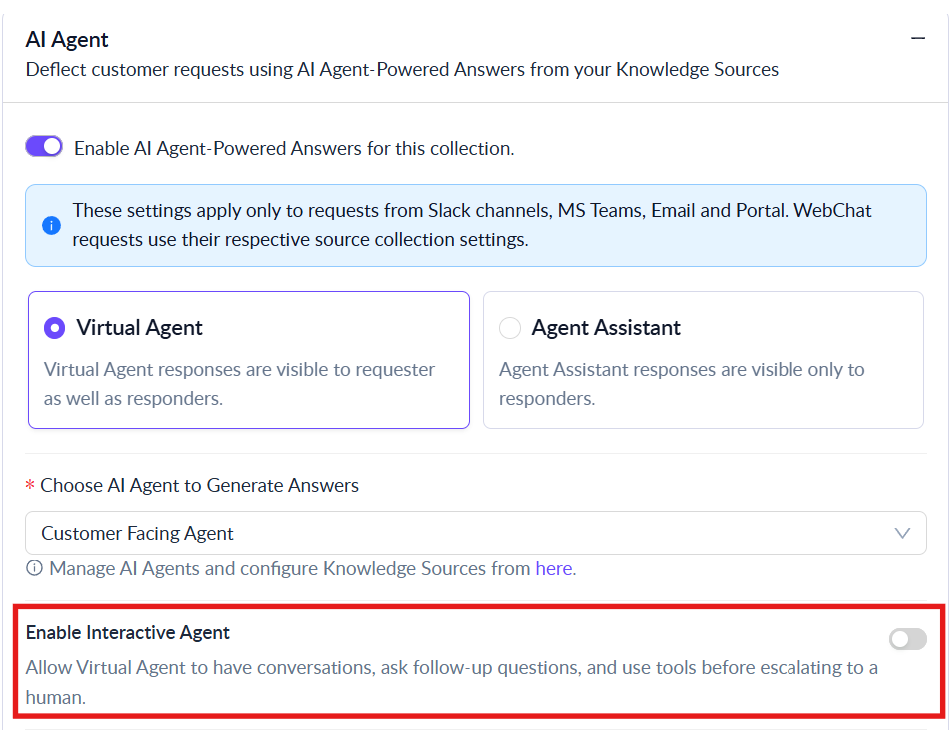
Enable Interactive Agent Mode from Collection Settings > AI Agent tab
1. Navigate to the Collection where you want the AI agent to reply
2. Open **Collection Settings** > **AI Agent** tab
3. Enable **Virtual Agent Mode**
4. Turn on the toggle for **"Enable Interactive Agent"**
5. Set the Trigger Mode to **"Automatically respond with a generated answer"**
Once enabled, the AI agent will automatically respond to queries in Slack, and a human agent can take over the conversation at any point.
{% hint style="info" %}
**Session Escalation Behavior:**
If the Interactive Agent Mode is disabled while sessions are active, all existing conversations will automatically escalate to human agents. If ticketing is configured, a ticket will be filed (with form picker if applicable). Similarly, if there is no response from the non-responder for **1 hour**, the session will automatically escalate.
{% endhint %}
{% hint style="success" %}
**Tip:** You don't need to mention the ClearFeed bot explicitly. When Trigger Mode is set to **"Automatically respond with a generated answer,"** the AI agent will reply automatically.
{% endhint %}
### Agent Assistant - Private AI suggestions
In Agent Assistant mode, AI does not reply to customers directly. Instead, it drafts responses for agents to review.
**Best suited for:**
* Teams that want full control over customer communication
* Workflows requiring human review before sending replies
* Maintaining brand tone and personalization
**How it behaves:**
When you use Agent Assistant:
* Bot Interactions are always enabled and cannot be disabled
* No Trigger Mode or Timing settings are required
* AI only generates internal suggestions in triage channels
* Agents review, edit, and manually send responses to requesters
Agent Assistant operates within Triage Channels, providing AI-generated suggestions that agents can refine and post. Rather than responding automatically, it empowers your team with AI-crafted drafts that reduce time spent writing replies.
## How AI Agents work
### High-level process
When AI is triggered - automatically, through bot tagging, or via automations — it:
1. Understands the request and its context
2. Finds relevant knowledge or tool data
3. Takes supported actions if needed
4. Generates a response or suggestion
The exact behavior depends on the selected Conversation Mode.
### Detailed processing flow
When an AI Agent is invoked, it follows this technical process:
1. Evaluates the query against restricted queries to determine if it should respond
2. Creates a plan using planning and execution instructions to identify necessary steps and tools (based on configured Integrations)
3. Executes the plan by taking the necessary actions
4. Generates a response based on response instructions
### Answering questions from Knowledge Sources
When looking up information, the AI Agent:
1. Searches indexed sources for relevant snippets
2. Uses LLM to generate answers from those snippets
3. Posts the generated answer based on the Conversation Mode:
* **Virtual Agent**: Posts directly in the request thread for Slack request channels or Microsoft Teams Collections
* **Agent Assistant**: Posts as an internal comment on the request's triage thread
4. Waits for agent approval (in Agent Assistant mode, agents can share the answer as-is or edit before sending)
If the AI Agent cannot find a relevant answer, it posts a message indicating "No relevant answers were found."
## Ways to invoke AI Agents
AI Agents can be triggered in multiple ways depending on your workflow:
* **Automatically on ticket/request creation** - AI responds without manual intervention
* **Manually on a ticket** - Agents trigger AI on-demand for specific requests when you apply an emoji
* **Bot interaction** - Tag the ClearFeed bot to ask questions or request actions where supported
* **Automations** - Configure workflows to invoke AI under specific conditions
* **Ask AI** - Use the Ask AI feature to query the agent directly
For Microsoft Teams Collections, AI Agents are invoked automatically when the Virtual Agent is enabled for a supported ticketing setup.
## Setting up AI Agents
{% hint style="warning" %}
**Prerequisites before enabling an AI Agent in a Collection:**
Before you can set up an AI Agent for a Collection, ensure that you have:
1. Created/built an AI Agent
2. Connected Knowledge Sources to the AI Agent (if you want question-answering capabilities)
3. Connected required integrations to the AI Agent (Jira, Zendesk, HubSpot, etc.) for any actions you want it to perform
{% endhint %}
To enable AI Agents for a Collection:
1. Go to Collection → Settings
2. Open AI Agent settings
3. Enable one Conversation Mode:
* Virtual Agent, or
* Agent Assistant
4. Select the AI Agent you want to use
5. Configure mode-specific settings:
* For Virtual Agent: Set Trigger Mode, Timing (if ticketing enabled), and Bot Interactions preference
* For Agent Assistant: Bot Interactions are enabled by default
6. (Optional) Customize the Virtual Agent identity:
* Name - required
* Avatar - optional (inherits from White Label settings if not provided)
## Tracking AI Agent sessions
### AI Agent Session Logs
You can track all AI Agent sessions from the [Session Logs](/clearfeed-help-center/clearfeed-ai/ai-agents/session-logs.md) page. Session Logs provide a consolidated view of all sessions for an AI Agent, with sessions grouped by how the agent was invoked, such as Virtual Agent, Agent Assistant, Bot Mention, Private Bot Mention, Automations, Message Bar, and ClearBot Assist. Use this page to review past executions, understand how the agent responded, and troubleshoot agent behavior in detail.
### Virtual Agent Filters
For Virtual Agent-linked requests, you can track them using **Virtual Agent session field filters**. These filters are available in the **Inbox** and when creating **Custom Views** — which means they're also available when syncing to **Slack Lists** or downloading as **CSV exports**.
The Virtual Agent filter includes three groups of filters based on session fields:
* **Response** — Filter requests by whether the Virtual Agent **Answered** or left them **Unanswered**
* **Outcome** — Filter requests by whether the conversation was **Deflected** or **Escalated to Human**
* **Feedback** — Filter requests based on user feedback marked as **Positive** or **Negative**
Use the Virtual Agent filter in Inbox to track Virtual Agent linked requests separately.
## FAQs
1. **Where can AI Agents be used?**\
**Answer:** AI Agents work in Slack conversations and Microsoft Teams Collections. Virtual Agent can post public replies in request threads, while Agent Assistant posts internal suggestions in Slack triage threads.
2. **Can AI Agents both answer questions and take actions?**\
**Answer:** Yes - they can generate answers from Knowledge Sources and perform actions in connected tools.
3. **Can different teams configure AI differently?**\
**Answer:** Yes, AI behavior is configured per Collection, so different teams can use different settings.
4. **Do AI Agents require Knowledge Sources?**\
**Answer:** Knowledge Sources improve answer quality and enable richer responses. They're essential for question-answering capabilities.
5. **Which integrations are supported?**\
**Answer:** Jira, Zendesk, Notion, HubSpot, Okta, JumpCloud, Asset Panda, BambooHR, Kandji, and more.
6. **Where should I apply emojis to trigger Virtual Agent on the request message or in a reply?Answer:** Always apply the emoji directly on the request message. Adding emojis in thread replies will not trigger the Virtual Agent.
7. **How can I modify the time window for automatic ticket creation?**\
**Answer:** If the Virtual Agent generates an answer successfully but receives no feedback within 1 hour, ticket creation is triggered automatically. To modify this 1-hour window, contact support at .
8. **What happens if a request status changes before the answer is generated?**\
**Answer:** If the request is solved, converted into a ticket, or marked as "Not a request" before the answer is generated, the Virtual Agent will not post the answer at all.
9. **What happens to feedback buttons if a request status changes after an answer is generated?**\
**Answer:** If the request is solved, converted into a ticket, or marked as "Not a request" after the answer is generated, the feedback buttons will be removed from the generated answer.