| Option | Type | Description |
|---|---|---|
brand_color | string | Hex code (e.g., #RRGGBB) to customize primary UI elements like backgrounds, icons, input fields, and attachments. |
text_color | string | Hex code (e.g., #RRGGBB) to customize text color throughout the widget. |
icon_logo_source | string | A direct SVG string or a URL pointing to your logo image (SVG or other image types supported). |
icon_logo_color | string | Hex code or CSS color name to set the color for the default logo, button text, and close (X) icon on the button. |
icon_type | string | Determines the appearance of the chat button. Options: "horizontal" (shows text and icon) or "round" (icon only). |
icon_size | string | Sets the size of the widget button. Options: "small", "medium", or "large". |
position | string | Specifies where the widget button appears on the screen. Options: "left" or "right". |
icon_text | string | The label displayed next to the icon when icon_type is set to "horizontal". Ignored for "round" type. |
offset | object | Adjusts the button's position: { x: number, y: number } (in pixels). x is horizontal offset from the edge (left or right), y is vertical offset from the bottom. |
allow_dragging | boolean | If true, users can drag and reposition the chat widget on desktop. Dragging is limited to stay on-screen. |
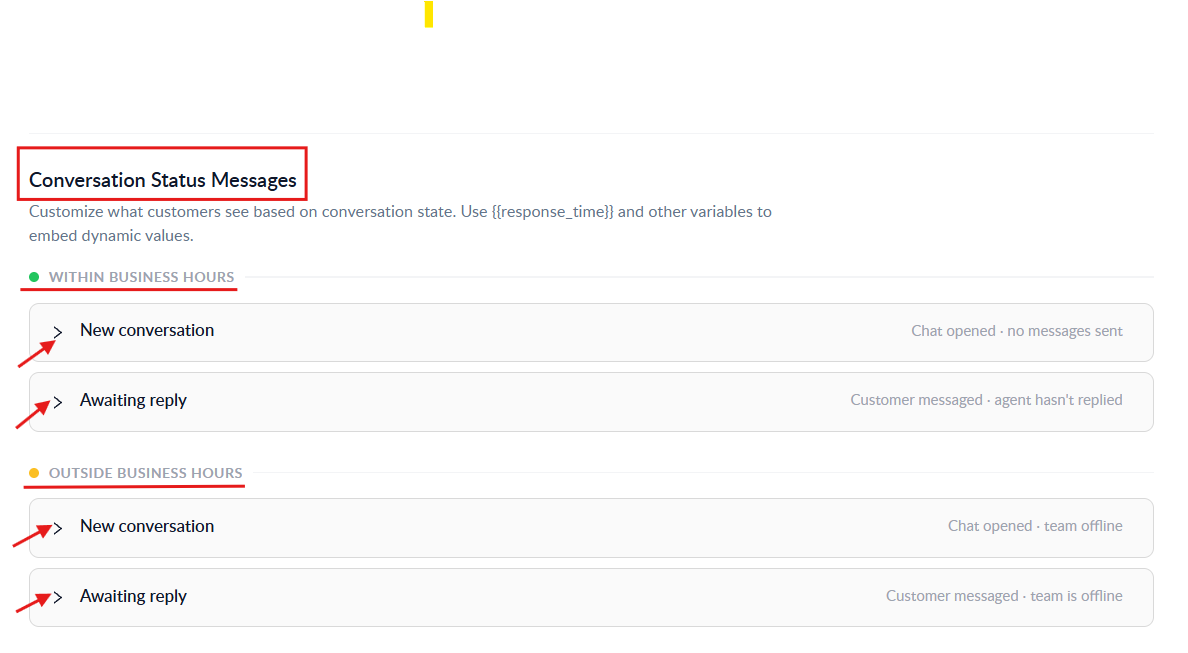
Conversation Status Messages configuration in Chat Setup