> For the complete documentation index, see [llms.txt](https://docs.clearfeed.ai/clearfeed-help-center/llms.txt). Markdown versions of documentation pages are available by appending `.md` to page URLs; this page is available as [Markdown](https://docs.clearfeed.ai/clearfeed-help-center/advanced-recipes/how-to-create-tickets-for-important-messages.md).
# How to create Tickets for Important Messages
This guide shows you how to automatically create tickets for important messages using AI filtering. This example uses Jira as the ticketing system, but the same approach can be applied to any ticketing system supported by ClearFeed, including [Zendesk](/clearfeed-help-center/integrations/zendesk.md), [Salesforce](/clearfeed-help-center/integrations/salesforce.md), [Linear](/clearfeed-help-center/integrations/linear.md), [ClickUp](/clearfeed-help-center/integrations/clickup.md), [Intercom](/clearfeed-help-center/integrations/intercom.md), and [FreshDesk](/clearfeed-help-center/integrations/freshdesk.md).
{% hint style="info" %}
**Alternative approach:** You can also reduce noise by [suppressing certain requests](/clearfeed-help-center/advanced-recipes/how-to-suppress-request-creation.md) combined with automatic ticket filing for the remaining important messages.
{% endhint %}
## Background
By default, ClearFeed creates a **Request** for every new Slack thread. If your collection is linked to a ticketing system and automatic ticketing is enabled, each request will automatically create a ticket.
If you don't want every thread to result in a ticket, you can control this behavior **using AI** via **Automations** and **Auto-Fill fields** actions. This Guide explains how.
## AI Auto-Fill + Automation Overview
ClearFeed allows you to auto-populate fields using AI and then use these fields as conditions to decide whether a ticket should be created. In the instructions below - we will setup the following flow:
* Trigger → On Request Creation
* Action 1 → Use AI to categorize the request
* Condition → Depending on the Category
* Action 2 → Create Ticket
## Detailed Setup Guide
Login to the ClearFeed Web Application, go to `More` on the Left Nav and select `Automate`. Create a new Automation as follows:
### 1. On every request creation
1. Click `Create automation`.
2. Click `Add trigger` and Set the Trigger to `Request Creation`.
3. Skip `Conditions`
4. (Optional) Add a small delay (say 1 minute). This will handle cases where the user types in multiple messages quickly that are part of the same message. All of them can be considered together for categorization.
### 2. Use AI to categorize the request
5. In the `Action` block - click on `Add action` and choose `Auto-fill Fields`
6. Provide `Instructions` to the AI to classify the request into categories. For the purposes of this exercise - since only decision is to file a ticket or not - we will use a Boolean output value. Here's an example instruction:
```
## Task
You are given a Conversation between the requester and the responders, Your job is to generate accurate values for the field below.
- The Conversation includes messages, each prefixed with its author type — either **Requester** or **Responder**
- Read all the messages carefully in the order they were sent.
- Use context from both the Requester and the Responder to determine the correct field values.
## Conversation:
{{request.all_messages}}
## Field
### Name
is_important:
### Description
Whether the request from the requester is important
### Values
* True
* Return a value of True in case the request is reporting a bug or a feature request. Examples:
* "I lose all my edits on hitting the back button"
* "Is it possible to allow adding multiple users at the same time?"
* "My job is failing every time at the initialization step"
* False
* Return a value of False in case the request is not related to the product and is not reporting bugs or feature requests related to it. Examples:
* "Can we schedule a meeting on Monday?"
* "Looking forward to meeting at the conference"
* "I have applied the workaround and things are working fine"
```
7. In the `Output Configuration`, select `Create Automation Variables` and click on `Add Variable`:
8. In this example, we will fill the values as follows:
1. Variable Name: *is\_important*
2. Data Type: Text
3. Description: Whether the request from the requester is a feature or bug report related to the product
4. Required: *Yes*
9. Use the test interface to test out the prompt on your previous requests and make changes to the prompt if required.
### 3. Depending on the category
10. Click `Add a Condition` to filter which requests should create a ticket.
11. Within the `Conditions` dialog - select the `Action - is_important` field (this is what was populated using the AI above)
12. Set the condition to `is set to` - True
### 4. Create ticket automatically
Finally - we add another Action below the Condition
13. `Trigger Ticket Creation`
Go back to the top of the screen - Select the Collection where this automation should apply. And hit `Save`.
## Important Points to Note
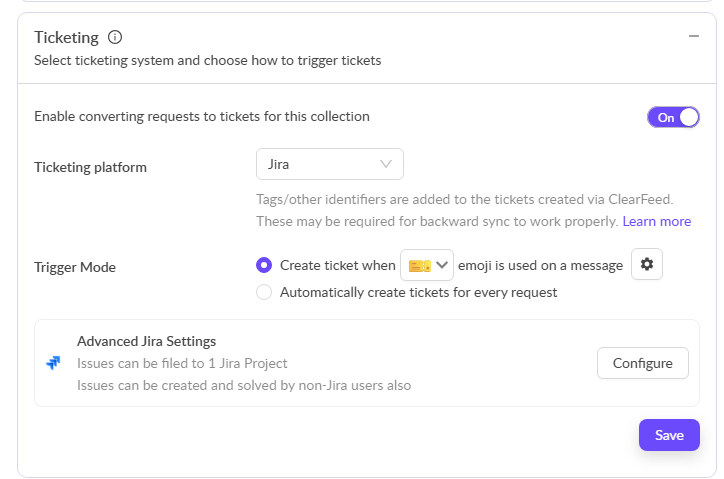
* The collection should have ticketing set to Emoji based and not automatic
Ticketing Configuration
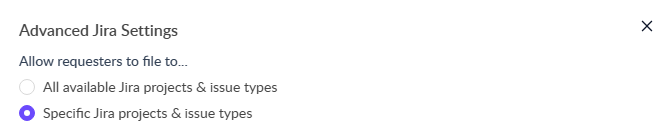
* For the Ticketing system, there should not be any inputs required from the requester. Example: For ticketing systems like Jira, there should not be any mandatory fields and Project and Issue Type should be specific so that they are not asked.