> For the complete documentation index, see [llms.txt](https://docs.clearfeed.ai/clearfeed-help-center/llms.txt). Markdown versions of documentation pages are available by appending `.md` to page URLs; this page is available as [Markdown](https://docs.clearfeed.ai/clearfeed-help-center/clearfeed-ai/ai-agents/build-ai-agents.md).
# Build AI Agents
AI Agents in ClearFeed help teams automate answers, assist agents, and continuously improve documentation. ClearFeed supports three types of AI Agents, each designed for a distinct purpose and workflow:
* **Answer Agents** – Respond to user questions and assist agents using Knowledge Sources and tools.
* **Doc Updater Agents** – Analyze tickets and requests to identify documentation gaps and improvement opportunities.
* **Insights Agents** – Explore and analyze ClearFeed data using natural language queries. See [Insights Agent](/clearfeed-help-center/clearfeed-ai/insights-agent.md) for details.
Each agent type differs in configuration, testing, and how it is used across ClearFeed.
## Create a New AI Agent
1. From the left navigation in the ClearFeed web app, go to **AI >** [**Agent Studio.**](https://web.clearfeed.app/ai-agents)
2. Click **New AI Agent**.
3. Choose the agent type:
* **Answer Agent** – Respond to user questions and assist agents using Knowledge Sources, Integrations, and/or Web Search. To create an Answer Agent, you must enable at least one of the following:
* A Knowledge Source
* An Integration
* Web Search
* **Doc Updater Agent** – Reviews tickets and requests to suggest documentation improvements.
* **Insights Agent** – Explore and analyze ClearFeed data using natural language. See [Insights Agent](/clearfeed-help-center/clearfeed-ai/insights-agent.md) for details on capabilities and usage.
The agent type determines what can be configured, how the agent is tested, and how it is activated.
## Configure Your Agent
### Knowledge Sources
**Applies to both Answer Agents and Doc Updater Agents**
Knowledge Sources define what information the AI Agent can access. They are optional for Answer Agents, but required for Doc Updater Agents. Answer Agents can operate without Knowledge Sources if Web Search or Integrations are enabled.
You can configure Knowledge Sources in one of the following ways:
* **Add All:** Allow the agent to use all indexed Knowledge Sources.
* **Pick Specific:** Limit the agent to selected Knowledge Sources using tags to control scope.
#### Prioritizing Knowledge Sources for AI Agent Answers
ClearFeed lets you **prioritize knowledge sources** used by your AI Agents when generating answers. This gives you control over which documentation the agent should prefer when multiple knowledge sources are connected.
Each knowledge source connected to an AI Agent can be marked as **Primary** using tags.
**How it works**
* When prioritization is enabled, you define one or more tags that identify **Primary Knowledge Sources**
* The AI Agent searches all primary knowledge sources first
* If a confident answer can be generated from these sources, the agent **does not consult secondary sources**
* Secondary knowledge sources are used **only if the primary sources do not sufficiently cover the question**
**When prioritization is disabled**
* The AI Agent searches **all connected knowledge sources equally**, with no preference—this is the default behavior for existing agents
#### Restrict Knowledge Source Access by Customer Conditions
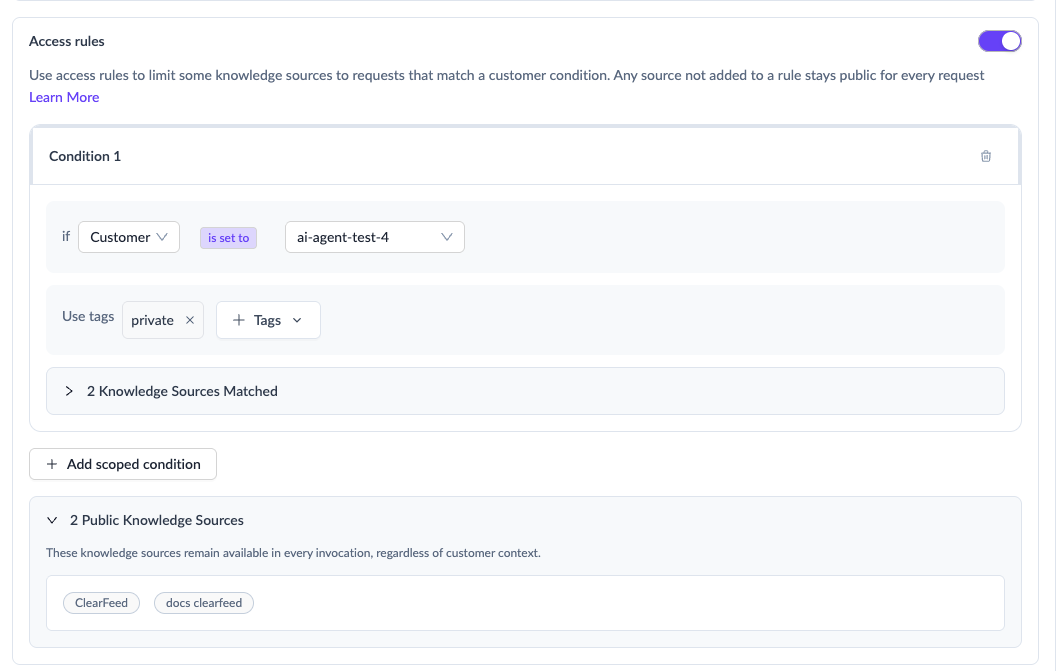
ClearFeed lets you restrict specific Knowledge Sources linked to an AI Agent so they are available only for customers who match defined customer conditions.
This is useful when the same AI Agent serves multiple customer segments, but some documentation should only be used for a subset of customers.
You can add multiple customer conditions and map each condition to one or more Knowledge Source tags.
**How it works**
* Knowledge Sources that are **not mapped to any customer condition** remain **public** for that AI Agent
* Knowledge Sources mapped to a customer condition are available **only when the invoking customer matches that condition**
* If a Knowledge Source matches multiple conditions, the customer only needs to satisfy **one** of those conditions to access it
* At invocation time, ClearFeed first determines the customer tied to the request and evaluates that customer's properties before deciding which Knowledge Sources the AI Agent can use
Configuring customer conditions for Knowledge Source access
**Example**
Assume your AI Agent has access to these Knowledge Sources:
* `General Help Center` tagged `public-docs`
* `Enterprise Setup Guide` tagged `enterprise-docs`
* `Premium Success Playbooks` tagged `premium-docs`
You then configure these customer conditions:
* If `Customer = Acme Corp`, allow tag `enterprise-docs`
* If customer custom field `Plan = Premium`, allow tag `premium-docs`
At runtime:
* A customer with no matching condition can use only `General Help Center`
* A request from the customer `Acme Corp` can use `General Help Center` and `Enterprise Setup Guide`
* A customer on the `Premium` plan can use `General Help Center` and `Premium Success Playbooks`
**How Customer Conditions Work with Primary Knowledge Sources**
Primary Knowledge Source selection and customer-based access control work together in the following way:
1. Based on your **Primary Knowledge Source** tags, each selected Knowledge Source is classified as either **Primary** or **Secondary**
2. At invocation time, ClearFeed uses the customer's properties to determine which Knowledge Sources of the AI Agent the customer can access
3. Within that accessible set, some Knowledge Sources will be **Primary** and others will be **Secondary** based on your configuration of the **Primary Knowledge Source** tags
{% hint style="info" %}
If you want a specific Knowledge Source to not appear in References, this can be configured for your AI Agent. There is currently no UI setting for this, so please reach out to us to get it set up.
{% endhint %}
#### Advanced Knowledge Source Configuration
**Answer Agents Only**
These settings control how Knowledge Sources are used when generating answers. They apply only to Answer Agents used as **Virtual Agents** or **Agent Assistants** at the collection level.
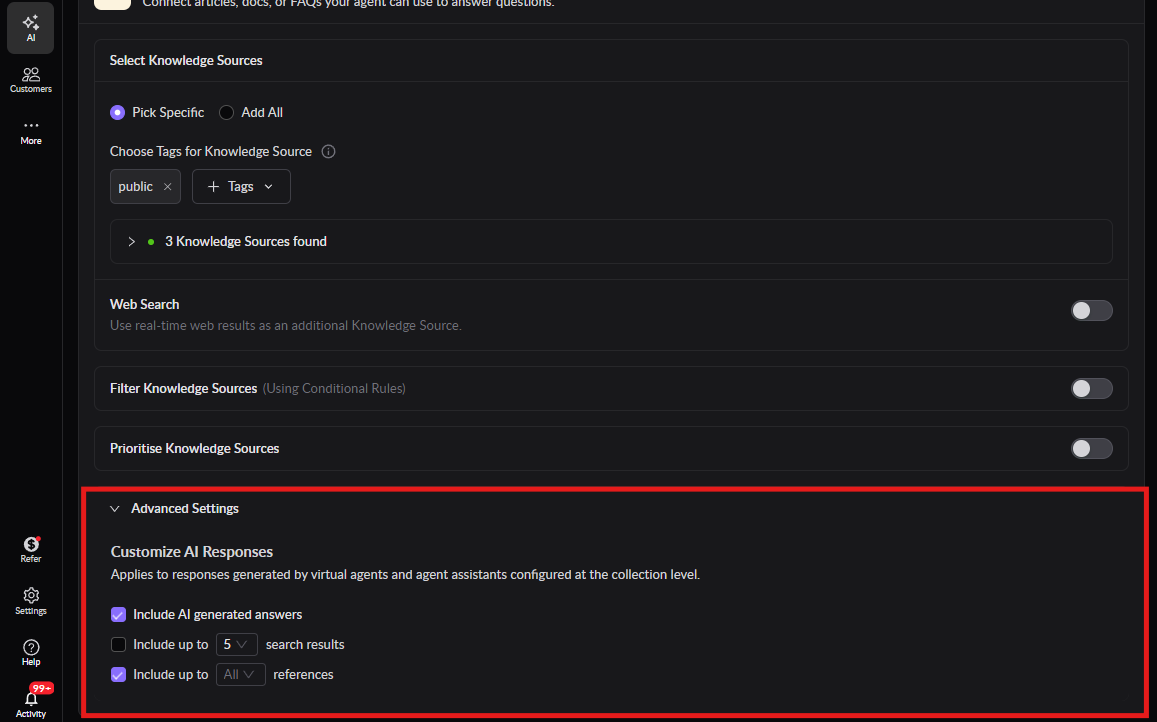
#### Customize AI Responses
* **Display AI-Generated Answers:** Choose whether AI-generated responses are shown.
* **Share Search Results:** Display relevant search results alongside the answer and configure how many results to show.
* **Share References:** Display documentation references used to generate the answer and configure how many references to show (up to 6).
* **Exclude Certain Knowledge Sources from References:** Contact ClearFeed Support and provide a list of Knowledge Source tags to exclude. URLs from these sources will be hidden from the final references list, but the AI Agent can still use them to generate answers.
**Example use case:** Your AI Agent uses both public help docs and internal runbooks to answer questions. End users should not access internal runbooks, so those sources are excluded from the references list while still being used for answer generation.
### Configure Web Search
Allow your agent to use real-time web search to find current information from the web. Web Search can be used on its own or in combination with Knowledge Sources and Integrations. Web Search can be enabled as the only information source for an Answer Agent.
### Understand Images in Conversations
**Answer Agents Only**
Answer Agents can read images posted in Slack conversations and use them as part of the conversation context.
This helps the agent understand:
* Error messages and banners shown in screenshots
* Visible IDs, URLs, and other troubleshooting details
* The screen or workflow the user is referring to
This is especially useful when users report issues by sharing screenshots instead of describing the problem fully in text.
### Integrations
**Answer Agents Only**
Answer Agents can connect to external systems to perform actions.
#### Supported Integrations
* Jira
* Zendesk
* HubSpot
* GitHub
#### Integration Permissions
Under **Advanced Settings**, control what the agent is allowed to do for each integration:
* Grant specific permissions manually
* Allow only current permissions
* Enable all current and future permissions
By default, all current and future permissions are enabled. This can be customized at any time.
#### Restricted Mode
**Answer Agents Only**
Restricted Mode prevents unauthorized access to employee data by ensuring that AI Agents can only act on behalf of the user who is interacting with them.
When **Restricted Mode** is enabled for an integration:
* **User identity is enforced** — All actions are performed only on behalf of the authenticated user making the request
* **Actions are scoped to the requesting user** — Operations like viewing employee details, requesting time off, or updating information apply only to that user's own data
* **Global listing tools are disabled** — Tools that list all employees or allow browsing other users' information are automatically blocked to prevent data leakage
* **Knowledge Bases and Web Search continue to work** — These information sources operate normally and are not affected by Restricted Mode
**Use Case**
Restricted Mode is particularly valuable for HR and employee management integrations such as:
* **BambooHR** — Available now
* **Okta** — Available now
Without Restricted Mode, a user could potentially ask the AI Agent to view or modify another employee's information. With Restricted Mode enabled, the Agent will refuse any request that attempts to access data belonging to someone other than the requesting user.
**Example Behavior**
*Without Restricted Mode:*
> User: "What is John Smith's salary?" Agent: *Provides John Smith's salary information*
*With Restricted Mode:*
> User: "What is John Smith's salary?" Agent: "I can only provide information about your own profile. I cannot access other employees' data."
> User: "Show me my time-off balance" Agent: *Displays the requesting user's own time-off balance*
{% hint style="warning" %}
**Important:** Restricted Mode must be configured per integration. Contact ClearFeed Support to enable Restricted Mode for your supported integrations.
{% endhint %}
### Provide Instructions for the AI Agent
Both agent types support instructions, but they serve different purposes.
### Doc Updater Agent Instructions
Doc Updater Agents use instructions to control **how documentation gaps are identified and reported**. They do not answer end-user questions or perform actions.
#### Instruction Structure
* **Helpdesk Context**\
Defines the scope and nature of the helpdesk conversations.
* **Response Style**\
Controls how suggestions are presented (concise, actionable, bullet-based).
* **Documentation Update Rules**\
Defines what the agent is allowed to suggest (for example, only stable and released features).
These rules ensure the agent produces safe, implementation-ready recommendations.
### Answer Agent Instructions
Answer Agent instructions define **how the agent reasons, uses tools, and generates responses**.
#### Instruction Structure
* **Agent Role:** The Agent Role defines the agent’s core responsibility and operating boundaries. It sets the foundation for how the agent interprets queries, selects tools, and responds. It should clearly state:
* What the agent is responsible for
* How it should behave at a high level
* Whether it must rely on tools or can answer directly
* **Restricted Queries:** Specify queries the agent must never answer to avoid sensitive or non-permissible responses. When detected, the agent skips responding.\
**Examples:**
* System credentials
* Admin access
* Salary or compensation data
* **Planning and Execution Instructions:** Define how the agent plans and executes tasks, including:
* When tools must be used
* How multiple tools should be sequenced
* When execution should stop due to insufficient data
* **Response Generation Instructions:** Control tone, language, formatting, and fallback behavior.
* **Tone and Length:** Clear, concise, and aligned with your brand
* **Language:** By default, respond in the same language as the query
* **Knowledge Lookup & Fallback:** If relevant information is found, generate a response. If not, return a fallback message.
{% hint style="info" %}
You can include placeholders in the Instructions to add context:
* **Tool placeholders** (Jira, GitHub, Zendesk)
* **Conversation analysis** using `{{chat_analysis.process_chat}}`
{% endhint %}
#### Improve Prompt (AI-Assisted)
The **Improve Prompt** option refines simple or incomplete instructions into a structured, production-ready prompt.
* Available for new and existing agents
* Disabled once improved
* Re-enabled only if instructions change
### Select AI Model
ClearFeed lets you choose the AI model provider and a specific model for each Answer Agent. The selected provider and model are used when the agent generates responses from Knowledge Sources. Note this section only applies for customers who are not using [Bring Your Own Model](https://docs.clearfeed.ai/clearfeed-help-center/clearfeed-ai/ai-agents/bring-your-own-model) mode.
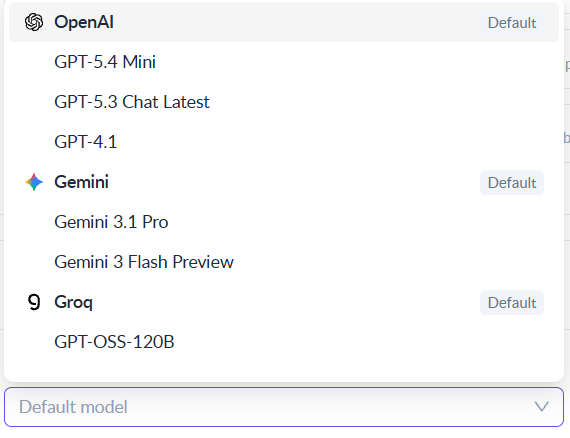
#### Supported Providers and Models (and some notes for each)
The number of AI models in the market can be confusing. Cost, Latency and Accuracy are tradeoffs. Expensive models can be more accurate, but also very slow. ClearFeed provides a selected subset of models from different providers that give users good choice over latency and quality at a reasonable cost. ClearFeed also has DPAs and no logging settings with each of these providers - that assure that your data stays secure and is not used for training AI models.
Below are the list of models currently available in ClearFeed:
* [OpenAI](https://openai.com): Models from OpenAI, with OpenAI as the inference platform. Available models:
* `GPT-4.1`: old workhorse, with medium speed and quality.
* `GPT-5.4 mini`: newer OpenAI upgrade equivalent to GPT-4.1 - also with medium speed & quality but lower cost.
* `GPT-5.3-chat-latest`: newer OpenAI router model - lower speed, but higher quality than above two for chatbot applications.
* [Groq](https://groq.com): Open Weights Models, with Groq as the inference platform.
* `GPT-OSS-120B`: Open-Weight model from OpenAI. Very fast, but lower accuracy and quality. Well suited for use cases where lower latency is important and questions and knowledge are simple in nature.
* [Gemini](https://deepmind.google/technologies/gemini/): Gemini models from Google, also using Google Cloud as the inference platform.
* `Gemini-3-flash-preview`: similar to `GPT-5.4-mini` - with medium speed and quality.
* `Gemini-3.1-pro`: similar to `GPT-5.3-chat-latest` with lower speed and higher quality.
Selecting the AI model provider and model for an Answer Agent
By default, new AI Agents in ClearFeed come pre-configured with `GPT-OSS-120B` model from Groq to give a fast out-of-the-box experience. Users are advised to try one of the other models if quality of answers is unsatisfactory with Groq. To compare the performance of individual models, you can look them up on the [Artificial Analysis](https://artificialanalysis.ai/) site — for example, the [GPT-5.4 mini model card](https://artificialanalysis.ai/models/gpt-5-4-mini-medium).
{% hint style="info" %}
**Note:**
* **Reasoning Effort:** All models listed above are thinking models, except for `GPT-4.1`. For these models, ClearFeed defaults to the **medium** reasoning effort. The reasoning effort is not currently configurable by the user.
* **Model Coverage:** If you need a model not listed in the dropdown, contact ClearFeed Support. We are continuously evaluating and adding new providers and models.
{% endhint %}
#### How AI Agents use models internally
AI Agents in ClearFeed use multiple AI models across different providers for different tasks. For example, when we consider individual components of the AI Agent's overall execution:
1. Detecting whether a query should not be answered
2. Finding whether a query has a pre-defined response in the prompt
3. Picking what API calls to make (in case integrations are configured)
4. Generating an answer from Knowledge Sources
5. Reformulating answers based on Agent instructions
all of these can be executed using different AI models (since their complexity differs). However - Step-3 is what takes the most time and where the model choice has a big impact on latency and accuracy. This is controlled by the model chosen by the user in the "[Select AI Model](#select-ai-model)" as described above. Model selection for other phases of the execution - like the ones shown above - are made internally by ClearFeed keeping the complexity and latency requirements in consideration.
Note that AI models used internally by ClearFeed are drawn from the same providers (Groq, OpenAI and Gemini), but may use an expanded set of models from these providers.
### Customize Look and Feel
**Answer Agents Only**
Customize how the agent appears when it posts public responses in supported channels:
* Display Name
* Profile Photo (image URL)
* Description for internal clarity
## Testing Your Agent
Testing helps validate behavior before enabling agents in production.
### Testing an Answer Agent
Answer Agents support **both chat-based and ticket/request-based testing**.
#### Chat-Based Testing
* Simulate conversations
* Review responses
* Inspect the **Execution Plan**, including tools, steps, and references
#### Ticket / Request-Based Testing
* Test against existing tickets or requests
* Validate behavior when ticket context and fields are present
* Mirror real Virtual Agent and Agent Assistant usage
### Testing a Doc Updater Agent
Doc Updater Agents can be tested **only against tickets or requests**.
* Select an existing ticket or request
* Review documentation improvement suggestions
## FAQs
1. **What’s the difference between selecting a provider/model and BYOM?**\
**Answer:**
* **Selecting a model provider or model**
* You choose a ClearFeed-managed provider default or an available model for an Answer Agent
* Requests use **ClearFeed-managed credentials** for that provider/model
* **Bring Your Own Model (BYOM)**
* You add your **own API key**
* Requests are routed to **your organization’s account**
2. **Which setting takes precedence: BYOM or provider/model selection?**\
**Answer:** If BYOM is configured, it **always overrides** the provider chosen in the agent — all requests use the BYOM provider and credentials. Within that provider, the model dropdown still applies: if you have selected a specific model, ClearFeed uses it for Gold tier (Knowledge Source response generation); otherwise ClearFeed uses the provider's default Gold tier model.
3. **Can different Answer Agents use different providers or models?**\
**Answer:** Yes. Provider and model selection is **per Answer Agent.** Multiple Answer Agents in the same workspace can use different providers or models, depending on the options available in that workspace.
4. **Will switching providers or models change my agent’s behavior?**\
**Answer:** Yes. Different providers and models may vary in response quality, latency, style, and verbosity. We recommend testing a few sample questions before using a new provider or model in production.
5. **How can I prevent the AI Agent from showing search results or references, so it only provides the answer?**\
**Answer:** You can control this in the Agent Studio when configuring your AI Agent:
* Navigate to **AI > Agent Studio**
* Select your AI Agent and go to the **Add Knowledge Sources** section at the top
* Click on **Advanced Settings**
* Under **Customize AI Responses**, disable the following options:
* **Share Search Results** — Turn off to hide search results from the answer
* **Share References** — Turn off to hide documentation references from the answer
* Click **Publish** to apply the changes



%20(3).png?alt=media)


%20(4).png?alt=media)