# Triage Channel Setup

## Overview

This guide covers how to set up, configure, and manage Triage Channels in ClearFeed. For information on how to use triage channels as an agent, see [Triage Channel](https://docs.clearfeed.ai/clearfeed-help-center/managing-requests/triage-channel).

## What is a Triage Channel?

Triage Channels are dedicated Slack channels powered by ClearFeed that serve as your team's central command center. They enable agents to efficiently manage, respond to, and track requests and tickets originating from various sources, including Slack, MS Teams, Email, Portal, Web Chat, and API.

### Key Capabilities

Agents can perform the following operations directly from a Triage Channel:

* **Reply to requests** across Slack and other integrated channels with bidirectional sync
* **Manage request properties** such as Status, Priority, Assignee, and Custom Field
* **Access data** submitted by requestors through forms
* **Create or link tickets/tasks** to external systems like Jira, GitHub, or Linear

## Triage Channel Settings

When setting up or managing a Triage Channel, you will configure several settings that control its behavior, visibility, and notifications. Below is an explanation of each configuration option:

### Triage Mode

Configure which type of Requests will be shown in this specific Triage Channel.

* **All Requests:** The channel will show all requests directed to the associated collections
* **Only Requests with linked tickets:** The channel will only show requests that have been\
  linked to an external ticket (e.g., in Jira or Zendesk) or a ticket has been created in ClearFeed

<figure><img src="https://3455705434-files.gitbook.io/~/files/v0/b/gitbook-x-prod.appspot.com/o/spaces%2FE2O2wTaNovd6fXpEuLKz%2Fuploads%2Fgit-blob-a3f3dd28f9418899c889f7198c6b8a234aeab5db%2Fimage%20(9)%20(1).png?alt=media" alt="" width="563"><figcaption><p>Triage Mode</p></figcaption></figure>

### Triage Comment Visibility

This setting controls which replies from your team's internal discussions within the Triage Channel are visible to the original requestor on the external channel (like the original Slack thread or email).

* **Public:** All comments from the Triage Channel will be synced to the request channel, *except* for those prefixed with a 🔒 emoji. These 🔒 comments remain internal to the Triage Channel.
* **Private:** By default, no comments from the Triage Channel will be synced to the request channel, *except* for those prefixed with a 📢 emoji. These 📢 comments will be explicitly synced externally.

<figure><img src="https://3455705434-files.gitbook.io/~/files/v0/b/gitbook-x-prod.appspot.com/o/spaces%2FE2O2wTaNovd6fXpEuLKz%2Fuploads%2Fgit-blob-20e7d0b446adb8a0361de51aedcba96b8a9b85be%2Fimage%20(7)%20(1).png?alt=media" alt="" width="563"><figcaption><p>Triage Comment Visibility Option</p></figcaption></figure>

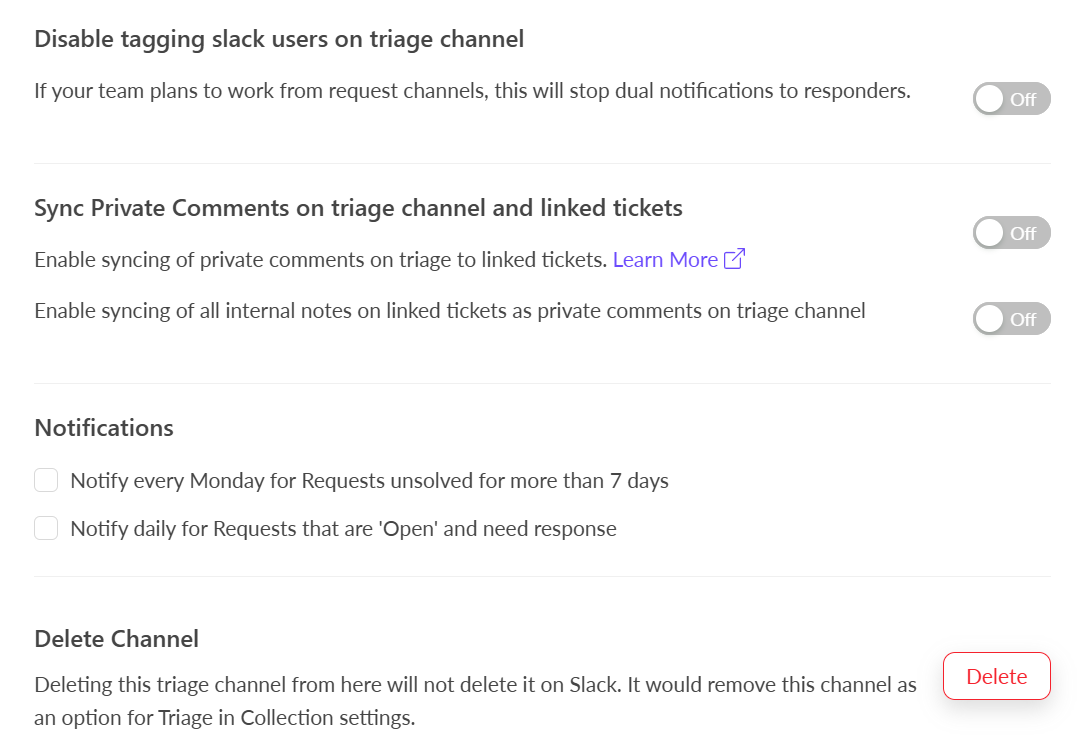
### Disable Tagging Slack Users on Triage Channel

Enable this option to prevent users from being tagged in triage channels. This helps avoid duplicate notifications when a user is already tagged in the original request channel.

<figure><img src="https://3455705434-files.gitbook.io/~/files/v0/b/gitbook-x-prod.appspot.com/o/spaces%2FE2O2wTaNovd6fXpEuLKz%2Fuploads%2Fgit-blob-93c8657c0ee03e6b26fd4b6c73c5c60d9d653ac2%2Fimage%20(10).png?alt=media" alt="" width="563"><figcaption><p>Disable Tagging</p></figcaption></figure>

### Sync Private Comments on Triage Channel and Linked Tickets

Configure whether Private (🔒) comments from the Triage Channel are synced to the linked ticketing system and whether internal notes from the ticketing system are synced back to the Triage Channel.

* Choose whether to sync all private comments from the Triage Channel to the linked ticketing system or push only the private comments that have been reacted with :pencil: emoji
* Choose whether to sync all internal notes from linked tickets as private comments on the Triage Channel

<figure><img src="https://3455705434-files.gitbook.io/~/files/v0/b/gitbook-x-prod.appspot.com/o/spaces%2FE2O2wTaNovd6fXpEuLKz%2Fuploads%2Fgit-blob-c0b603ea69ed5f575fdb58894735415b3ee32202%2Fimage%20(11).png?alt=media" alt="Sync Private Comment Option" width="563"><figcaption><p>Sync Private Comment Option</p></figcaption></figure>

<figure><img src="https://3455705434-files.gitbook.io/~/files/v0/b/gitbook-x-prod.appspot.com/o/spaces%2FE2O2wTaNovd6fXpEuLKz%2Fuploads%2Fgit-blob-770b5fad37a1638b98f42e591013f2d58708c92f%2Fimage%20(12).png?alt=media" alt="" width="563"><figcaption><p>How private messages from Slack are synced to the ticketing system (Zendesk)</p></figcaption></figure>

{% hint style="warning" %}
Currently, syncing internal notes from ticketing systems to the Triage Channel is only supported for Freshdesk (as private notes) and Zendesk (as internal comments)
{% endhint %}

### Notifications

Triage notifications provide reminders about Open and Unsolved items, highlighting those with High priority, directly within the Triage Channel. ClearFeed sends two types of digests:

* **Daily Digest:** Notifies daily for Requests that are 'Open' and require attention
* **Weekly Digest:** Notifies every Monday for unsolved Requests from the last month up to the most recent week

<figure><img src="https://3455705434-files.gitbook.io/~/files/v0/b/gitbook-x-prod.appspot.com/o/spaces%2FE2O2wTaNovd6fXpEuLKz%2Fuploads%2Fgit-blob-477672566002b32038fe129f6a09edb9dff536ca%2Fimage%20(13).png?alt=media" alt="" width="560"><figcaption></figcaption></figure>

## Setting Up a Triage Channel

You can set up a Slack Channel as a Triage Channel in ClearFeed either from the ClearFeed WebApp or directly from Slack.

### From ClearFeed WebApp

* Navigate to **Settings > Triage Settings**
* Click **"Create new Triage Channel"**
* You have two options:
  * Select **"Create new Channel"** to create a new channel in your Slack Workspace and set it as Triage
  * Select **"Select existing"** to designate an existing Slack channel as a Triage Channel
* Configure the Triage Settings for the new channel (refer to the [Triage Channel Settings section](#triage-channel-settings)\
  above for details on each option)
* Click **Save**

<figure><img src="https://3455705434-files.gitbook.io/~/files/v0/b/gitbook-x-prod.appspot.com/o/spaces%2FE2O2wTaNovd6fXpEuLKz%2Fuploads%2Fgit-blob-05ecc2b904d26f27266004acb8e752ffdca2e79c%2FCreating%20a%20triage%20through%20triage%20settings%20(1).gif?alt=media" alt="" width="563"><figcaption></figcaption></figure>

### From Slack

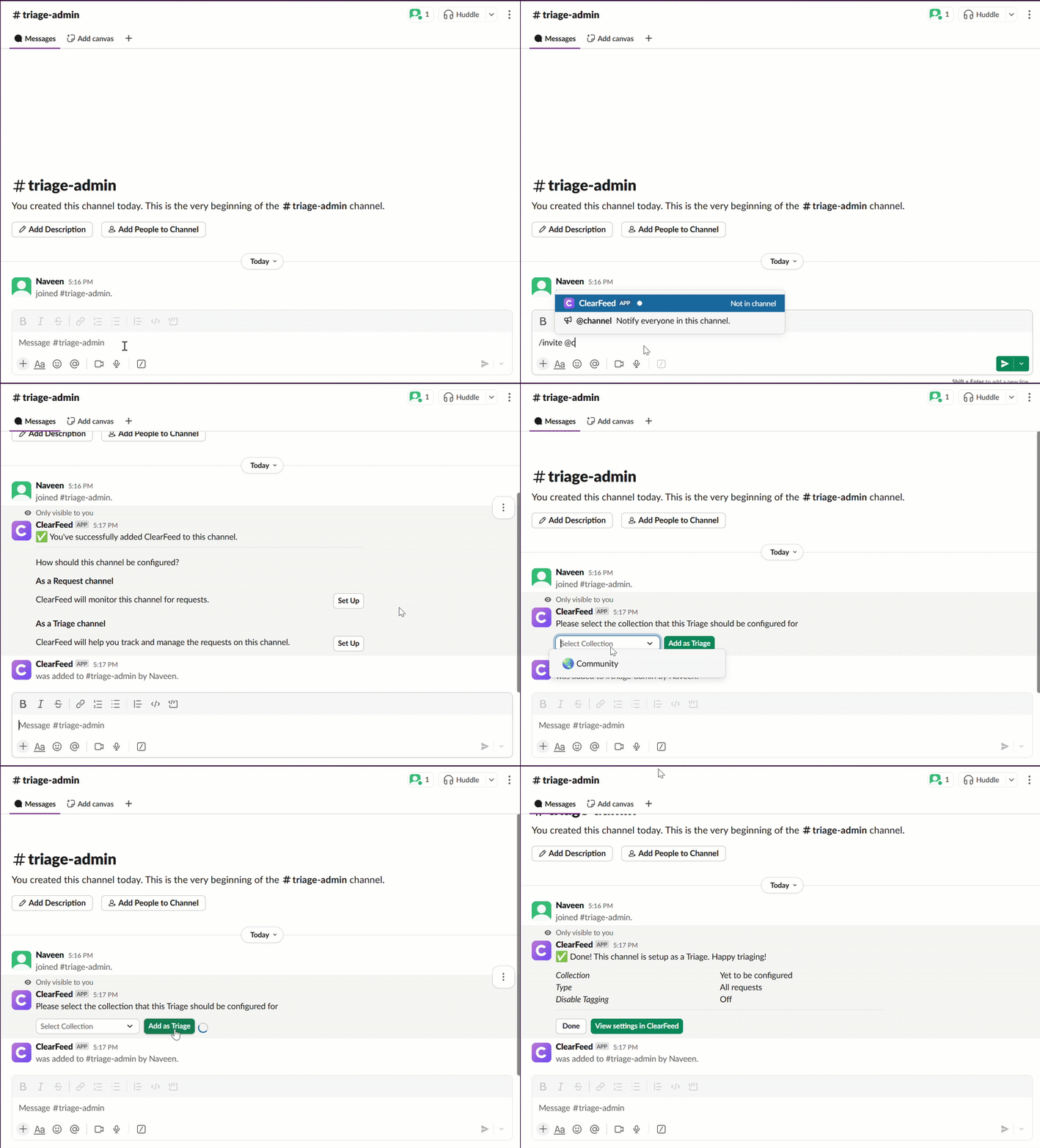
* Go to Slack and open the channel you wish to use as a Triage Channel
* Add the ClearFeed bot by typing `/invite @ClearFeed` and pressing Enter
* ClearFeed will send a message asking how you want to configure the channel. Select the option to configure the channel **As a Triage Channel**
* *Optional:* Select the Collections to which you want to associate this Triage Channel. (Note: In the dropdown, you will only see Collections that do not currently have a Triage Channel linked to them.)
* Click on **Add as Triage**

<figure><img src="https://3455705434-files.gitbook.io/~/files/v0/b/gitbook-x-prod.appspot.com/o/spaces%2FE2O2wTaNovd6fXpEuLKz%2Fuploads%2Fgit-blob-66920b6f05c9ef64576ab199b0c1b87a1c55c7f0%2Fezgif-2ff9339fe57df4.gif?alt=media" alt="" width="563"><figcaption></figcaption></figure>

{% hint style="info" %}

* In the Select Collection dropdown, you will only see the Collections that do not have a triage linked to them
* The initial setup from Slack provides basic configuration. For detailed settings options like Comment Visibility, Sync settings, and Notifications, you must navigate to the Triage Settings in the ClearFeed WebApp after creation
  {% endhint %}

## Managing Triage Channel Settings

You can modify the configuration of an existing Triage Channel at any time via the ClearFeed WebApp.

* Navigate to **Settings > Triage Settings** in the ClearFeed WebApp
* Find the Triage Channel whose settings you want to change and click the **Edit** button next to it
* This will open the configuration drawer, showing the same settings available during creation
* Modify the desired settings. For a detailed explanation of each option, refer to the [Triage Channel Settings section](#triage-channel-settings) above
* Click **Save** to apply your changes

### Deleting a Triage Channel

If you no longer require a Slack channel to function as a Triage Channel in ClearFeed, you can remove this designation by following these steps:

* Navigate to **Triage Settings** in the ClearFeed WebApp
* Find the Triage Channel you wish to delete and click the **Edit** button next to it
* The channel's configuration details will open. Scroll down to the bottom of the page
* Click the **Delete** button to remove the channel as a Triage Channel in ClearFeed

<figure><img src="https://3455705434-files.gitbook.io/~/files/v0/b/gitbook-x-prod.appspot.com/o/spaces%2FE2O2wTaNovd6fXpEuLKz%2Fuploads%2Fgit-blob-2eb80458af9d70d9e89a07e2ab9a5a769662d06f%2FScreenshot%202025-05-15%20104944.png?alt=media" alt="" width="563"><figcaption></figcaption></figure>

{% hint style="danger" %}

* A Triage Channel cannot be deleted if it is still associated with any collections. Please detach it from all linked collections before attempting deletion
* Deleting a Triage Channel from ClearFeed only removes the Triage Channel configuration from ClearFeed, it does not delete or archive the channel itself on Slack
  {% endhint %}

## Triage Message Configuration

Triage Message Configuration lets admins control **which fields and action buttons appear in Slack triage messages** for requests and tickets.

<figure><img src="https://3455705434-files.gitbook.io/~/files/v0/b/gitbook-x-prod.appspot.com/o/spaces%2FE2O2wTaNovd6fXpEuLKz%2Fuploads%2Fmyk6HA0f9XzVssKEwihd%2Fimage.png?alt=media&#x26;token=7c867966-4ed5-4473-8342-26c2a9379afd" alt="" width="563"><figcaption><p>Triage Message</p></figcaption></figure>

The system automatically shows only the fields and actions that are **relevant in the current context**, so even if something is enabled in settings, it may not appear if it doesn’t apply.

### How visibility works

Triage messages use a **two-layer visibility model**:

1. **Configuration (Admin-controlled)**\
   You choose which fields and actions are enabled from the Triage settings screen.
2. **Context-based rules (System-controlled)**\
   ClearFeed evaluates the request or ticket context at runtime (for example: request vs ticket, email vs Slack, assignment state, AI availability).

A field or action appears **only if both layers allow it**.

### What you can configure

<figure><img src="https://3455705434-files.gitbook.io/~/files/v0/b/gitbook-x-prod.appspot.com/o/spaces%2FE2O2wTaNovd6fXpEuLKz%2Fuploads%2FwF8OBOQNMTndmPcRW3ZY%2Fimage.png?alt=media&#x26;token=bd7c5b28-b80e-45de-8fb4-38d377c03a26" alt="" width="563"><figcaption></figcaption></figure>

Go to **Settings → Triage Settings  →Message Configuration** to configure the Request/Ticket Fields and Customer Fields (for External Product Edition).

#### Configure fields

* Enable or disable:
  * Standard fields (for requests, tickets, and customers)
  * Custom fields (story or customer custom fields)
* Control which fields appear in triage messages when applicable

#### Configure actions

* Enable or disable supported triage actions such as:
  * Take It
  * Mark as Solved
  * Not a Request
  * ClearBot Assist
  * Reopen, Close, Delete Email, and more

### What is not configurable

Some fields and actions are **always shown when applicable** and cannot be disabled.

#### Always-shown fields

These fields appear automatically when relevant:

* **Status**
* **Linked Parent Ticket** (when a parent exists)
* **Linked ClearFeed Tickets** (when child tickets exist)
* **From** (for email requests only, the email address for which request is created)
* **CC** (CC recipients in the email request)
* **To** (All recipient email addresses in the *To* field when email is sent to the support address)

#### Always-shown actions

* **Edit**

These are core to triage behavior and cannot be hidden.

### When fields appear

Even if a field is enabled in settings, it is shown **only when relevant**.

#### Request & ticket fields

| Field                | When it appears                                     |
| -------------------- | --------------------------------------------------- |
| Assignee             | Always shown (shows *Unassigned* if empty)          |
| Assigned Team        | Only if team assignment is enabled                  |
| Priority             | Always applicable                                   |
| Form Name            | Tickets only, and only if more than one form exists |
| Request Channel      | Non-email, non-webchat requests                     |
| Create Form Fields   | Tickets with non-empty form fields                  |
| Edit Form Fields     | Tickets where fields were edited                    |
| Other Linked Tickets | When external linked tickets exist                  |
| Story Custom Fields  | Only enabled fields with values                     |

#### Email-specific fields

| Field | When it appears                         |
| ----- | --------------------------------------- |
| From  | Email-based requests only               |
| CC    | Email-based requests with CC recipients |

#### Customer-related fields

| Field                  | When it appears                |
| ---------------------- | ------------------------------ |
| Customer Name          | When a customer is associated  |
| Customer Owner         | When the customer has an owner |
| Customer Domains       | When domains exist             |
| Customer Custom Fields | Enabled fields with values     |

### When actions appear

Actions are shown only when they make sense for the current state.

<table><thead><tr><th width="224">Action</th><th>When it appears</th></tr></thead><tbody><tr><td>Take It</td><td>Unassigned and not solved/closed</td></tr><tr><td>Mark as Solved</td><td>Assigned and not solved/closed</td></tr><tr><td>Reopen</td><td>Solved tickets</td></tr><tr><td>Mark as Closed</td><td>Solved tickets</td></tr><tr><td>Not a Request</td><td>Non-email requests (if enabled)</td></tr><tr><td>Delete Email</td><td>Email requests (if allowed)</td></tr><tr><td>ClearBot Assist</td><td>AI is enabled for the account</td></tr><tr><td>Unlink Ticket</td><td>When a transferred/linked ticket exists</td></tr><tr><td>More Actions</td><td>Always available</td></tr></tbody></table>

### Important notes

* Disabling a field or action **does not override system rules**
* If a field has no value, it will not appear even if enabled
* Email-only fields never appear for Slack or Web Chat requests
* Customer fields appear only when a customer is linked

## Managing or Turning Off the Triage Channel

ClearFeed offers two ways to reduce noise from Triage Channels — you can either **mute** the channel to stop notifications or **turn off** the Triage Channel completely.

### **Option 1: Reduce Notifications (Recommended)**

If you want to keep the Triage Channel active but reduce interruptions:

* **Mute the channel** directly in Slack.
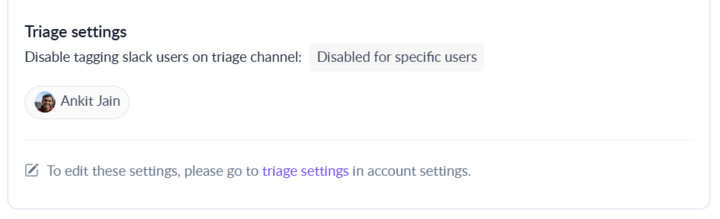
* **Disable tagging** for all or specific users from **Collection Settings → Triage Channel** in the ClearFeed Web App.

This way, you can still access the Triage Channel anytime to view all customer conversations in one place, without receiving alerts or mentions.\\

<figure><img src="https://3455705434-files.gitbook.io/~/files/v0/b/gitbook-x-prod.appspot.com/o/spaces%2FE2O2wTaNovd6fXpEuLKz%2Fuploads%2Fgit-blob-1bae34c5661fd5e15eb6efec5537fed0cea266c3%2Fimage.png?alt=media" alt="" width="540"><figcaption></figcaption></figure>

### **Option 2: Turn Off the Triage Channel Completely**

To stop syncing new requests to the Triage Channel:

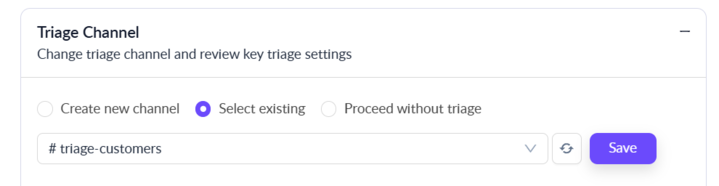
1. Go to the **ClearFeed Web App → Inbox**.
2. Click on the **Collection** for which you want to disable the Triage Channel.
3. In the top right corner, open the **Settings** tab.
4. Scroll to the section titled **Triage Channel**.
5. Select **Proceed without Triage** and **Save** your changes.

Once saved, new requests will **no longer be synced** to the Triage Channel.\\

<figure><img src="https://3455705434-files.gitbook.io/~/files/v0/b/gitbook-x-prod.appspot.com/o/spaces%2FE2O2wTaNovd6fXpEuLKz%2Fuploads%2Fgit-blob-a689947f0dc46c919afe5f4c0cb3a021d0b1ddfe%2Fimage.png?alt=media" alt="" width="539"><figcaption></figcaption></figure>

## FAQs

1. **Does renaming the triage channel take effect in the ClearFeed WebApp? Will it break anything?**\
   **Answer:** Yes, shortly after updating the name, it should start showing up on the dashboard. Renaming the triage channel in Slack (by a Workspace Admin) is fully supported and will not break or disrupt any ClearFeed functionality. All existing requests and workflows will continue to work as expected.
2. **Can I have multiple triage channels for the same collection?**\
   **Answer:** No, each collection can have only one triage channel associated with it.
3. **What happens to existing requests in the triage channel if I change the Triage Mode setting?**\
   **Answer:** Changing the Triage Mode setting only affects new requests going forward. Existing requests in the channel remain visible.
4. **Can I use a private Slack channel as a triage channel?**\
   **Answer:** Yes, both public and private Slack channels can be configured as triage channels. However, ensure that all relevant team members have access to the private channel.