# AI Fields

ClearFeed’s **AI Fields** are intelligent, auto-filled fields populated by AI. They enable extracting key details from support conversations - such as request category, urgency, or sentiment - and populate them using AI without manual effort.

Traditionally, categorizing or tagging support requests has been manual and error-prone. As support volumes grow, this becomes inefficient. **AI Fields eliminate that burden**, improving speed, consistency, and visibility across your support workflows.

## Use Cases

With AI Fields, your team can:

* Tag tickets with AI populated fields
* Surface such fields during ticket handling for faster triage and resolution
* Perform analytics on historical tickets using AI populated fields
* Use AI populated fields to drive ticket routing and escalations

Note that AI classifications may not be 100% accurate in every case.

## Types of AI Fields

ClearFeed supports **three types of AI Fields**:

1. **Custom Field-Based AI Fields:** You define custom fields for ticket, and give AI instructions to auto-populate them.
2. **Automation Action AI Fields:** Temporary fields calculated using AI available within an Automation.
3. **System-Defined AI Fields:** Prebuilt AI fields automatically populated by ClearFeed, no setup required.

## 1. **Custom Field-Based AI Fields**

You can create your own custom fields (that are part of the ticket/request schema) and configure AI to populate them automatically. This is useful when you want structured data to be populated into ticket fields - both for immediate use while triaging the ticket and for longer term analytics.

### How to Set It Up <a href="#how-to-set-up-custom-ai-fields" id="how-to-set-up-custom-ai-fields"></a>

1. **Create a Custom Field**
   * Go to **Forms**, pick **ClearFeed Ticketing**, pick **Fields** tab → **Create New Field**.
   * Choose the field type (Text, Single Select, or Multi Select) and define the options if its a *Select* type field.
   * **Add AI Description:** Describe the Field. Define its meaning, how it should be derived, and examples (both positive and negative) for each of it's possible values. This description helps AI compute the field. The more comprehensive and precise the instructions, the more accurate the AI computation.

     <figure><img src="https://3455705434-files.gitbook.io/~/files/v0/b/gitbook-x-prod.appspot.com/o/spaces%2FE2O2wTaNovd6fXpEuLKz%2Fuploads%2Fgit-blob-7fd6b180433a5ea4069b508871ae955fe5071808%2Fimage%20(2)%20(1).png?alt=media" alt="" width="563"><figcaption></figcaption></figure>
   * **Save the Field**
2. **Set Up an Automation**
   * Go to **Automations → Create New Automation**.
   * Add a **Trigger** (for example when a ticket is created or closed).
   * Optionally configure additional **conditions** and **delays** as needed in the Automation Builder.
   * Add an action → **Auto-fill Fields**.

     <figure><img src="https://3455705434-files.gitbook.io/~/files/v0/b/gitbook-x-prod.appspot.com/o/spaces%2FE2O2wTaNovd6fXpEuLKz%2Fuploads%2Fgit-blob-7a7aeb80c539206052d2fe47eab3d705c52c7c7a%2Fimage%20(298).png?alt=media" alt="" width="563"><figcaption></figcaption></figure>
   * (Optonal) Customize the default **prompt** to guide AI. If the Custom Field has good AI description and examples for each value, this step can be skipped.
   * Select **Save to Custom Fields** as the output option and pick specific custom fields to auto-fill. These can be the same fields we created in Step 1. You can select multiple fields to be auto-filled.
3. **Test the Auto-Fill Action**

   * Expand the **Test Configuration** and test the auto-fill action against real tickets and requests.

   <figure><img src="https://3455705434-files.gitbook.io/~/files/v0/b/gitbook-x-prod.appspot.com/o/spaces%2FE2O2wTaNovd6fXpEuLKz%2Fuploads%2Fgit-blob-40f042fdad3deff51f93a7fade0f9311893afef9%2Fimage%20(299).png?alt=media" alt="" width="552"><figcaption></figcaption></figure>

{% hint style="info" %}
Learn more about [Automations](https://docs.clearfeed.ai/clearfeed-help-center/clearfeed-helpdesk/automations)
{% endhint %}

## 2. **Automation Action AI Fields**

These are very similar to Custom Fields - except they are temporary fields computed by AI Auto-Fill Action that are available subsequently during the execution of an automation. To create and populate such fields:

1. Use **Auto-fill Fields** automation action as described in the previous section on Custom-Field Based AI Fields.
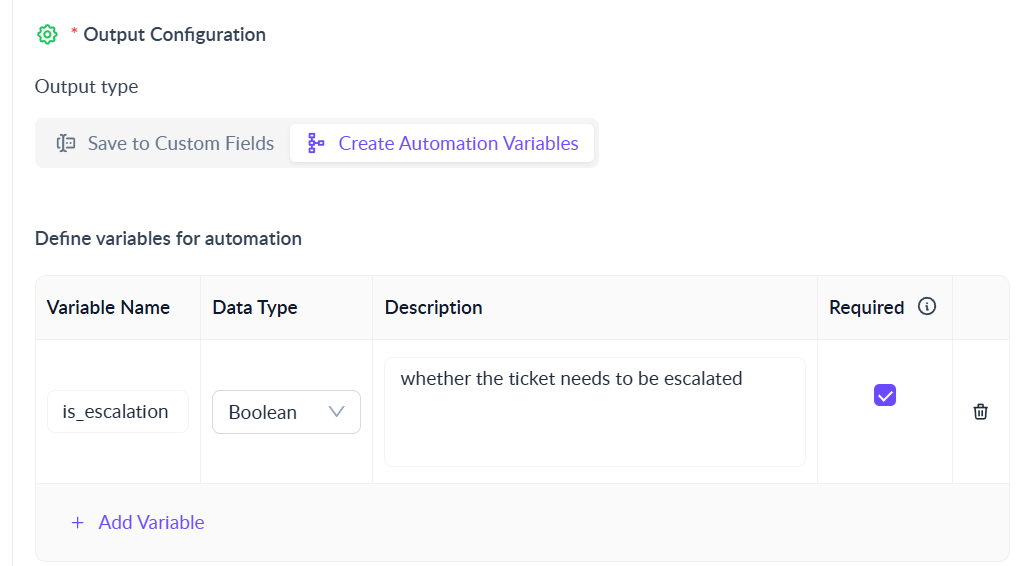
2. Instead of saving the output of AI to Custom Fields, pick **Create Automation Variable** output action.

   <figure><img src="https://3455705434-files.gitbook.io/~/files/v0/b/gitbook-x-prod.appspot.com/o/spaces%2FE2O2wTaNovd6fXpEuLKz%2Fuploads%2Fgit-blob-abb084259724d132ae31bd6610c1855f71e19cd5%2Fauto-fill-ai-field.png?alt=media" alt="" width="563"><figcaption></figcaption></figure>
3. Doing this will allow you to create Fields as part of the automation. These Fields are restricted to simple types (Text, Number and Boolean)
4. Fields populated by Auto-Fill Action can be used in subsequent Automation actions. For example - to use when defining conditions or to post to a webhook.

Single or Multi-Select Fields must be emulated using Text field type. Define all the possible values of the Text field, with examples, as part of the Auto-Fill Action prompt and instruct the AI on what value to emit based on the request content.

### Custom Field versus Automation Action AI Fields

* Use Custom Field AI Fields to store AI computed fields in a ticket persistently. Such fields are not just available for use within automation flows - but are also visible as part of the ticket to Agents. They can be used to filter tickets from the Webapp Dashboard, or to filter requests/tickets from the Insights module. Some examples of such custom fields:
  * Product Area
  * Sentiment
  * Order Number
* Use Automation Action AI Fields where the field is only required in the automation. For example, to create a ticket based on the urgency of a request - one may populate a temporary Automation Action AI Field (say *is\_important*) and use it as a condition subsequently before deciding whether a ticket should be filed or not.

### Improving AI Field Computation Accuracy

AI models may occasionally mis-populate AI fields. To improve accuracy for your AI-autofill automations:

* Test the Auto-Fill Action on real examples from your workspace before enabling them broadly.
* Refine AI Description (of the Custom Field) and/or Auto-Fill Action prompts to clearly define each value you expect (for example, what should count as Positive, Neutral, or Negative sentiment).
* Add concrete example scenarios for each value, including edge cases that the AI might otherwise miss.
* Improve the description and the prompt, Re-test and iterate on the instructions whenever you notice repeated misclassifications.

## 3. **System-Defined AI Fields**

ClearFeed also offers built-in AI Fields that require no configuration:

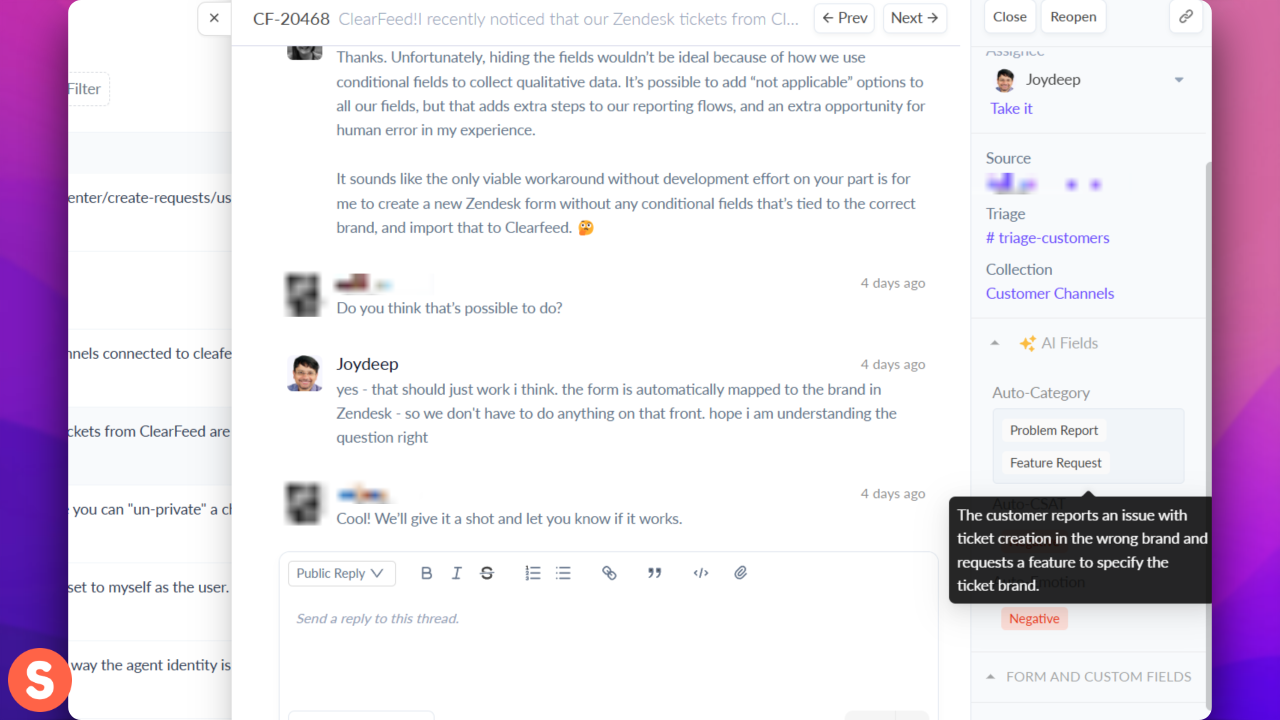
### **Auto-Category**

Automatically classifies requests into one or more of the following categories:

1. **Feature Requests**: Requests for new product features or enhancements to existing features.
2. **Bug**: Issues where the user reports a malfunction or error in the product.
3. **How to Question**: General queries from users on how to use the product or specific features.
4. **Problem Report**: Requests for reporting issues with a product or service that might not be a bug.
5. **Requests**: General requests from users to enable a feature or get some service.

{% hint style="success" %}
Each request may have multiple AI fields, meaning it could be tagged with more than one category based on the issue discussion.
{% endhint %}

<figure><img src="https://3455705434-files.gitbook.io/~/files/v0/b/gitbook-x-prod.appspot.com/o/spaces%2FE2O2wTaNovd6fXpEuLKz%2Fuploads%2Fgit-blob-bc86a6eec6446afe9efed34a53f2fe362c770957%2Fscreenrun-12-27-2024-16-44-24.png?alt=media" alt="" width="563"><figcaption></figcaption></figure>

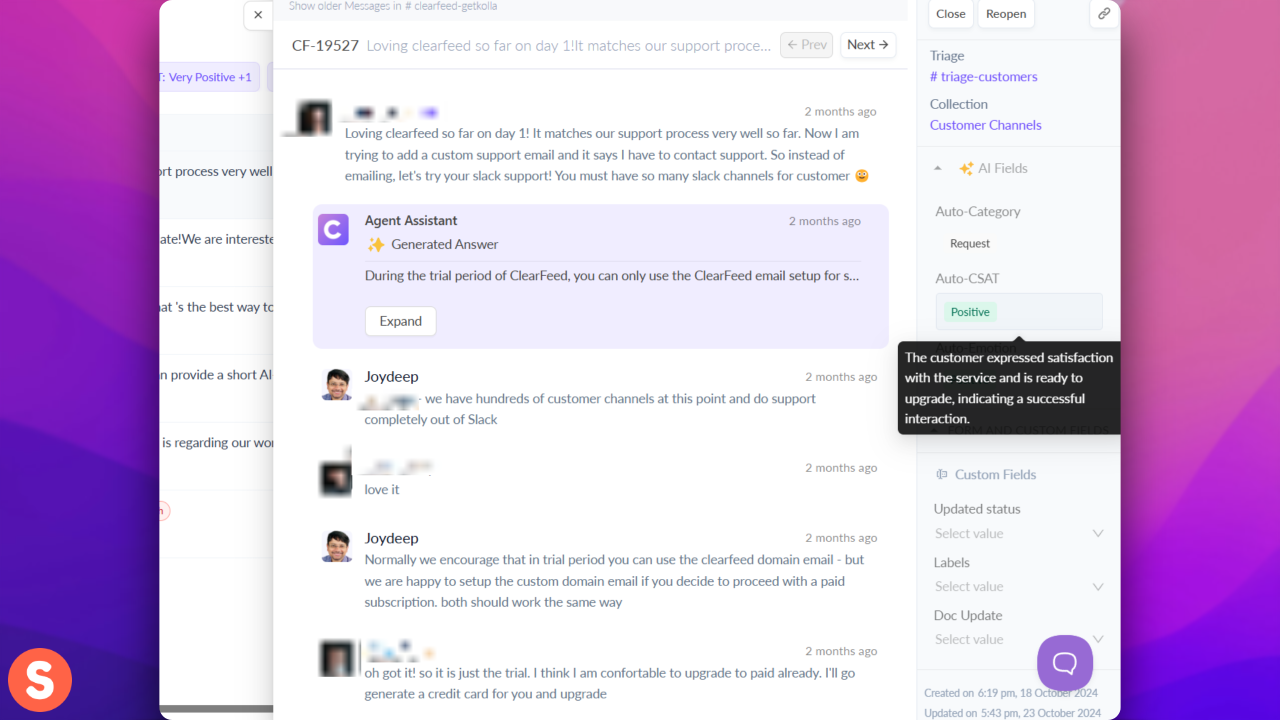
### Auto-CSAT

Predicts the customer’s satisfaction with the interaction, updated dynamically as the conversation evolves into the following:

* Very Positive
* Positive
* Neutral
* Negative
* Very Negative

<figure><img src="https://3455705434-files.gitbook.io/~/files/v0/b/gitbook-x-prod.appspot.com/o/spaces%2FE2O2wTaNovd6fXpEuLKz%2Fuploads%2Fgit-blob-a309360ac7d13ff72156a26fdc881f1fd7823e23%2Fscreenrun-12-27-2024-16-48-48.png?alt=media" alt="" width="563"><figcaption></figcaption></figure>

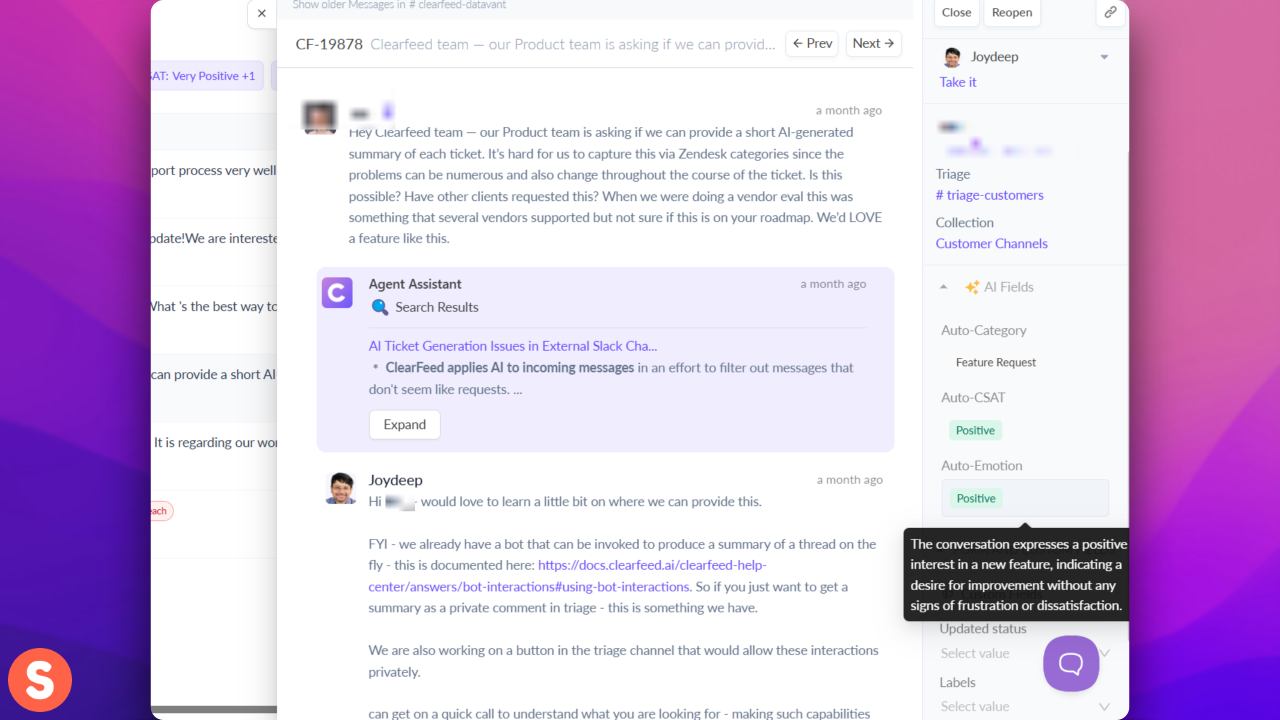
### Auto-Emotion

Represents the overall sentiment detected in the conversation. The following values are added as a part of the sentiment analysis:

* Positive
* Neutral
* Negative

<figure><img src="https://3455705434-files.gitbook.io/~/files/v0/b/gitbook-x-prod.appspot.com/o/spaces%2FE2O2wTaNovd6fXpEuLKz%2Fuploads%2Fgit-blob-2567783639ee8dac8d5e280cb1f67f28dfd1b89a%2Fscreenrun-12-27-2024-16-51-50.png?alt=media" alt="" width="563"><figcaption></figcaption></figure>

## Filter by AI Fields

Use AI fields to filter and segment requests in the ClearFeed dashboard:

1. Go to **Inbox**
2. Click **Add Filter**
3. Choose any AI field (Auto-Category, Auto-CSAT, Custom Fields, etc.)
4. Select desired values and click **Apply**

## How AI Fields Stay Updated?

<table><thead><tr><th width="185">Field Type</th><th>Update Behavior</th></tr></thead><tbody><tr><td><strong>Custom AI Fields</strong></td><td>Updated only via automations that you define (e.g., on ticket creation or request creation or request update)</td></tr><tr><td><strong>System AI Fields</strong></td><td>Computed once when the request is in <strong>Solved</strong>/<strong>Closed</strong> state or when >3 days have passed since any update. The job runs every few hours in the background.</td></tr></tbody></table>

{% hint style="info" %}
**Note on using AI Fields in Automations**

System-defined AI fields such as **Auto-CSAT** and **Auto-Emotion** are available for viewing and filtering in the ClearFeed dashboard, but they are **not exposed as fields in automation conditions or actions**. If you want to **trigger automations or alerts based on Sentiment or CSAT** you should use a custom Field or an Automation Action AI Field (as described above) to calculate Sentiment or CSAT and then use it in automation conditions or actions.
{% endhint %}