Using Slack Workflows
ClearFeed supports creating requests directly through Slack Workflows. This allows teams to collect structured information from requesters before creating a request.
Note: This feature requires setup. Contact ClearFeed Support to enable it for your account.
Steps to Create a Slack Workflow
Access Slack Automations
From your desktop, hover over More, then select Automations.
Create Workflow
Click Create Workflow near the top-right corner.
Configure the Trigger
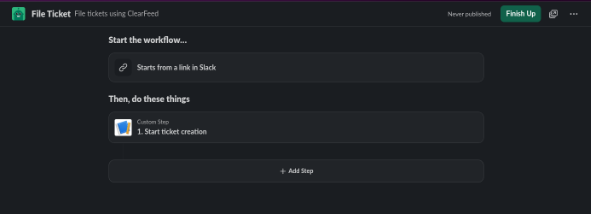
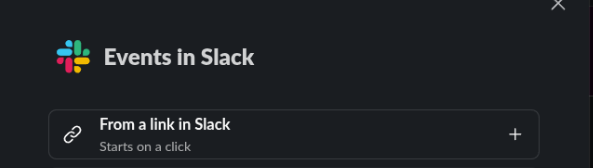
Choose "From a Link in Slack" as the trigger.
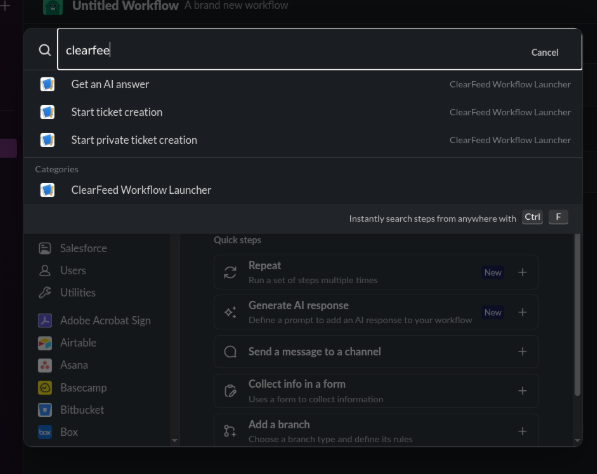
Add Workflow Actions
Collect information in a form: Add questions for the requester (e.g., Describe your issue, Priority level, Team).
Send a message to a channel:
Select the channel monitored by ClearFeed.
Use workflow variables to send the collected information in the message.
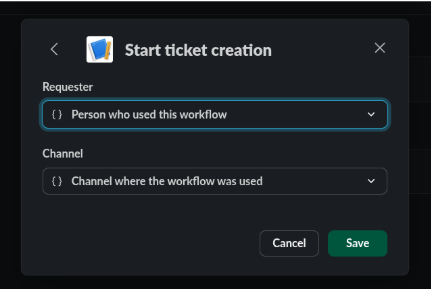
To ensure ClearFeed attributes the request to the person who submitted the form (not the Bot), add the requester info in the first line using this format:
#requester {{Person who submitted the form}}Example:
#requester @John Doe Issue: Laptop not connecting to WiFi Priority: High Team: IT SupportTo use a different keyword (e.g.,
#employeeor#user), contact ClearFeed Support to configure it.
Add Workflow to Request Channel
Open the request channel where you want the workflow.
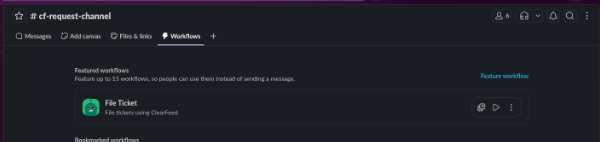
Click the Workflows tab in the conversation header.
If you don't see it, click the "+" button to find it.
Select Add workflow to add the workflow to the Request Channel.
You can also use Feature workflow to replace the message field with a button to start the workflow. Learn more about managing workflows in Slack.
Whitelist the Workflow Bot
Go to Settings > Additional Settings and whitelist the workflow bot on ClearFeed so that ClearFeed can monitor and create requests from workflow messages. See the Bot Whitelisting section below for detailed instructions.
Example Use Cases
IT Team Workflow: Collect laptop issue details → Post formatted message in #it-support → ClearFeed creates a request for the employee.
HR Workflow: Collect leave application info → Post in #hr-requests → ClearFeed creates a request under the employee's name.

FAQs
Why isn’t my Slack Workflow creating a ticket in ClearFeed? Answer: ClearFeed can only process workflow messages if the workflow bot is whitelisted. Go to: ClearFeed WebApp → Settings → Additional Settings → Whitelist Workflow Bot. If the bot is not whitelisted, the workflow message will be ignored.
Do workflow messages need to follow a specific format? Answer: Yes. The first line of the workflow’s posted message must include the requester in this exact format: #requester @username Or if using workflow variables: #requester {{Person who submitted the form}}
Why is ClearFeed asking for the requester’s email every time the workflow runs? Answer: This happens when the workflow message is posted by a responder (an internal agent) rather than an external user. ClearFeed always ask responder for an email. To avoid this, you have below options:
Disable “Ask for Requester Email” Settings → Collection → Ticketing Settings → Ask for Requester Email → OFF
Configure a Default Requester Email in the collection's form.
Will the workflow work if an internal agent triggers the workflow instead of a customer? Answer: Yes, but with different behavior.
If a customer/end-user submits the workflow → ClearFeed auto-detects the requester.
If a responder/agent submits the workflow → ClearFeed requires requester details (If "Ask for requester's email for responder-initiated requests" is enabled)
My workflow format is correct but ticket creation still failed. What should I check? Answer: Verify the following:
Workflow bot is whitelisted
Workflow is added to a channel that is part of a Collection
First line is exactly
#requester <user>“Ask for Requester Email” (Collection setting) may require user email
The workflow doesn't appear in the whitelisting dropdown. What should I do? Answer: Sometimes the workflow bot app appears under a different bot name. Try:
Searching for the workflow’s App ID (visible in Slack → App → About)
Posting a workflow message first (the bot becomes visible once it posts)
Why did my workflow message fail even though the requester line was correct? Answer: Possible reasons:
Workflow message was posted by a responder
Requester user lacks an email in Slack profile and "Ask for requester's email for responder-initiated requests" is enabled
Workflow message used a variable that didn’t resolve to a Slack user
Workflow bot not whitelisted
Last updated