> For the complete documentation index, see [llms.txt](https://docs.clearfeed.ai/clearfeed-help-center/llms.txt). Markdown versions of documentation pages are available by appending `.md` to page URLs; this page is available as [Markdown](https://docs.clearfeed.ai/clearfeed-help-center/how-it-works/creating-or-linking-tickets/email.md).
# Email
Learn how to create ClearFeed tickets via email
## From Email
ClearFeed allows customers to create tickets by sending emails to your support email address. This guide explains how email-based ticket creation works in ClearFeed.
{% hint style="info" %}
**ClearFeed Tickets Only:** This method is only available for **ClearFeed's native ticketing system**. For external ticketing systems (Zendesk, Jira, etc.), refer to your [integration-specific documentation](/clearfeed-help-center/integrations/task-and-ticketing-systems.md).
{% endhint %}
## How Email Ticketing Works
When a customer sends an email to your support address, ClearFeed automatically:
1. **Creates a ticket** from the email
2. **Posts the email content** to your configured Triage Slack channel as a new request
3. **Syncs replies** - Team replies in the Slack thread are sent back to the customer via email
4. **Maintains the conversation** - The entire email thread is synchronized bidirectionally
{% hint style="info" %}
Messages from [blocked email senders](/clearfeed-help-center/sources/email.md#block-email-senders) do not create new tickets or receive an automatic confirmation. Blocking a sender does not stop replies from syncing to an existing ticket.
{% endhint %}
{% hint style="info" %}
**Note:**\
For email tickets, ClearFeed includes the last 5 messages from the email thread in all outgoing emails. This ensures recipients have sufficient context if they were recently added as a CC or cannot easily locate the earlier messages in their inbox.
{% endhint %}
Email to ticket workflow
**Benefits:**
* Customers can use familiar email to create tickets
* Your team manages everything in Slack
* No context switching between email and Slack
* Full conversation history maintained
### Setup Email Ticketing
To enable email ticketing for your ClearFeed instance:
1. Navigate to your **Collection Settings**
2. Configure your support email address:
* Use the **ClearFeed-provided email address**, or
* Configure your **custom domain email** (e.g., )
3. Select which **Triage Channel** should receive email tickets
{% hint style="info" %}
**For detailed setup instructions**, including how to configure custom domain emails and advanced settings, see the [Email Setup Guide](/clearfeed-help-center/sources/email.md).
{% endhint %}
### Creating Tickets via Email
#### For Customers
Customers simply send an email to your support address:
1. Customer composes an email to your support address (e.g., )
2. Writes their issue/question in the email body
3. Sends the email
4. Receives an automatic confirmation with the ticket ID
5. Can reply to the email thread to add updates
**What the customer sees:**
* Email confirmation with ticket ID (e.g., CF-12345)
* Email updates when your team responds
* Full conversation history in their email client
#### For Responders
When an email arrives:
1. A new request/ticket appears in your **Triage Slack channel**
2. The email content and any attachments are posted as a Slack message
3. Team members can view and respond directly in the Slack thread
4. Replies are automatically sent back to the customer via email
**Replying to customers:**
* Simply reply in the Slack thread
* Your message is sent as an email reply to the customer
* Attachments added in Slack are included in the email
* Thread history is maintained
### Filing Tickets on Behalf of Customers
Sometimes responders need to create tickets on behalf of customers (e.g., from a phone call or direct email to a team member).
#### Using the #requester Tag
When forwarding an email or filing on behalf of someone, add this line at the **top of the email body**:
```
#requester customer@example.com
```
Replace `customer@example.com` with the actual customer's email address.
**What happens:**
* ClearFeed always creates a new email ticket, even if a forwarded email contains references to an existing ticket. The email is not added to the existing ticket.
* The specified email becomes the **requester**
* The responder sending the email is automatically added to **CC**
* The customer receives a **notification email** that a ticket was filed on their behalf
* This notification starts the email thread for that ticket
{% hint style="info" %}
**How to confirm requester tagging worked:** Open the ticket and check the **Requester** field. If the tag was applied, it shows the email address you specified after `#requester` — not your own (the responder's) email address. If the Requester still shows your email, the tag wasn't recognized. See the FAQs below for common causes.
{% endhint %}
**Example:**
```
#requester john.doe@customer.com
Hi,
The customer reported an issue with their laptop not connecting to WiFi.
Priority: High
Thanks,
Support Team
```
### Alternative Method: Email Forwarding to Slack
You can also create tickets by [forwarding emails directly to a Slack channel](https://slack.com/intl/en-in/help/articles/206819278-Send-emails-to-Slack).
**How it works:**
1. Forward an email to your Slack channel's email address
2. The email content and attachments appear as a Slack message
3. If the channel is monitored by ClearFeed, a request is created
4. The email becomes a request for internal tracking
{% hint style="warning" %}
**Important:** Replies made in the Slack thread for requests created via email forwarding **will not** be synced back to the original email sender. This method is for bringing email content into Slack for internal discussion only, not for managing email conversations with customers.
{% endhint %}
**Use this method for:**
* Internal tracking of forwarded emails
* Sharing email threads with your team in Slack
* Converting emails to internal requests without customer visibility
**Do NOT use this method for:**
* Active customer conversations requiring email replies
* Tickets that need bidirectional email sync
### Email Ticket Features
#### Attachments
* Customers can include attachments in their emails
* Attachments are automatically posted to the Slack thread
* Responders can add attachments in Slack replies
* Attachments in Slack replies are included in email responses to customers
#### Reply Instructions in Outgoing Emails
ClearFeed adds a short instruction like **"Reply above this line"** to outgoing email messages.
* This line is an intentional safeguard to ensure that customer replies are captured correctly.
* ClearFeed currently **cannot process inline replies** (where users type responses within or below the quoted email history).
* The instruction helps guide users to reply in a way that ClearFeed can reliably parse and sync back to Slack.
Because of this, the text "Reply above this line" **cannot be removed**.
#### Threading
* Email threads are maintained as Slack threads
* Multiple back-and-forth exchanges stay organized
* Full conversation history visible in both email and Slack
#### Notifications
* Customers receive email notifications when tickets are updated
* Responders receive Slack notifications for new emails and replies
* All participants stay informed automatically
#### Adding CC Recipients to Email Tickets
You can add CC recipients to ongoing email ticket conversations from both the **Slack triage channel** and the **ClearFeed WebApp**.
**From the Slack triage channel:**
* Open the ticket thread in the configured triage channel
* Click the **Edit Ticket** button on the ticket message
* Use the CC field in the form to add or update CC recipients for that email ticket
**From the ClearFeed WebApp:**
* Open the ticket from the WebApp
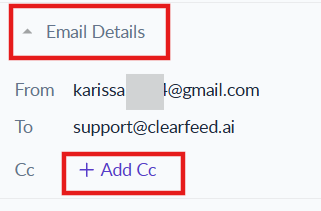
* Expand **Email Details** from the right panel
* Click on the **Add Cc** button to add to the CC list
Add CC recipients from the ClearFeed WebApp
### FAQs
1. **Can I customize the automated emails ClearFeed sends to requesters?**\
**Answer:** Yes. You can customize the email auto-response and the status-update templates for **Solved** and **Closed** tickets. See [Customize Automated Email Templates](/clearfeed-help-center/sources/email.md#customize-automated-email-templates).
2. **Can I use ticket details in an automated email template?**\
**Answer:** Yes. Insert placeholders for values such as the requester name, ticket ID, title, status, priority, collection, and support email. See [Available placeholders](/clearfeed-help-center/sources/email.md#available-placeholders).
3. **Can I use my existing support email address?**\
**Answer:** Yes, you can configure ClearFeed to use your custom domain email address (e.g., ) instead of the ClearFeed-provided address.
4. **What happens if a customer replies to an email ticket?**\
**Answer:** Customer replies to email tickets are automatically posted to the corresponding Slack thread, allowing your team to continue the conversation seamlessly.
5. **Can I create email tickets manually from the web app?**\
**Answer:** Yes, you can create email tickets from the ClearFeed web dashboard. See [Creating Tickets from Web Dashboard](/clearfeed-help-center/how-it-works/creating-or-linking-tickets/webapp.md) for details.
6. **I received an error "You've reached the limit of email tickets" - what does this mean?**\
**Answer:** This error only affects accounts that signed up with free email services (Gmail, Outlook, Yahoo, etc.). These accounts are limited to 100 email tickets. To resolve this, either contact ClearFeed Support to increase your limit or delete your current account and create a new one using your company email address.
7. **Why didn't my `#requester` tag work?**\
**Answer:** Common reasons:
* The email wasn't sent by a **Responder** on the Collection — `#requester` is only honored when a Responder files the ticket on someone else's behalf.
* The tag wasn't on the **very first line** of the email body (pushed down by a signature, greeting, or quoted/forwarded content above it).
* The email address after `#requester` isn't a **valid email format**.
* The line doesn't match the exact syntax `#requester ` (missing `#`, extra characters, or additional text on the same line).
8. **Will tagging a requester automatically create a new Customer?**\
**Answer:** Not directly. The `#requester` tag only sets the ticket's **Requester**; whether a **Customer** is created or linked depends on that email's domain, using the same rules as any other email ticket:
* If the domain matches an existing Customer → the ticket links to that Customer.
* If the domain is a new **business domain** → ClearFeed automatically creates a new Customer.
* If the domain is a **free email provider** (Gmail, Yahoo, Outlook, etc.) or an **internal domain** → no Customer is created, and the ticket remains unlinked.
See [Customer Collections](/clearfeed-help-center/clearfeed-helpdesk/collections/customer-collections.md) for the full domain-matching rules.
.gif?alt=media)