> For the complete documentation index, see [llms.txt](https://docs.clearfeed.ai/clearfeed-help-center/llms.txt). Markdown versions of documentation pages are available by appending `.md` to page URLs; this page is available as [Markdown](https://docs.clearfeed.ai/clearfeed-help-center/getting-started/getting-started-guides/for-customer-support/using-an-external-ticketing-system.md).
# Supporting Customers using an External Ticketing System
This guide helps you set up ClearFeed to manage customer conversations in Slack while keeping everything synced with your existing ticketing platform.
## Sign Up & Connect
1. Go to [ClearFeed Web App](https://web.clearfeed.app/)
2. Sign up with **Google, Microsoft, or Email** (use your Slack workspace email)
3. During onboarding, select:
* **Primary use case:** Supporting Customers
* **How to use ClearFeed:** Integrate with External Ticketing System
4. **Authorize ClearFeed to Slack** when prompted to connect to your Slack workspace
5. **Connect Your Ticketing System** (optional - can be done later)
You can connect to your external ticketing system during signup or skip this step and do it later. ClearFeed supports: Zendesk, Jira Service Management, Salesforce, Linear, Freshdesk, HubSpot, ClickUp, Intercom, and more.
## Understanding Your Setup
After signing up, ClearFeed automatically configures channels where customers can create support tickets that sync with your external ticketing system:
* **`#cf-request-channel`** - Slack channel where customers post questions and issues
* **`#cf-triage-channel`** - Slack channel where your support team manages tickets
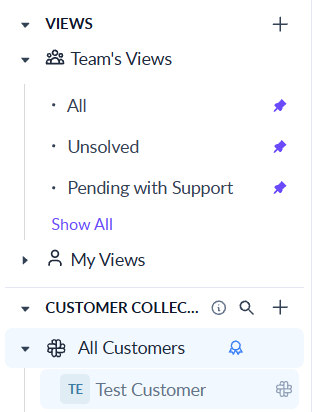
New Account Collection and Customer Setup
{% hint style="info" %}
**Note:** ClearFeed automatically posts a test request in `#cf-request-channel` during setup. This is great for trying out the workflow before adding real customer channels.
{% endhint %}
### Request Channel (`#cf-request-channel`)
Your **request channel** is where customers post questions and issues. When a message is posted:
* ClearFeed starts tracking this as a request
* Depending on configuration, it automatically creates a ticket in your external ticketing system
* The ticket syncs bi-directionally between Slack and your ticketing platform
* Customers see ticket details posted on the thread
* If configured, the AI Agent finds suggested answers and shares them privately with your team to review and send to customers
### Triage Channel (`#cf-triage-channel`)
Your **triage channel** is your support team's command center within Slack. Here you'll see:
* All incoming requests and tickets with status, assignment, and ticket IDs
* All messages posted in the request channel and replies from your ticketing platform
* Reply to tickets and manage them from this channel
* Post private comments (using `:lock:` emoji) visible only to your team, not synced to customers
* Private answer suggestions by the AI Agent (if configured)
## Understanding Collections
Customer channels are organized as **Collections** in ClearFeed. When you sign up, ClearFeed creates an **All Customers** collection by default. This collection:
* Contains the `#cf-request-channel` channel ClearFeed created
* Includes a sample **Test Customer** associated with this channel
* Is where you can add more channels and customers
Collections are how you organize and manage your customer support sources in ClearFeed. Each collection can have its own settings, workflows, customer groups, and triage configuration.
### Adding More Channels
As you grow, add more channels to your **All Customers** collection to handle different customer segments or product lines:
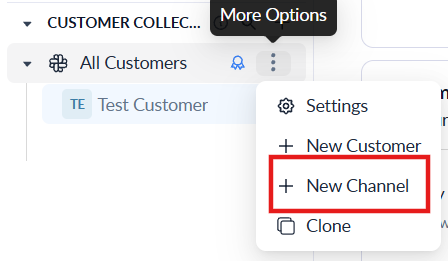
1. Hover over the **All Customers** collection in the left sidebar
2. Click the triple dot menu (⋯) and select **New Channel**
3. Follow the prompts to connect additional Slack channels
Add new channels from the collection menu
## Integrating with External Ticketing System
**If you connected your ticketing system during initial account setup, you can skip this section**. Otherwise, follow these steps:
1. Go to **Settings > Integrations** from the left navigation in the ClearFeed app
2. Connect to your desired ticketing system (Zendesk, Intercom, Freshdesk, etc.)
3. Go to the **Inbox** and click on the **All Customers** collection
4. Click **Settings** in the top right corner
5. Expand the **Ticketing** section
6. Enable **Ticketing** and change the **Ticketing type** to your integrated system
For detailed integration guides, refer to:
* [Zendesk](/clearfeed-help-center/integrations/zendesk.md)
* [Intercom](/clearfeed-help-center/integrations/intercom.md)
* [Salesforce](/clearfeed-help-center/integrations/salesforce.md)
* [HubSpot](/clearfeed-help-center/integrations/hubspot.md)
* [ClickUp](/clearfeed-help-center/integrations/clickup.md)
* [Linear](/clearfeed-help-center/integrations/linear.md)
* [Freshdesk](/clearfeed-help-center/integrations/freshdesk.md)
## Create Requests and Tickets
💡 **Tip:** New to ClearFeed? Learn about the difference between [Requests, Tickets, and Tasks](/clearfeed-help-center/how-it-works/request-tickets-tasks.md).
### Create Ticket from Slack Channels
**Create a Ticket in `#cf-request-channel`:**
1. Post a message in the channel (e.g., "How do I reset my password?")
2. If automatic ticketing is enabled - ClearFeed creates a ticket in your external system immediately
3. If manual ticketing is enabled - add 🎫 emoji to manually trigger ticket creation
4. A ticket message with the ID of the ticket will be posted as a reply
## Reply to Requests and Tickets
### From the Slack Triage Channel
* Replying to the thread in `#cf-triage-channel` → syncs to the customer channel and your ticketing system
* Update status, priority, or assignment → reflects in external system
* Add internal notes (prefix with :lock: emoji) → visible only to your team in both Slack and external system
### From your Ticketing system
* Find the Ticket in the external Ticketing platform using the Ticket ID shown by ClearFeed
* Reply from the Ticketing platform - the reply should show up in linked Slack thread
* Replies from Slack should also show up in the Ticket
* Depending on the specific ticketing system, internal comments maybe synced between Triage channel and Ticketing platform
### From the ClearFeed WebApp
* You can also see the requests in the customer channel from the ClearFeed WebApp
* Click on a specific request and post replies from there - these are also synced back to Slack
## FAQs
1. **How do I stop creating requests from my team's messages?**\
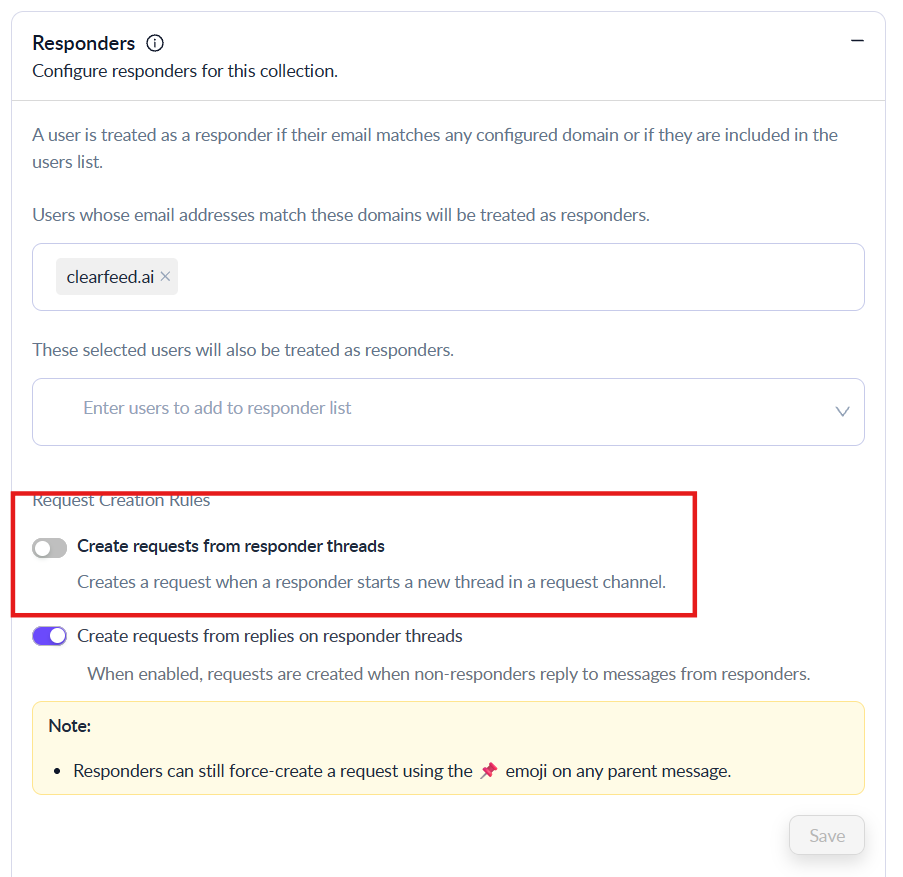
When a new ClearFeed account is set up, it creates requests from all users. You can turn off request and ticket creation from your own team in the "Responders" section of the Collection Settings:
* Click on the **All Customers** collection from the Inbox
* Click **Settings** in the top right corner
* Expand the **Responders** section
* Turn off "Create requests from responder threads"
Turn off request creation from responders
2. **How do I change whether tickets are created automatically or manually?**\
This can be done from the Collection Settings:
* Click on the **All Customers** collection from the Inbox view in ClearFeed
* Go to **Settings > Ticketing** from the top right
* Toggle between automatic and manual ticket creation
* Configure the emoji to be used as a trigger for manual ticket creation
## AI Agents
ClearFeed comes with an AI Agent pre-configured to answer questions from the World Wide Web by default. The AI Agent is triggered whenever a new customer request is detected, and when it finds relevant answers, it posts suggestions privately to your team. Your team can review the automated answer and copy and post it as a reply if it's correct.
### Customize or Disable
**To add your own knowledge sources:**
1. Go to **Settings > AI > Knowledge Sources**
2. Connect your documentation (Documentation site, Google Drive, Confluence, Notion, Zendesk KB (and other KBs), etc.) and tag them
3. Go to **Settings > AI > Agent Studio** and click on the `Default Agent` pre-configured in your account
4. Add the Knowledge Sources added in Step 2 using their tags
5. Optionally - disable the Web Search option (to prevent answers beyond your knowledge sources)
**To change visibility of AI Agent Answers:**
1. Go to the **Inbox**
2. Click on the Collection where you want to enable/disable the AI Agent (e.g., **All Customers**)
3. Click on **Settings** from the top right and then click on **AI Agent** section
4. You can disable the AI Agent completely - or switch to **Virtual Agent** mode to provide automated replies to customers when they create tickets
## Next Steps
* [Whitelabeling the ClearFeed bot](/clearfeed-help-center/account-setup/whitelabel-clearfeed.md) to match your brand
* [Set up Out of Office responses](/clearfeed-help-center/clearfeed-helpdesk/workflows.md) - Automatic responses when your team is unavailable
* Import forms from your ticketing system:
* [Zendesk Forms](/clearfeed-help-center/integrations/zendesk/forms.md)
* [ClickUp Lists](/clearfeed-help-center/integrations/clickup/forms.md)
* [Intercom Forms](/clearfeed-help-center/integrations/intercom/forms.md)
* [Freshdesk Forms](/clearfeed-help-center/integrations/freshdesk/forms.md)
* [HubSpot Forms](/clearfeed-help-center/integrations/hubspot/forms.md)
Need help? [Contact our team](https://clearfeed.ai/contact) for personalized onboarding.