# For Automated Answers and AI

Before starting, ensure that you have [integrated your Slack Workspace with ClearFeed](https://docs.clearfeed.ai/clearfeed-help-center/getting-started/signing-up-for-clearfeed).

Once done, you can create your first collection - a group of Slack channels that have similar helpdesk settings

{% hint style="info" %}
**Note:** GPT-powered answers are available on:

* **Professional** and **Enterprise** plans (included).
* **Starter** plan, when the **AI Pack add-on** is purchased.
* **Free trial**, where full access is temporarily enabled.
  {% endhint %}

### Create Collection

1. Navigate to [Collections](https://web.clearfeed.app/collections) from the side navigation bar.
2. Click on the **`Add new Collection`** button on the bottom-left of the page.
3. Choose support team members as **Responders**
   * By default, all users that are agents will be considered as Responders
   * Go to [user](https://docs.clearfeed.ai/clearfeed-help-center/account-setup/manage-users) section to add your support team members as users and make them **Agents**
   * Only Agents can reply to the tickets from the triage channel and Clearfeed web application and can be assigned tickets
   * Non-Agents can still view tickets and make private comments on tickets
4. Add **Request channels** on which you plan to provide support to your users
   * All public Slack channels can be added from the web app
   * Private Slack channels can be added by typing `/invite @Clearfeed` on the Slack channels. They can only be added after a Collection is created
5. Add a [**Triage channel** ](https://docs.clearfeed.ai/clearfeed-help-center/clearfeed-helpdesk/triage-channel-setup)for the support team to work from on Slack
   * You can select `Create new channel` or `Select existing` option
   * Your support team can also work directly from Request channels, in which case you can opt in `Proceed without triage`
6. Under **Ticketing**, select ClearFeed ticketing and choose the trigger mode for ticket creation
   * Trigger mode for the ticket can be an emoji (eg. :tickets:) applied to the thread or tickets can be auto-created on every new message on the request channel
7. You can edit an existing [workflow](https://docs.clearfeed.ai/clearfeed-help-center/clearfeed-helpdesk/workflows) to send a notification to the corresponding triage channel if there is no response to a request for 60 mins

<figure><img src="https://3455705434-files.gitbook.io/~/files/v0/b/gitbook-x-prod.appspot.com/o/spaces%2FE2O2wTaNovd6fXpEuLKz%2Fuploads%2Fgit-blob-6276b63a4ac9f1d55524f5692f355d2df018b19d%2FScreen%20Recording%20-%20Mar%2020%2C%202024%20(1).gif?alt=media" alt="" width="375"><figcaption><p>Create a Clearfeed Collection</p></figcaption></figure>

### **Add Knowledge Source**

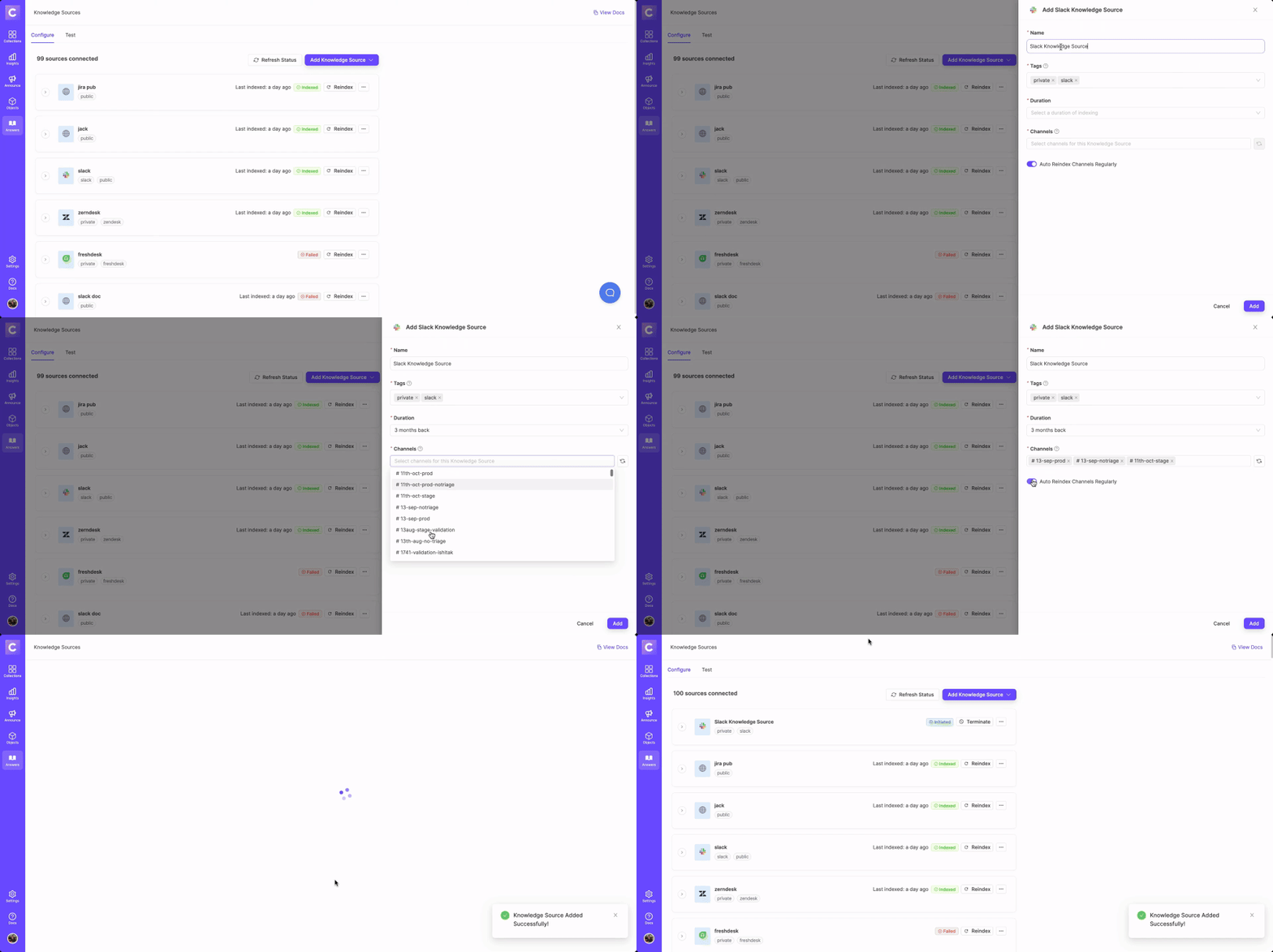
1. In the ClearFeed dashboard, go to the 'Answers' section in the left navigation bar and click on the 'Add Knowledge Source' button.
2. You can connect different types of Knowledge Sources to ClearFeed. [See the full list of supported sources.](https://github.com/clearfeed/new-docs/blob/main/getting-started/answers/ai-agents/indexing-knowledge-sources/README.md)
3. The Knowledge Source will either start indexing immediately (reflected by "In Progress" status) or will be picked soon (reflected with an Initiated status). Get more details on Managing Knowledge Sources [here](https://github.com/clearfeed/new-docs/blob/main/getting-started/answers/ai-agents/indexing-knowledge-sources/managing-knowledge-sources.md).

<figure><img src="https://3455705434-files.gitbook.io/~/files/v0/b/gitbook-x-prod.appspot.com/o/spaces%2FE2O2wTaNovd6fXpEuLKz%2Fuploads%2Fgit-blob-3678eb2944e12d1d48287b398c5ed4d4b7603b62%2FScreen%20Recording%20-%20May%2016%2C%202024.gif?alt=media" alt="" width="563"><figcaption><p><strong>Add your Knowledge Source in</strong> GPT-Powered Answers</p></figcaption></figure>

### Testing Answers

{% hint style="info" %}
Confirm that all necessary Knowledge Sources are added and their current status is **Indexed**. You **cannot** test a Knowledge Source having any other status.
{% endhint %}

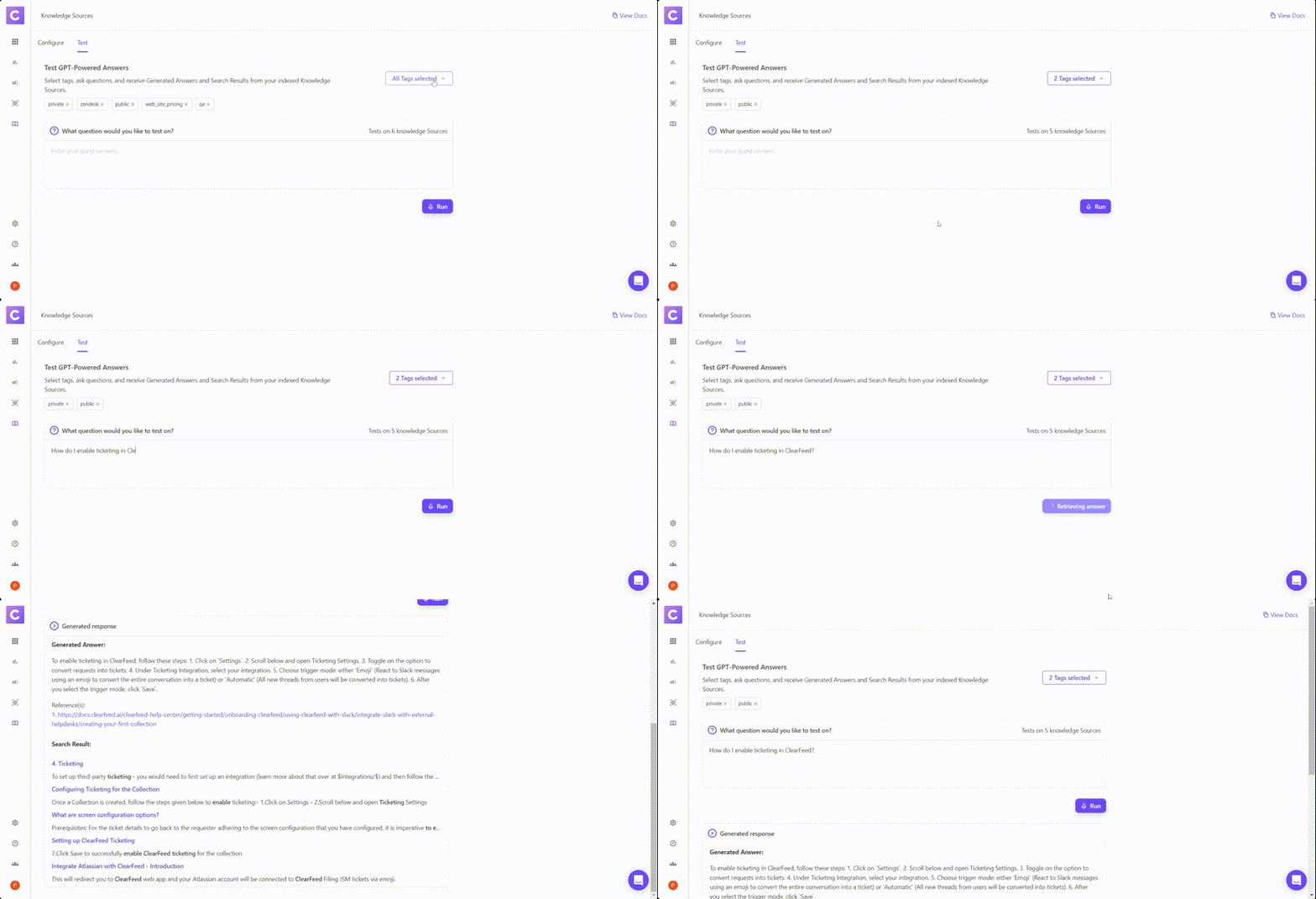
1. Navigate to [Answers](https://web.clearfeed.app/knowledge-sources) from the navigation bar and click on the `Test` tab to enter the testing environment.
2. Use the dropdown menu on the right to select the appropriate tags for the Knowledge Sources you want to test.
3. Enter your question into the text box and click the "Run" button to begin the test.
4. The generated answer and the search results (snippets) will be displayed in a text box below your question.

<figure><img src="https://3455705434-files.gitbook.io/~/files/v0/b/gitbook-x-prod.appspot.com/o/spaces%2FE2O2wTaNovd6fXpEuLKz%2Fuploads%2Fgit-blob-164d94e0ca390c5f2c7a158c4c4793e72dd31999%2FScreen%20Recording%20-%20Jan%2015%2C%202024.gif?alt=media" alt="" width="563"><figcaption><p>Assess the accuracy and relevance of GPT-Powered Answers</p></figcaption></figure>

### **Collection Settings**

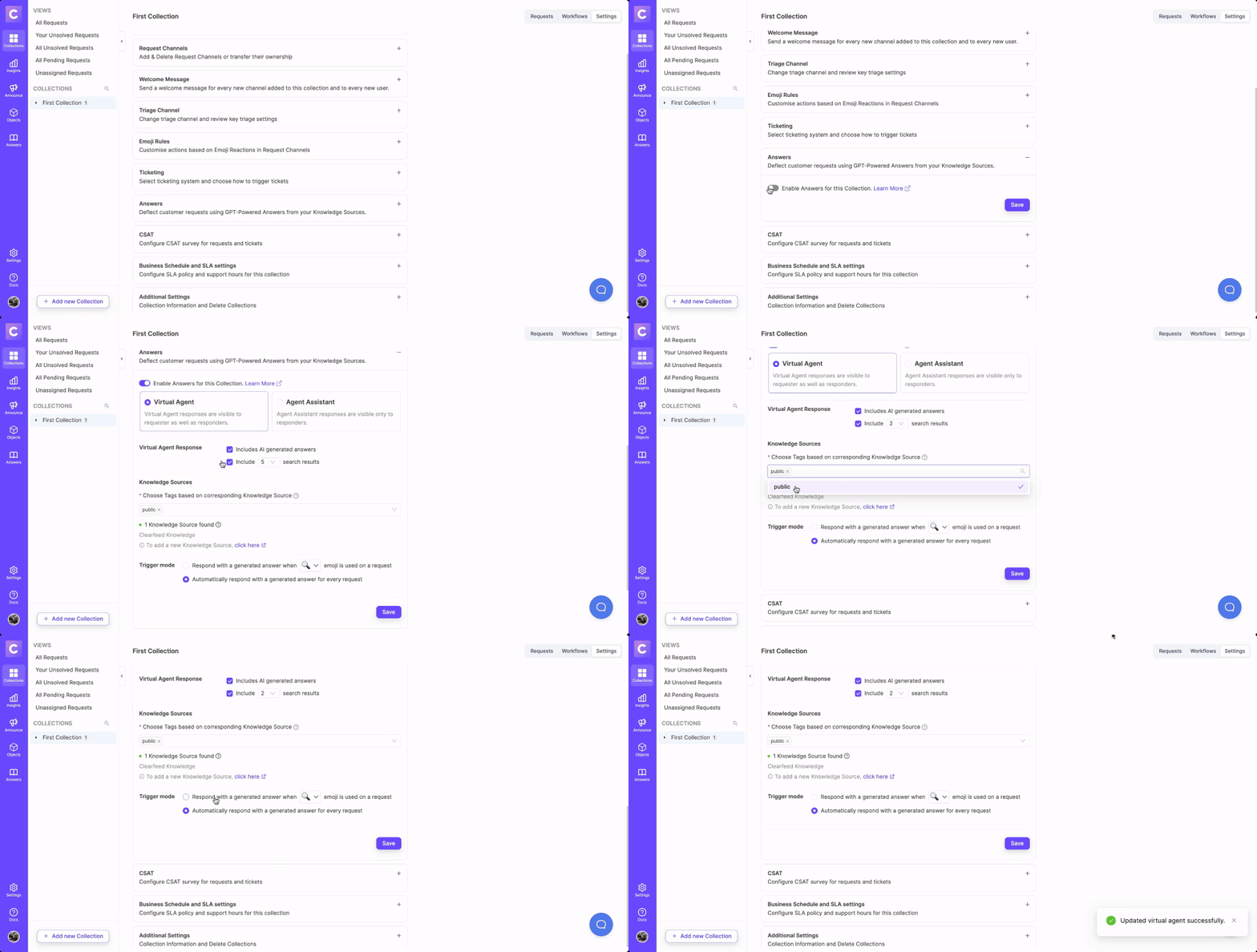
1. After adding the knowledge sources, go to the Collection Settings of the desired collection to enable 'Answers.'
2. Once the 'Answers' toggle is enabled, select from the following options: -
   * [Virtual Agent](https://docs.clearfeed.ai/clearfeed-help-center/clearfeed-ai/ai-agents/use-ai-agents) - Virtual Agent responses are visible to the requester as well as responders.
   * [Agent Assistant](https://docs.clearfeed.ai/clearfeed-help-center/clearfeed-ai/ai-agents/use-ai-agents#using-the-agent-assistant-on-the-triage-channel) - Agent Assistant responses are visible only to responders.
3. Select and add the appropriate Knowledge Source from the dropdown menu.
4. After saving the configuration, you are all set to use GPT Powered Answers.

<figure><img src="https://3455705434-files.gitbook.io/~/files/v0/b/gitbook-x-prod.appspot.com/o/spaces%2FE2O2wTaNovd6fXpEuLKz%2Fuploads%2Fgit-blob-694b4769f98435c5e59cef59d21abde2fb681186%2FScreen%20Recording%20-%20Jun%2010%2C%202024.gif?alt=media" alt="" width="563"><figcaption><p><strong>Enable 'Answers' in the Collection Settings</strong></p></figcaption></figure>

### **Try on Slack Channel**

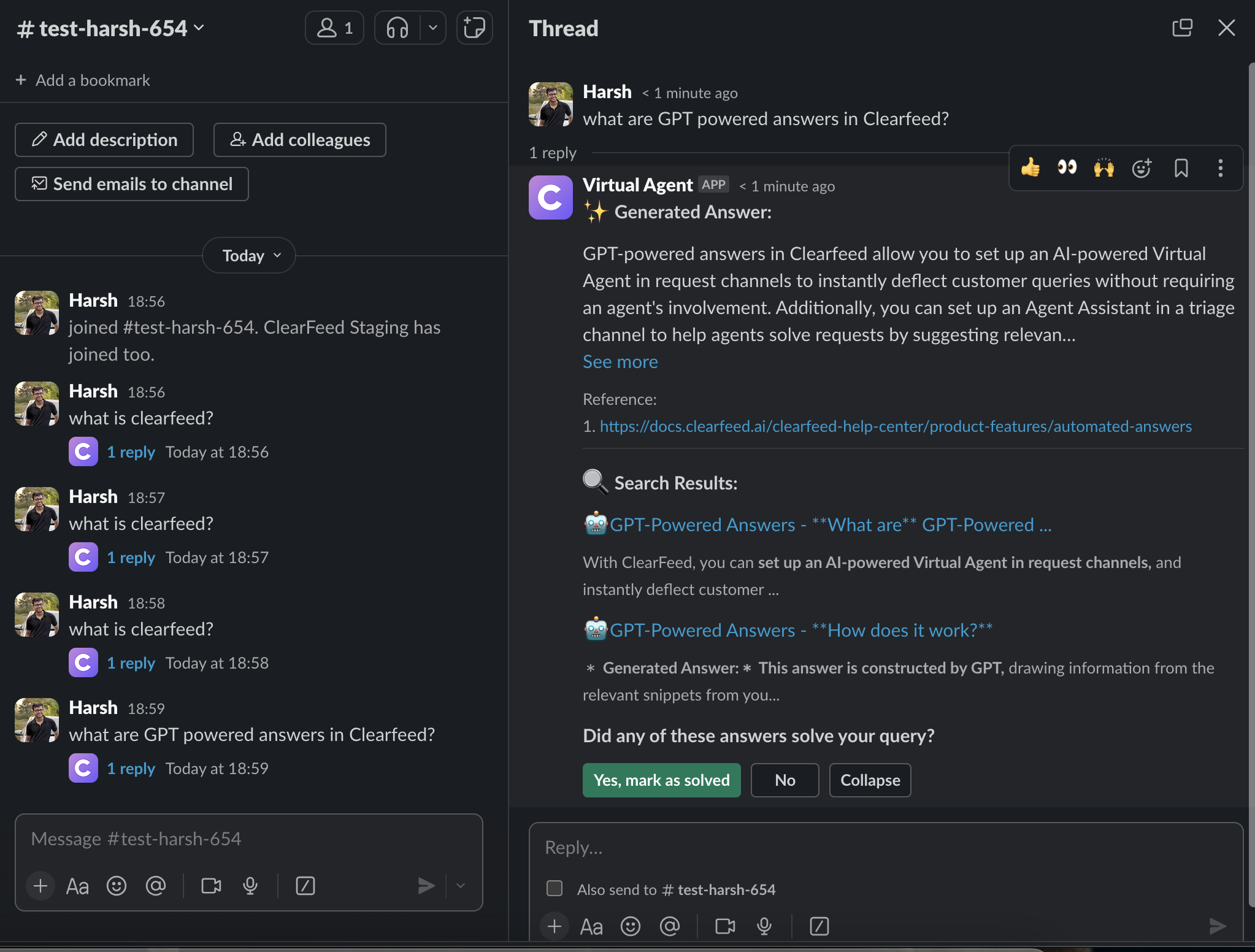
* A request is received on the request channel.
* This triggers the *Virtual Agent*, which starts searching within your indexed Knowledge Sources for snippets containing information pertaining to the request.
* On finding the snippets, the *Virtual Agent* responds to the request. If the answering mode configured for this request channel's Collection is:
  * `Search Results`: The *Virtual Agent* simply posts these snippets (as *Search Results*) in a threaded reply to the request.
  * `Generated Answers and Search Results`: The *Virtual Agent* uses GPT to generate an answer using the most relevant snippet. Then, it posts this Generated Answe&#x72;*,* along with the snippets (*as Search Results*) in a threaded reply to the request.
* A feedback question is present at the footer of the posted answer.
* If the answer is **helpful,** users (requesters/responders) can click on the `Yes, mark as solved` button and **solve** the request. Else, if users **do not** find the answer **helpful,** they should click on the `No` button. This marks the answer as *not helpful* and keeps the request **open.**
  * Clicking 'Not Helpful' only flags the answer internally for review; it does **not** directly improve or retrain the AI's future responses.
  * This design is intentional to maintain security and privacy standards (such as SOC-2 compliance). The AI does **not** learn from customer data or feedback submitted via Slack.
  * To improve the accuracy of AI answers, you should
    * Update or expand your connected knowledge sources (including adding ClearFeed Tickets as a knowledge source).
    * Refine the agent's instructions in the AI Agent Studio.
    * Posting the correct answer in the Slack thread helps your team, but does **not** update the AI's knowledge base.

{% hint style="info" %}
**Note**: Sometimes, with only two options, users chose **No, Create a Ticket** just to ensure a ticket was logged, or selected **Yes, Mark as Solved** and later discovered no ticket had been created.

You can now configure the AI Agent to show **three options** after a response:

* **Yes, Mark as Solved** → closes the ticket and marks the answer helpful.
* **Yes, but Create a Ticket** → keeps the ticket open and marks the answer helpful.
* **No, Not Helpful** → keeps the ticket open and logs feedback.

To enable this for your account, please contact our support team.
{% endhint %}

<figure><img src="https://3455705434-files.gitbook.io/~/files/v0/b/gitbook-x-prod.appspot.com/o/spaces%2FE2O2wTaNovd6fXpEuLKz%2Fuploads%2Fgit-blob-5eaeefd8f7f990c08fc7e6610adea72b908f5a84%2FScreenshot%202024-06-10%20at%207.00.14%20PM.png?alt=media" alt="" width="563"><figcaption><p><strong>GPT Powered Answers in the Slack Channel</strong></p></figcaption></figure>