Automation Actions

Complete reference guide for all automation actions in ClearFeed

Actions are the “Then” part of your automation — what happens after your trigger and conditions match. You can chain multiple actions together to build sophisticated workflows.

Action Execution Flow

  1. Actions execute top-to-bottom.

  2. Each action can include its own conditions.

  3. If an action fails, remaining actions are skipped.

  4. Completed actions are not undone.

  5. All steps and failures appear in Execution Logs.

Below are the actions that are supported in Automations:

Webhook

Send request/ticket data to external systems (Zapier, custom APIs, etc.). Read more about formatting the message with Request Parameters here.

When using the Webhook action in Automations, you can control how ClearFeed sends data to your external system. The webhook supports three configurable components:

Webhook URL

Enter the endpoint where ClearFeed should deliver the webhook request. This must be a valid publicly accessible URL. The automation will send a POST request to this URL whenever the trigger conditions are met.

Payload

Define the JSON payload that ClearFeed will send to your webhook endpoint. You can include:

  • Static values

  • Dynamic variables populated from the event (request, ticket, message, user, etc.)

The payload editor validates JSON structure to ensure the webhook is sent successfully.

Default Webhook Payload Structure:

HTTP Headers (Optional)

Add custom headers to your webhook request. These may include:

  • Authentication tokens

  • API keys

  • Custom metadata required by your target system

Each header consists of:

  • Key – Name of the header

  • Value – Header value

  • Sensitive – Enable this to hide the value from UI and logs

All configured headers are included in every webhook call triggered by the automation.

Set Field

Update Status, Priority, Assignee, or Custom Fields automatically

Send Message

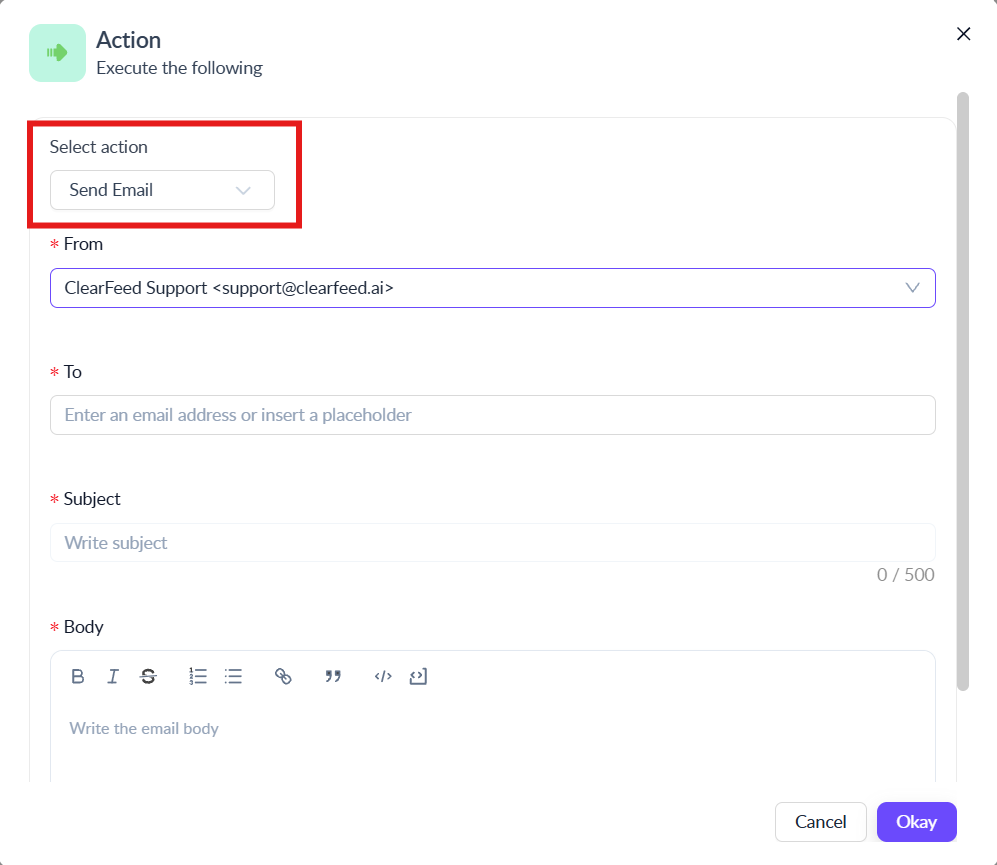
ClearFeed Automations do not support sending automated emails directly to external clients or requesters. If you need to notify a client by email, use the Webhook action to trigger an external email service (such as Zapier, Make, or a custom API) that can send the email on your behalf.

Post formatted messages to:

  • Slack channels or triage channel

  • Teammates via ClearFeed app

  • As public replies or private comments

  • Direct to assignee

Adding Parameters in Messages

You can add Request/Ticket parameters such as the Request ID, URL, Status, Priority, values of other custom fields, etc. when configuring the payload sent via Webhook Action or a Sent Message action.

  • In the message box, type {{ to invoke the parameters dropdown.

    • Custom fields are listed in the dropdown and can be selected directly by their field name (e.g., {{ticket.YourCustomFieldName}}).

    • You do not need to use a custom field ID or slug; simply use the field name as it appears in your configuration.

    • For example: If you have a custom field called "Job Scorecard Link", you can reference it as {{ticket.Job Scorecard Link}} in your payload template.

  • Select and enter the relevant parameters in your messages

If you want to include a link to the original Slack request, you can use the following structure: https://<workspace_name>.slack.com/archives/{{ticket.channel.id}}/p{{ticket.request_message.ts}}

To hyperlink this URL to a word or phrase in your message

  • Use Slack’s link formatting syntax: Example: You want to send: “Can you check this request?” — with request hyperlinked to the original message.

    Here’s how to format it: Can you check this <https://<workspace_name>.slack.com/archives/{{ticket.channel.id}}/p{{ticket.request_message.ts}}|request>?

  • You can add hyperlinks directly in your message content using the editor:

    • Select the text you want to link (e.g., request).

    • Click the Link icon in the toolbar.

    • Enter the URL — placeholders are supported (e.g. .../tickets/{{request.id}}).

    • Click Save.

Trigger Ticket Creation

Create a ticket based on collection settings

Auto-fill Fields

The Auto-fill Fields action lets you use AI to automatically extract or generate values and then either:

  • Save the output directly into a Custom Field on the request/ticket, or

  • Store the output as an Automation Variable that can be reused in conditions or downstream actions.

How It Works

When an automation is triggered, ClearFeed’s AI can:

  • Parse the request/ticket content

  • Apply your configured prompt

  • Return structured output in the format you specify

  • Save it to a Custom Field or store it as an Automation Variable

Example use cases:

  • Extract product names from support requests to populate "Product" field

  • Identify urgency keywords to set priority automatically

  • Parse customer information to populate user details

  • Categorize requests based on content keywords

Configuration Steps

  1. In your Automation, choose Auto-fill Fields as the action.

  2. Write Instructions

    • Provide a natural-language prompt telling the AI what you want extracted.

    • You can reference request/ticket variables for context.

  3. Under Output Configuration, define whether AI output should go into Custom Fields or Automation Variables.

    1. Option 1: Save to Custom Fields

      • Select Fields: Choose one or more custom fields for AI to auto-populate (supports all field types except User Select).

      • AI Instructions Check: If any selected field doesn’t have AI instructions defined, you’ll see a warning.

      • Required Setting: Mark a field as Required if AI must always extract this value before proceeding.

      • Field Types Supported: Text, Single Select, Multi Select.

    2. Option 2: Save as Automation Variables: For every variable, you must specify:

      • Variable Name – unique identifier (e.g., extracted_priority).

      • Data Type – only Text, Number and Boolean are supported.

      • Description – short explanation of what the variable represents.

      • Required – mark if AI must always extract this value before proceeding.

      • Multiple Variables Supported: You can create several variables in the same action.

      • Use in Automations: These variables can be referenced in conditions (e.g., if sentiment = Negative) or downstream actions.

  4. Test the Prompt

    • Run the prompt against an existing request/ticket to validate results.

    • Refine the prompt as needed and re-test before finalizing.

  5. Save & Activate

    • Once the mapping looks correct, save the automation.

    • If the field doesn’t exist, the system will suggest creating it.

Invoke AI Agent

You can use an AI Agent in two key ways within ClearFeed Automations:

  1. Generate Structured Responses The AI Agent can produce structured replies based on incoming inputs. These responses can be passed to subsequent steps in your automation workflow — such as:

    1. Updating a custom field

    2. Sending a Slack message

    3. Triggering a webhook or action

  2. Respond to Incoming Requests The AI Agent can directly respond to user queries by retrieving relevant information from connected Knowledge Sources.

This enables you to build intelligent workflows that either operate silently behind the scenes or respond to users in real time powered by AI.

Configuration Options

Select the AI Agent to be used

Provide Instructions Provide the AI Agent with a prompt. You can use request or ticket variables inside the prompt for context.

Output Variables:

Variable Name
Type
Description

agent_response

text

The message content produced by the AI agent in response to the given input.

is_answered

boolean

Whether the agent was able to answer the query with available information.

is_followup

boolean

Indicates whether the agent’s response is a follow-up question or requires additional input from the user.

These variables can be used in conditions (e.g., checking if is_answered is set to True) or in downstream actions, such as sending a message to a Slack channel using agent_response.

Add Participants

This action lets you add Participants to a ticket. It’s available only in the Internal Product Edition. Learn more about Participants here.

Okta Actions

If your ClearFeed workspace is integrated with Okta, you can trigger user lifecycle operations as part of automation workflows. These actions help streamline IT and HR processes by automating common administrative tasks directly from Slack-based requests or ticket updates.

Supported Actions

Action
Description

Reset Password

Reset user's password, optionally send a password reset link to the users email addresss

Suspend User

Temporarily disables the user's access to all connected applications.

Unsuspend User

Reactivates a suspended user account, restoring access.

Deactivate User

Disables the user without deleting their profile. Often used for offboarding.

Activate User

Reactivates a previously deactivated user. Useful during rehiring.

Delete User

Permanently removes the user from Okta. ⚠️ This is irreversible.

Configuration Notes

  • Each action requires the email address, typically passed as a placeholder like {{request.requester.email}}.

  • For Activate User and Reset Password actions, you need to specify whether an email should be sent to the user’s configured email address when the action is executed.

  • Placeholders are available dynamically from the request or ticket context.

  • You can add conditions to control when the action is triggered (e.g., “if Request Type is Offboarding”).

  • These actions can be part of a multi-step automation and combined with delays, AI agent outputs, or webhook calls.

HubSpot Actions

If your ClearFeed workspace is integrated with HubSpot, you can trigger CRM operations as part of automation workflows. These actions help streamline Sales, Marketing, and Support processes by automating common updates directly from Slack-based requests or ticket events.

Supported Actions

  • Create Task – Creates a new task in HubSpot. Fields:

    • Title (string) – Short summary of the task.

    • Body (string) – Description or details of the task.

    • Due Date (date) – When the task should be completed.

    • Priority (Dropdown) - Importance level. By default set to "Medium"

    • Status (Dropdown) - Current progress status. By default set to "NOT_STARTED"

    • Task Type (Dropdown) - Category or type of task. By default set to "TOD"

  • Create Contact - Adds a new contact to HubSpot. Fields:

    • Email (string) – Primary identifier for a contact.

    • First Name (string) - Contact’s first name.

    • Last Name (string) - Contact’s last name.

    • Phone (string) - Contact’s phone number.

    • Company (string) - Company name associated with the contact.

  • Create Deal - Creates a new deal record in HubSpot. Fields:

    • Deal Name (string) – Title of the deal

    • Amount (currency) - Value of the deal.

    • Close Date (date) – Expected close date of the deal.

    • DealStage (string) – Stage of the deal within the pipeline.

    • Description (string) - Additional details about the deal.

  • Add Note to Deal - Attaches a note to an existing deal. Fields:

    • Search Term (string) – Search term to to match against deal name and description.

    • Note (string) – The body of the note.

  • Add Note to Contact - Attaches a note to an existing contact. Fields:

    • Search Term (string) – Search term to to match against deal name and description of the target contact.

    • Note (string) – The body of the note.

  • Add Note to Company - Attaches a note to an existing company. Fields:

    • Search Term (string) – Search term to to match against deal name and description of the target company.

    • Note (string) – The body of the note.

Configuration Notes

  • Entity identifiers like Contact Email, Deal ID, or Company ID can be dynamically populated using placeholders (e.g., {{request.requester.email}}).

  • For creation actions, you may map values from the request context, form inputs, or AI agent outputs.

  • Placeholders are available dynamically from the request or ticket context.

  • You can add conditions to control when the action is triggered (e.g., “if Request Type is Sales Inquiry”).

  • These actions can be combined with other automation steps such as delays, AI agent outputs, or webhook calls.

    Using

Last updated