> For the complete documentation index, see [llms.txt](https://docs.clearfeed.ai/clearfeed-help-center/llms.txt). Markdown versions of documentation pages are available by appending `.md` to page URLs; this page is available as [Markdown](https://docs.clearfeed.ai/clearfeed-help-center/how-it-works/creating-requests/from-slack-channels.md).
# From Slack Channels
{% hint style="info" %}
**Prerequisites:** Before creating requests from Slack channels, you must first [create a Collection](/clearfeed-help-center/clearfeed-helpdesk/collections.md) and [add channel(s)](/clearfeed-help-center/sources/manage-request-channels.md) to it.
{% endhint %}
When ClearFeed monitors a Slack channel, messages posted become **Requests** based on your configuration. This guide explains the key concepts and various ways to create requests from Slack channels.
Messages in monitored Secondary channels also create requests under the Collection's rules. Manage them from Primary triage or the WebApp. See [Multiple Slack workspaces](/clearfeed-help-center/sources/manage-request-channels/slack-workspaces.md).
## Key Concepts
Before diving into how requests are created, it's important to understand the core concepts that determine ClearFeed's behavior.
### Understanding User Types
ClearFeed classifies users into two groups:
* **Responders** (team members/agents)
* Members of your own Slack workspace who handle support requests
* Typically your internal support team
* **Non-Responders** (customers or employees)
* Slack Connect members (from a different Slack workspace)
* Guest users (single-channel or multi-channel)
* Anyone submitting requests for support
#### Default Behavior by Account Type
The default behavior varies depending on your Product Edition:
**External Helpdesk Accounts (with Agent-based pricing):**
* Only Non-Responder (External User) messages create requests by default
* Internal User (Responder) messages do not create requests unless explicitly enabled
* This prevents internal team discussions from being converted into support requests
**Other Accounts:**
* Messages from both Responders and Non-Responders create requests by default
* You can modify Collection Settings to create requests only from Non-Responder messages
**Override:** To manually create a request from **any message** (including Responder messages or filtered messages), add a 📌 (`:pushpin:`) emoji reaction to the first message in the thread. This bypasses all filters and works across all Product Editions.
### AI Filtering
ClearFeed uses AI-powered filtering to automatically suppress request creation for messages that **don’t require support attention**. This helps reduce noise, avoid unnecessary tickets, and keep your triage channels clean while still ensuring that important messages are never missed.
ClearFeed’s classifier identifies common conversational patterns that typically do *not* need support action.\
Messages falling into these categories **will not** create a request by default:
* **Greetings:** “Good morning”, “Hi”, “Happy birthday”
* **Acknowledgments:** “Ok thanks”, “Got it”, “Cool”
* **Appreciation:** “Great work!”, “Thanks for helping out”, “Awesome folks”
* **Resolved Messages:** “This works now”, “This is solved”, “Got the answer, thanks”
These examples are illustrative, the AI understands variations and context, not fixed keywords.
#### Important Notes
* **Replies can still create requests -** If someone replies to a filtered message (e.g., a greeting or thank-you message), ClearFeed may create a request because the **reply could contain real support intent**.\
see [How Replies Work](#how-replies-work) for details.
* **Filtered messages may be merged-** Filtered messages can be merged into adjacent messages from the same user to keep conversations clean. Merging does *not* affect request creation rules.
* **Filtering can be customized-** Teams communicate differently, so you can adjust filtering rules to match your environment. See the [**custom AI filtering guide**](/clearfeed-help-center/advanced-recipes/how-to-suppress-request-creation.md) for configuration options.
#### Auto-Priority (Part of AI Classification)
Alongside filtering, ClearFeed’s AI also analyzes incoming messages to determine urgency.
If the AI detects urgency patterns (e.g., “urgent,” “prod down,” “need immediate help”), it may automatically set the request priority to **High** even if not manually set or configured via Automations.
This ensures that critical issues surface quickly without relying on users to label urgency correctly.
### Message Merging
In customer support scenarios, users often send multiple messages in quick succession:
```
Customer: "Hi, I have a problem"
Customer: "My laptop won't connect"
Customer: "Can someone help?"
```
ClearFeed can merge these messages into a **single request** instead of creating three separate requests.
**Availability:**
* Message Merging is enabled only for the **External Helpdesk** Product Edition
* It is disabled for all other Product Editions and for Collections with Automatic Ticketing to external systems
Learn more about [Merging and Split](/clearfeed-help-center/clearfeed-helpdesk/merging-and-split.md). To change this behavior, contact [ClearFeed Support](mailto:support@clearfeed.ai).
### How Replies Work
Certain message types are **not** automatically treated as Requests:
* Messages from Responders (if configured to ignore them)
* Ignorable messages (filtered by AI)
* Announcement messages However, **Non-Responder replies** to these messages (unless ignorable) **are** converted into Requests.
However, **Non-Responder replies** to these messages (unless ignorable) **are** converted into Requests. This is why you may see behavior where:
* The **first message** in a thread is classified as **ignorable** → no Request is created yet, so no ticket prompt/File Ticket button appears.
* A **follow-up reply** in the same thread is *not ignorable* → ClearFeed converts the thread into a Request at that point, which then triggers ticket creation flows (including showing the **File Ticket** button if forms are enabled).
**Example:**
1. An announcement about a new feature is posted to 100 channels
2. No Requests are created from the announcement itself
3. A customer replies to one announcement: "How can I enable this new feature?"
4. ClearFeed creates a Request from that specific thread
**Customization Options:**
* This automatic reply detection can be disabled—contact [ClearFeed Support](mailto:support@clearfeed.ai) to configure
* You can customize ignorable detection prompts to match your team's communication style
### How Request Creation Works
Now that you understand the key concepts, here's what happens when someone posts a message in a monitored channel:
1. A user posts a message in a Slack channel monitored by ClearFeed
2. ClearFeed detects the message and identifies the user as either a **Responder** or **Non-Responder**
3. ClearFeed applies **AI Filtering** to determine if the message is ignorable
4. Based on your **Collection settings** and **account type**, ClearFeed determines whether to convert the message into a Request
5. If enabled, ClearFeed may **merge** the message with adjacent messages from the same user
6. Once converted, **Responders** can view the request—including its **ID**, **Status**, and other details—in the **Triage channel** or **ClearFeed Web App**
Creating Requests and getting Replies
## Ways to Create Requests
### Automatic Creation from Messages
By default, each Slack thread in a monitored channel becomes a separate Request based on the rules described in [How Request Creation Works](#how-request-creation-works) above.
{% hint style="info" %}
**Important:**\
Requests will only be created if the 'Ticketing' setting is enabled for the Collection. If 'Ticketing' is OFF for a Collection, messages in its channels will not be converted into requests. Be sure to check this setting if requests are not appearing as expected.
{% endhint %}
**When messages are processed:**
* ClearFeed only monitors **new messages** after a channel is added to a Collection
* Existing messages are not automatically converted into requests
* Messages may occasionally fail to load due to downtime
### Manual Request Creation
To manually create a request from an existing message or a message that was filtered out, **apply a 📌 (`:pushpin:`) emoji reaction** to the first message in the thread. This makes the request visible in the ClearFeed Web App and Triage Channels.
{% hint style="info" %}
**What triggers fire when creating a request with 📌 pushpin:**
* **Fires:**
* Assignment rules
* Title generation
* Automations
* Workflows
* **Does NOT fire:**
* Virtual agent triggering
* Automatic ticket creation
* **Note:** The pushpin emoji only runs once per message, preventing duplicate triage tickets.
* For Secondary Slack requests, Workflows and Automations do not run.
{% endhint %}
## Bot Whitelisting
By default, ClearFeed does not monitor messages from bots in a Slack workspace. Bot messages are generally posted on Slack by other Slack applications in the workspace and not by Slack users.
If you want to enable ClearFeed to monitor messages from a specific bot (such as workflow bots, integration bots, or webhooks), you need to whitelist the bot on ClearFeed.
Bot whitelisting applies only to Primary. You cannot whitelist bots in a Secondary workspace.
### How to Whitelist Bots
1. Navigate to **Settings > Additional Settings** in the ClearFeed web app.
2. Find the **Bot Whitelisting** section.
3. ClearFeed automatically detects the bots that are available in your Slack workspace.
4. Select the bot(s) you want to whitelist from the dropdown list.
5. You can multi-select bots or whitelist all the bots you need.
6. Click **Save** to apply the changes.
### Adding Inaccessible Bots Manually
Some Slack bots (such as third-party integrations in Slack Connect channels) are inaccessible via Slack's API and don't appear in the whitelist dropdown. If you can't find the bot you're looking for:
1. At the bottom of the bot dropdown, click **"Can't find the bot you're looking for? Click here to add it manually"**
2. Paste any **Slack message link** from that bot (for example, a message where the bot posted in your channel)
3. ClearFeed automatically resolves the bot's profile and adds it to the whitelist
This allows you to whitelist bots that are otherwise inaccessible through the standard dropdown.
{% hint style="info" %}
**Note:** When **"Whitelist all bots"** is enabled, messages from previously inaccessible bots are now processed automatically without any manual intervention.
{% endhint %}
### Whitelisting Slack Webhooks
If your use case requires ClearFeed to monitor messages posted using a Slack Webhook, please note that **every Slack Webhook has a different Application or Bot ID**. The ID corresponding to the Slack Webhook has to be whitelisted in ClearFeed.
Bot Whitelisting Settings
#### How to Find Application Name for a Slack Webhook
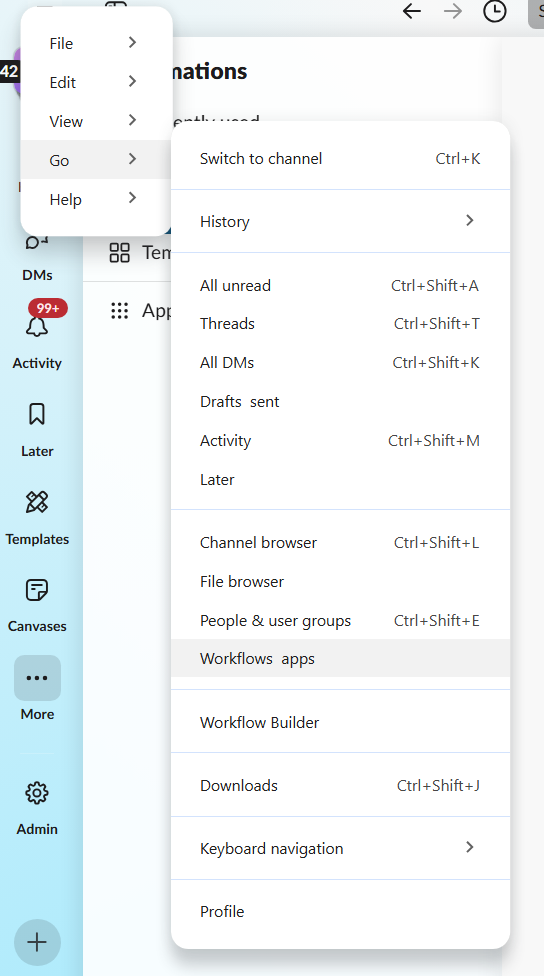
Webhooks posting to Slack Channels are usually part of Slack Workflows. To whitelist a specific webhook, you need to find the corresponding Workflow and whitelist the Workflow's name:
1. Go to the **Workflows** section from your Slack Desktop.
2. Click the **"Workflows"** menu on the left sidebar.
3. Check the workflows listed—these are the ones ClearFeed shows in the whitelisting dropdown.
4. Find the Workflow containing your webhook from this list.
5. Use this workflow name when whitelisting in ClearFeed.
Slack Workflows Navigation
## Advanced Configuration
### Send Messages as a User via API
When messages are sent to Slack via external systems using Slack APIs, they typically appear as being sent by the bot associated with the integration. This makes it difficult for your support team to identify the actual customer or user who raised the request.
ClearFeed supports sending messages from external systems to Slack while displaying them as if they are coming from actual users rather than a bot.
**How It Works:**
To process the message as originating from a specific user, pass additional metadata in the payload when using Slack's `chat.postMessage` API:
```json
{
"channel": "C1234567890",
"text": "Hello from an external system!",
"event_type": "user_message",
"event_payload": {
"clearfeed": {
"user_id": "external-1234",
"name": "John Doe"
}
}
}
```
**Field Descriptions:**
| Field | Description |
| --------- | ---------------------------------------------------------------------------------------------------------------------------- |
| `user_id` | Unique identifier for the user. Use the same `user_id` across messages from the same sender to maintain consistent identity. |
| `name` | Display name for the message sender that will appear in Slack. |
**Important Requirements:**
* This feature **only works with whitelisted bots** in ClearFeed
* The `user_id` must remain consistent for the same user across messages
* If metadata is missing, the message will appear as sent by the bot
* If the name changes for an existing `user_id`, ClearFeed will update the display name for future messages
## FAQs
1. **I added a channel to a Collection, but I don't see any requests. Why?**\
**Answer:** ClearFeed only monitors **new messages** after a channel is added. Existing messages are not automatically converted. To create requests from older messages, apply a 📌 emoji reaction to the first message in the thread. See [Manual Request Creation](#manual-request-creation).
2. **Why isn't ClearFeed creating a request from my workflow message?**\
**Answer:** Check the following:
* The first line contains `#requester` followed by the requester variable (e.g., `#requester @John Doe`)
* The message is posted in a channel monitored by ClearFeed (added to a Collection)
* Workflow variables are correctly mapped in the message
* The workflow bot has been whitelisted (Settings > Additional Settings > Bot Whitelisting)
* If the bot doesn't appear in the whitelist dropdown, click **"Can't find the bot you're looking for? Click here to add it manually"** and paste a Slack message link from that bot
3. **How does ClearFeed decide what name to show for a user in Slack?**\
**Answer:** ClearFeed relies entirely on the user profile information that Slack returns for each message author.
* If Slack provides a full profile for the user (name, title, etc.), ClearFeed shows that profile information in its UI.
* If Slack does **not** return any profile fields for the user which is common for guests or users on personal email domains like `@gmail.com,` ClearFeed falls back to showing the user's email domain instead.
This behavior is a limitation of the data available from Slack. To improve how names appear:
* Ensure users have complete Slack profiles (name, title, etc.).
* Where possible, avoid using guest accounts or personal email domains for users who should appear with full names/titles.
4. **Can I use workflows in private channels?**\
**Answer:** Yes, as long as the ClearFeed bot has been added to the private channel and the channel is added to a Collection.
5. **Can I customize the form questions in workflows?**\
**Answer:** Yes, you can add any questions relevant to your request process when creating the Slack Workflow. The collected answers can be included in the message body using workflow variables.
6. **Can I use the "Send Messages as a User" API feature with all whitelisted bots?**\
**Answer:** Yes, any whitelisted bot that sends messages via the Slack API with the specified payload format can use this feature. The bot must be whitelisted in ClearFeed and have permission to post messages in the target channel.
7. **If I whitelist a bot for request creation in one ClearFeed account, will it also be whitelisted in other accounts on the same Slack workspace (including child accounts)?**\
**Answer :** Yes. Bot whitelisting for request creation is effectively **workspace-wide** for any ClearFeed accounts that are connected to the **same Slack workspace**. If a bot is whitelisted in a child or parent ClearFeed account, that bot will be treated as whitelisted in **all** ClearFeed accounts connected to that Slack workspace. This means messages from that bot can create requests across those accounts, and there is currently no way to scope bot whitelisting to a single ClearFeed account only.
.gif?alt=media)
%20(1)%20(1)%20(1)%20(1)%20(1)%20(1)%20(1)%20(1)%20(1).png?alt=media)