> For the complete documentation index, see [llms.txt](https://docs.clearfeed.ai/clearfeed-help-center/llms.txt). Markdown versions of documentation pages are available by appending `.md` to page URLs; this page is available as [Markdown](https://docs.clearfeed.ai/clearfeed-help-center/managing-requests/triage-channel.md).
# Triage Channel
Triage Channels are dedicated Slack channels powered by ClearFeed. They serve as your team's central command center, enabling agents to efficiently manage, respond to, and track requests and tickets originating from various channels, including Slack and MS Teams channels, Discord, Telegram, Email, Portal, Web Chat, and API. Learn more about Triage Channel [here](/clearfeed-help-center/clearfeed-helpdesk/triage-channel-setup.md)
With [multiple Slack workspaces](/clearfeed-help-center/sources/manage-request-channels/slack-workspaces.md), triage channels stay in Primary. You can manage Secondary requests here without joining the Secondary workspace. Public replies sync back to the source channel. Mentions copied between workspaces appear as non-notifying text; private comments stay with your team.
## Accessing Triage Channels
Triage Channels appear as regular Slack channels in your workspace. Once configured, ClearFeed automatically posts new requests to the triage channel as threaded messages, allowing your support team to collaborate and respond efficiently.
To find your triage channels, navigate to ClearFeed WebApp and Check **Settings > Triage**\
**Settings** in the ClearFeed WebApp to see all configured triage channels.
## Responding to Requests from Triage
### Public Replies (Visible to Customers)
The visibility of your replies depends on your **Triage Comment Visibility** setting:
**If set to "Public" (default):**
* All messages you post in the triage thread are synced to the customer's channel
* To keep a message internal, prefix it with the 🔒 emoji
* Example: `🔒 This customer has been difficult in the past, handle with care`
**If set to "Private":**
* By default, messages stay internal to your team
* To send a message to the customer, prefix it with the 📢 emoji
* Example: `📢 Hi! We've resolved your issue. Please verify it's working.`
{% hint style="warning" %}
Emoji visibility modifiers only work when added **before** sending the message - Editing a message to add 🔒 or 📢 after sending will **not** change its visibility
{% endhint %}
### Editing and Deleting Messages
Edits and deletes made to messages in the triage channel **cannot always be propagated** to the original ticket source. This limitation applies to tickets where responses are delivered via **email** (including Email, Portal, Web Chat, and API-created tickets) — once sent, email messages cannot be updated.
If you edit or delete a triage message for these ticket types, ClearFeed will show a warning that the changes will not be reflected in messages already delivered to the customer.
### Slack Message Link Previews in Synced Replies
When someone pastes a Slack message link in a synced request or triage thread, Slack may add a preview of the linked message after the message is posted. ClearFeed syncs that preview in both directions between the Request Channel and the Triage Channel, so responders can see the referenced message context wherever they are working.
This applies to message links shared from the Request Channel and the Triage Channel — previews are synced in both directions, including from the Triage Channel back to the Request Channel. Message forwards are also synced. If the sender removes the Slack link preview from the original message, ClearFeed removes the synced preview as well.
{% hint style="info" %}
**Availability:** Link preview syncing only works for Slack-based tickets. For Email, Web Chat, Portal, or API-created tickets, link previews cannot be synced since the message has already been delivered via email.
{% endhint %}
## Handling Emails from Triage Channels
#### Deleting Emails
* You will find a dedicated button for email tickets on the triage channel called `Delete Email`.
* If a new Email ticket comes into triage - and you recognize that as spam, click on the `Delete Email` button to remove it from the triage channel.
* Account admins can also select **Add sender to the block list** in the confirmation modal. This prevents new tickets from that address. See [Block Email Senders](/clearfeed-help-center/sources/email.md#block-email-senders) for details.
* If you delete an email ticket from triage, any replies on that email thread will no longer sync to Slack and the ticket will not reopen.
* If there are existing responses from your team on the email ticket, the Delete Email button collapses the thread on triage and doesn't sync any future replies.
{% hint style="info" %}
You can hide the Delete Email option for email-based tickets in the triage channel. If you'd like this disabled for your account, please contact ClearFeed support.
{% endhint %}
## Internal Notes and Collaboration
For internal team discussions—such as asking clarifying questions, sharing background context, coordinating handoffs, or tagging teammates for their expertise—ClearFeed supports two ways to collaborate:
* **From the Triage Channel**
* **From the Request Channel**
Regardless of which option you choose, **all comments sync to the connected ticketing system**, ensuring consistent context across Slack and your ticketing tool.
### Adding Private Notes From Triage Channel
Depending on your [**Triage Comment Visibility**](/clearfeed-help-center/clearfeed-helpdesk/triage-channel-setup.md#triage-comment-visibility) settings, you can collaborate internally by:
* Prefixing your message with the :lock: emoji, **or**
* Simply typing and sending your message (if configured to treat all triage messages as private)
These notes stay within the triage workflow and **do not sync back to the Request Channel**.
{% hint style="info" %}
If "Disable tagging Slack users on Triage Channel" is enabled, @mentions in triage won't trigger notifications to avoid duplicates when users are also mentioned in the original request channel.
{% endhint %}
### Adding Private Comments from the Request Channel
This option is available only in Primary request channels when a Triage Channel exists. For Secondary requests, add private comments from Primary triage or the WebApp instead.
When a Triage Channel is configured for a Collection, users can add **Private Comments** directly to the external ticketing system from the Request Channel.
To add a private comment:
1. Open the thread in the Request Channel.
2. Click the `...` menu on the ticket message block.
3. Select **Add Private Comment**.
Private comments appear **only** in the connected ticketing system and are **not visible** on the public Slack thread.
{% hint style="warning" %}
* Messages posted directly in the **Request Channel** are always visible to everyone in that Slack channel, including customers even if the message includes :lock:emoji.
* Internal note behavior applies **only** to messages posted in the **Triage Channel**, and follows your configured **Triage Comment Visibility** settings.
* If you post a message starting with an internal-note emoji in the Request Channel, ClearFeed shows a warning to clarify that the message will **not** be treated as private.
{% endhint %}
## Managing Request Properties
You can update request properties directly from the triage channel using emoji reactions or by interacting with the ClearFeed bot message:
* **Status**: Update using reactions or the status dropdown
* **Priority**: Change priority level (Low, Medium, High, Urgent)
* **Assignee**: Assign or reassign requests to team members
* **Custom Fields**: Update any custom fields configured for your collection
Changes made in the triage channel are immediately reflected in the ClearFeed WebApp and synchronized with any linked external tickets.
### Emoji Reaction Sync
ClearFeed replicates certain emoji reactions between the Request Channel and the Triage Channel:
* A **non-responder's** reaction on a message in the Request Channel syncs to the corresponding message in the Triage Channel.
* A **responder's** reaction on a message in the Triage Channel syncs to the corresponding message in the Request Channel.
{% hint style="info" %}
**Note:**
* Synced reactions appear as posted by the ClearFeed bot, not by the original user.
* Emoji Rules (Assign, Solved, Urgent) and other action-linked emojis don't sync — see [Emoji Rules](/clearfeed-help-center/clearfeed-helpdesk/emoji-rules.md).
{% endhint %}
{% hint style="success" %}
**Pro-tip:**\
ClearFeed displays a vertical color bar on ticket messages in triage channels to visually indicate ticket status:
* **Red:** Open
* **Yellow/Orange:** In-Progress or Pending
* **Green:** Closed/Solved
In rare cases, there may be a short delay in updating the color bar in Slack after a ticket's status changes.
{% endhint %}
## Using AI Agents
If AI Agents is enabled for your collection, ClearFeed will automatically fetch the relevant answers from the attached Knowlede Sources and post it publicly or privately based on whether it has been set up as Virtual Agent or Agent Assistant. Learn more about this [here](/clearfeed-help-center/clearfeed-ai/ai-agents/use-ai-agents.md).
## Creating or Linking Tickets and Tasks
From a triage channel thread, you can:
* **Create tickets** in external systems (Jira, Zendesk, Freshdesk, etc.) using configured emoji reactions
* **Link existing tickets** to track work in your ticketing system
* **Create tasks** in project management tools (Linear, GitHub, ClickUp, Asana) for follow-up work
Refer to [Creating or Linking Tickets](/clearfeed-help-center/how-it-works/creating-or-linking-tickets.md) and [Creating or Linking Tasks](/clearfeed-help-center/how-it-works/creating-or-linking-tasks.md) for details.
## Proactively Starting Conversations
You can initiate conversations with customers directly from your Triage Channel using the `/cf-start-thread` command. This allows you to:
* Reach out proactively with updates or check-ins
* Follow up on previous conversations
* Share important announcements
* Initiate support before customers ask
Learn more about [Creating Requests from Triage Channel](/clearfeed-help-center/how-it-works/creating-requests/from-triage-channel.md)
## Syncing Private Comments with Ticketing Systems
If you're using an external ticketing system (Zendesk, Freshdesk, etc.), your triage channel can sync private comments bidirectionally:
**From Triage to Ticketing System:**
* Private comments (🔒) can be synced to your ticketing system as internal notes
* Configure whether all private comments sync, or only those reacted with :pencil: emoji
**From Ticketing System to Triage:**
* Internal notes from your ticketing system can be synced back to the triage channel as private comments
* Currently supported for Freshdesk (as private notes) and Zendesk (as internal comments)
## Triage Notifications and Digests
For Primary requests, ClearFeed sends these digests to your triage channel. Secondary requests are not supported in digests; track them in the WebApp or triage threads.
* **Daily Digest**: Notifies daily for requests that are 'Open' and require attention, highlighting those with High priority
* **Weekly Digest**: Every Monday, reminds you of unsolved requests from the last month up\
to the most recent week
These digests are posted directly in your triage channel to keep the team informed. Learn more [here](/clearfeed-help-center/clearfeed-helpdesk/digests.md)
## Setting Up or Configuring Triage Channels
For information about setting up, configuring, or managing triage channel settings, see [Triage Channel Setup](/clearfeed-help-center/clearfeed-helpdesk/triage-channel-setup.md)
## FAQs
1. **Could we make the default setting of the triage channel to have all messages treated as internal comments and only selected messages to go into customer channels?**\
**Answer:** Yes, you can use the Comment Visibility option in Triage Settings to configure this. Setting Comment Visibility to **Private** will make messages internal by default, requiring users to prefix messages with the 📢 emoji to have them flow into the customer channels.
2. **Can we edit any message and put the 🔒emoji to make it visible internally?**\
**Answer:** No, once a message is sent in a thread, it will be public. Editing the message by placing emoji post sending will not make it internal/private.
3. **Will customers see the triage channel or know we're using it?**\
**Answer:** No, customers never see the triage channel. They only see replies sent to their original request channel (or via email/other channels). The triage channel is entirely internal to your support team.
4. **Can I respond to requestsfrom both the triage channel and the original request channel?**\
**Answer:** Yes, you can respond from either location. Responses are bidirectionally synced, so your team sees all replies in the triage channel regardless of where they were posted.
5. **How do I find the triage thread for a request from the requester channel?**\
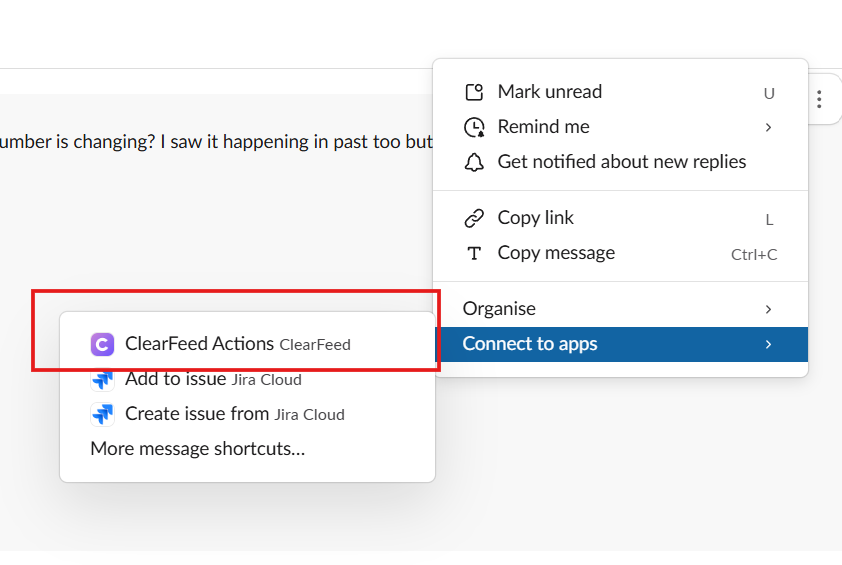
**Answer:** In Primary, use the original message's **More Actions > Connect to Apps > ClearFeed Actions > View in Triage**. In Secondary, open the request in the WebApp or find it in Primary triage; see [Multiple Slack workspaces](/clearfeed-help-center/sources/manage-request-channels/slack-workspaces.md#handle-requests-across-workspaces).
Finding the Triage Thread from a Requester Thread
6. **Why am I seeing an edit warning for web-chat/portal/email tickets?**\
**Answer:** You may see the warning *"⚠️ Edits are not reflected in messages that have already been delivered (email, portal, or web-chat)"* even if you didn't manually edit your message. This can happen when Slack automatically edits your message for **link unfurling** — when you include a link in your message, Slack may auto-edit it to show a preview, which triggers this warning even though you didn't make the edit manually.
7. **Can I turn off emoji reaction sync between the Triage and Request Channels?**\
**Answer:** Yes, each direction can be disabled independently. This isn't a self-serve setting — contact ClearFeed support to have it turned off. See [Emoji Reaction Sync](#emoji-reaction-sync) for details on the behavior.
8. **Why do synced emoji reactions show up as applied by "ClearFeed" instead of the user who reacted?**\
**Answer:** ClearFeed's bot currently applies all synced reactions itself; it can't yet apply a reaction on behalf of the reacting user. Support for showing the original user is planned for a future release.