Customer Collections
Customer Collections help you organize external customers into groups that share the same support rules. This feature is available only on the External Helpdesk Product Edition.
Understanding the Basics
What is Customer Centric Inbox?
All new External Helpdesk accounts use Customer Centric Inbox by default. This is a customer-first experience where all conversations, tickets, and requests from each customer appear together in one place, regardless of where they originated (Slack, email, web chat, portal, API, etc.).
Note: Some existing accounts may still use Standard (Channel-Based) Management, where requests are organized by channel instead of by customer. This guide focuses on Customer Centric Inbox. For a comparison between the two models, see Collections.
Two Types of Collections
ClearFeed uses two types of Collections to manage your support workflow:
Source Collections
Where requests are created (Email, Web Chat, Portal, API). Source Collections control how requests are initially created, such as forms, required fields, and templates.
Customer Collections
Where requests are handled. Each Customer Collection represents a group of customers (for example, Enterprise, Trial, or Regional groups) and controls how requests are managed, such as assignments, SLAs, automations, and AI behavior.

Forwarding: The Bridge Between Collections
Forwarding is the mechanism that moves requests from Source Collections to Customer Collections.
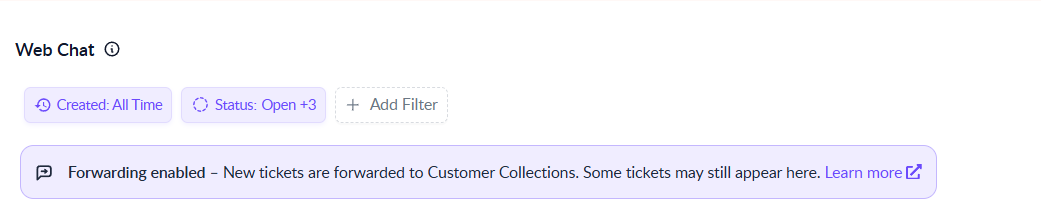
Forwarding OFF: Requests stay in their Source Collection (Email, Web Chat, etc.)
Forwarding ON: Requests that are linked to a customer automatically move to that customer’s Customer Collection
When forwarding is enabled, you get a unified view of each customer—all their requests appear together in their Customer Collection, regardless of where they came from.
Key Terms
Customer
An external company or organization you provide support to. Customers are identified by their email domains or a Slack Connect workspace.
Domain
The email domain that identifies a customer (for example, acmecorp.com). A customer can have multiple domains.
Request
A support ticket or conversation created via Slack, email, web chat, portal, or API.
All Customers
The default Customer Collection where all new customers are initially placed. Think of it as an inbox for new customers before you organize them further.
How Requests Flow Through ClearFeed
When a new request arrives, ClearFeed follows three steps to route and handle it correctly.
Step 1: Identify the Customer
ClearFeed determines which customer (if any) the request belongs to. The logic depends on the source.
From Slack Connect Channels
Slack Connect channels are pre-associated with a customer.
When you monitor a Slack Connect channel (automatically or manually), ClearFeed:
Creates or links a Customer for the external Slack workspace
Associates that Slack channel with the Customer
As a result, every request from that channel is:
Automatically linked to the same Customer

From Email, Web Chat, Portal, or API
For these sources, ClearFeed uses the sender’s email domain:
If the domain matches an existing customer → The request is linked to that customer
If the domain is a business domain with no match → ClearFeed may auto-create a new customer
If the domain is a free email domain (gmail.com, yahoo.com, etc.) or an internal domain → No customer is created and the request remains unlinked
Important: A single customer can have multiple domains. If any of them match, the request links to the same customer.
Step 2: Route the Request
Next, ClearFeed checks the Forwarding setting on the Source Collection (Email, Web Chat, Portal, API, or Slack):
If Forwarding is ON and the request is linked to a customer → The request moves to that customer’s Customer Collection
If Forwarding is OFF, or the request is not linked to any customer → The request stays in the Source Collection

Step 3: Apply the Right Settings
Different settings apply at different stages of the request lifecycle.
Source Collection Settings (used during creation)
These always come from the Source Collection:
Ticketing rules (required fields, validation)
Forms and required fields
Email configuration and templates
Web Chat out-of-office messages
These control how the request is created.
Customer Collection Settings (used during handling)
If the request is routed to a Customer Collection, these settings apply:
Assignment rules
Triage channel
Automations and workflows
AI Agent behavior
Responders
SLA policies
These control how the request is managed after creation.
Examples
Email from [email protected] (existing customer)
acmecorp.com
Yes
Request appears in Acme Corp’s Collection
Email from [email protected] (new customer)
newcorp.com
Yes
Customer is created and request routes to All Customers
Web chat from [email protected]
gmail.com (free)
Yes
Request stays in Web Chat Collection; no customer created
Slack Connect from Acme workspace
NA
Yes
Request routes to Acme Corp’s Collection
Why Domains Matter
Domains enable ClearFeed to:
Identify customers
Route requests correctly
Group customer history in one place
Enable portal access
Without domains:
Requests can’t be linked automatically
Routing won’t work for that customer
Portal access is unavailable
Best practice: Always add domains when creating customers, even if they were auto-created from Slack Connect.
Free Email Domains
Requests from free email providers (gmail.com, yahoo.com, outlook.com, hotmail.com, etc.):
Do not create customers
Are not linked
Are never routed to Customer Collections
Always remain in the Source Collection
Working with Customer Collections
Common Collection Setups
By tier: Enterprise, Pro, Free Trial
By region: North America, EMEA, APAC
By team: Sales Support, Technical Support, Billing Support
By owner: One Collection per CSM or account owner

What Customer Collections Control
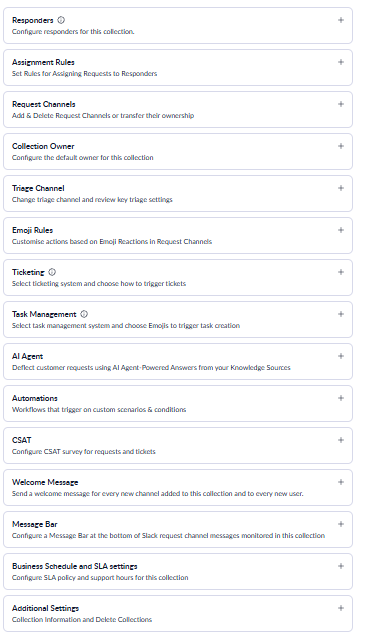
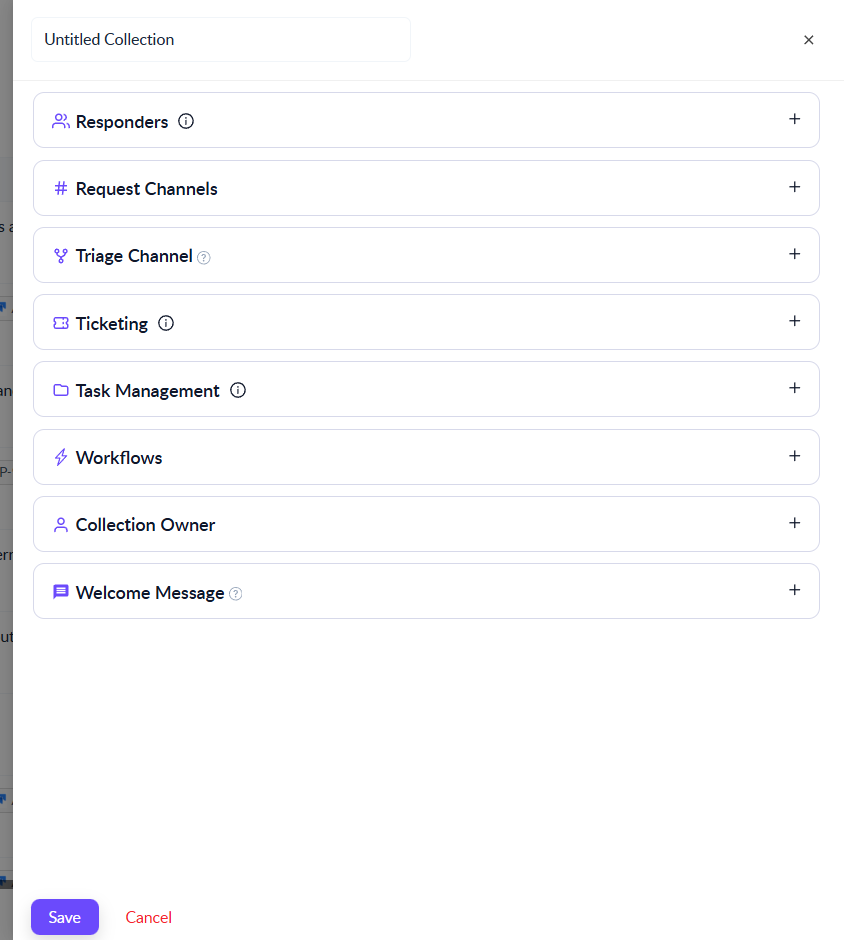
Each Customer Collection defines:
Responders: Which users in your organization act as support agents for this Collection.
Assignment Rules: How requests or tickets are assigned (for example, first responder or round-robin).
Request Channels: Slack/MS Teams channels associated with this Collection, and their ownership (where applicable).
Collection Owner: The default owner for this Collection, which can be inherited by Customers in the Collection. You can use the Collection Owner to send announcements, assign requests to the Customer Owner, or send messages from automations. By default, new customers in the Customer Inbox inherit the Collection Owner unless a specific owner is set.
Triage Channel: The Slack channel where the team collaborates to manage and prioritize requests from this Collection.
Emoji Rules: Actions triggered in ClearFeed or connected tools based on emoji reactions in Slack.
Ticketing: How tickets are created in ClearFeed or external systems like Jira or Zendesk.
Task Management: Creating tasks in tools like ClickUp, GitHub, Asana, Linear, or Jira using emoji reactions.
AI Agents: How AI answers questions and takes actions using your connected knowledge sources and tools.
Automations: Workflows triggered by events like request creation, status changes, or keywords.
CSAT Survey: How customer satisfaction surveys are sent after requests are resolved.
Welcome Message: The automatic message sent when users join a monitored Slack channel.
Message Bar: The buttons shown in Slack request channels (for example, File a Ticket, File a Private Ticket, Ask AI).
Business Schedules & SLA: Working hours and response/resolution time targets for this Collection.
Workflows: Custom workflows that apply to requests from customers in this Collection.
Additional Settings: Options to:
Delete the Collection
Download request data for analysis

Creating a Customer Collection
To create a new Customer Collection:
Go to the Inbox in the ClearFeed Web App
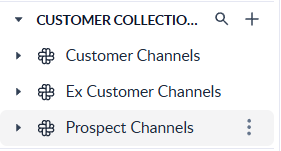
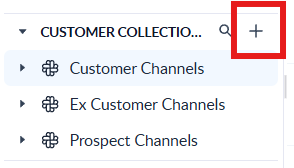
Click the “+” button next to the Customer Collections section

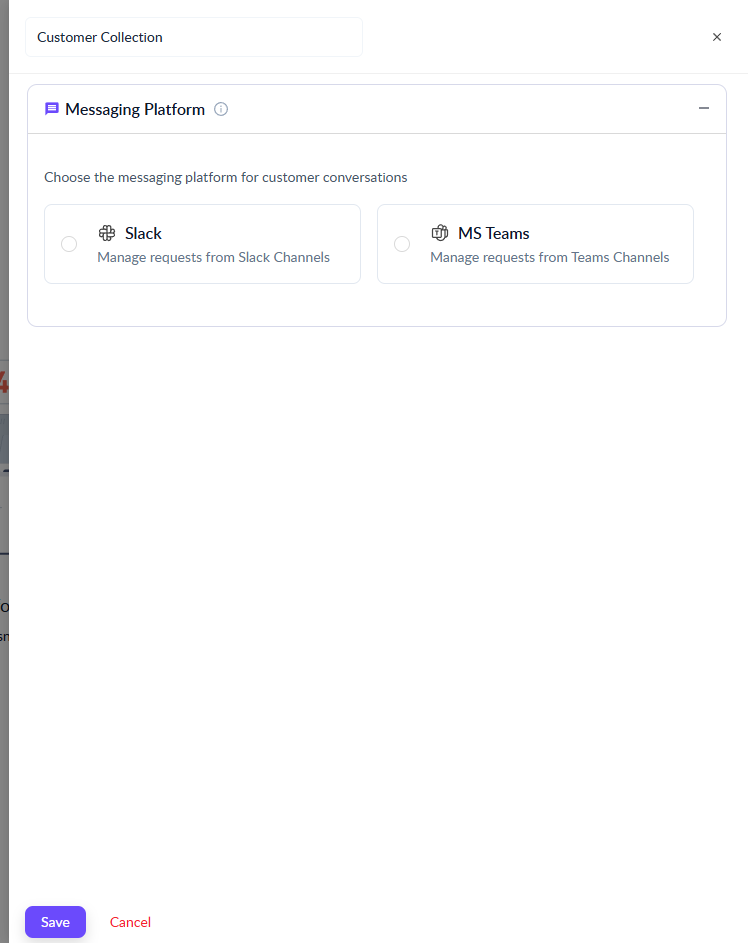
If your account is configured with both Slack and Microsoft Teams, choose where this Collection will manage requests from. If only Slack is configured, this step is skipped.

Enter the Collection name and configure its settings. You can also clone settings from an existing Collection. Automations, workflows, and quick replies aren’t copied; all other settings are cloned and can be modified later from the Collection settings page.

Click Save to create the Collection
Once the Collection is created, you can start adding customers to it and apply different rules (SLAs, assignments, workflows, automations, and AI behavior) based on how you’ve organized your Collections.
How Customers Are Added to Collections
Customers can be added to a Collection manually or automatically, for step-by-step instructions, see Customer Management.
ClearFeed uses domains and Slack Connect workspaces to decide where customers belong and where their requests should go.
Manually: You can create a customer directly inside a specific Collection or move an existing customer to another Collection.
Automatically: ClearFeed can create customers when:
A new Slack Connect channel is detected (if automatic monitoring is enabled), or
A request arrives from a new business domain via Email, Web Chat, Portal, or API.
Important rules:
Requests from free email domains (for example, gmail.com, yahoo.com, outlook.com, hotmail.com) never create customers automatically.
Requests from internal domains also never create customers.
A customer can have multiple domains, and requests from any of those domains will link to the same customer.
Configuring Forwarding (Routing)
Forwarding is configured per Source Collection (Email, Web Chat, Portal, API).
To configure Forwarding:
Go to Collections in the left sidebar
Open a Source Collection (Email, Web Chat, Portal, or API)
Open Collection Settings
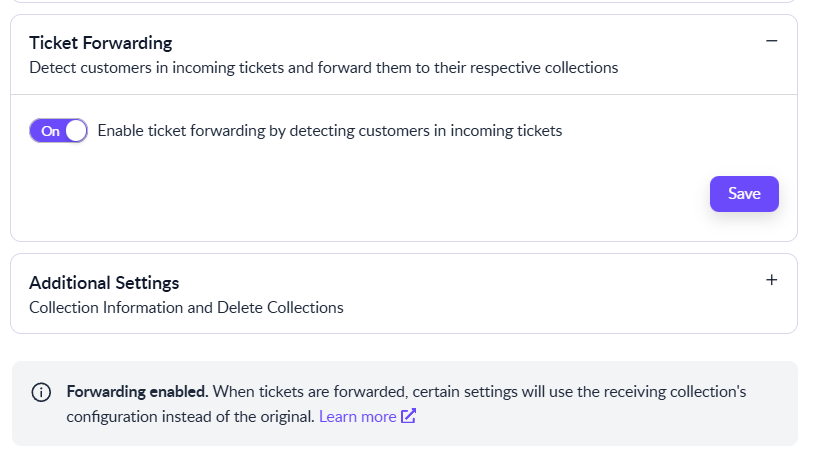
Find the Ticket Forwarding section
Toggle Forwarding:
ON: Requests route to Customer Collections
OFF: Requests stay in this Source Collection
Click Save

Forwarding ON vs OFF: What Changes?
With Forwarding Disabled:
Requests stay in their Source Collections
Slack Connect requests are still linked to their Customer (because the channel is pre-associated)
Domain-based requests may or may not be linked, depending on matching rules
Only Source Collection rules apply
With Forwarding Enabled:
Requests linked to a customer move into that customer’s Customer Collection
All of a customer’s requests appear together
Source Collection rules apply at creation, then Customer Collection rules apply for handling
SLAs, assignments, automations, and AI behavior are consistent per customer
FAQs
What’s the difference between All Customers and other Collections? Answer: All Customers is the default Customer Collection where:
Auto-created customers are initially placed
Customers without a specific assignment go
Think of it as an inbox for new customers. You can move customers to more specific Collections (for example, Enterprise or Trial) as your workflow evolves.
What happens if a customer has multiple domains? Answer: You can add multiple domains to a single customer (for example,
acmecorp.comandacme.io). Requests from any of those domains link to the same customer and appear in one unified history.Does routing affect historical requests? Answer: No. Routing applies only to new requests created after you enable it. Existing requests remain where they are unless you move the customer.
Can a request belong to multiple customers? Answer: No. Each request can be linked to only one customer at a time.
What happens if I move a customer between Collections? Answer: When a customer is moved:
All past requests move with them
All future requests route to the new Collection
The customer follows the new Collection’s rules (SLAs, assignments, workflows)
For step-by-step instructions, see Customer Management.
Last updated