> For the complete documentation index, see [llms.txt](https://docs.clearfeed.ai/clearfeed-help-center/llms.txt). Markdown versions of documentation pages are available by appending `.md` to page URLs; this page is available as [Markdown](https://docs.clearfeed.ai/clearfeed-help-center/sources/telegram-setup.md).

# Telegram (Beta)

ClearFeed's Telegram integration brings messages from Telegram groups into the ClearFeed Inbox and Slack Triage Channels. Responders can manage requests in ClearFeed and send replies through a ClearFeed-managed Telegram bot.

{% hint style="info" %}
The Telegram integration is in beta. It is available on the Professional and Enterprise plans.
{% endhint %}

## Requirements

Before you begin, make sure that:

* You are a ClearFeed **Admin** or **Manager**.
* Your Telegram account can add a bot to each group and promote it to an administrator.
* Your browser allows pop-ups from the ClearFeed dashboard.

## Connect a Telegram bot

ClearFeed creates and manages the bot used for your Telegram groups. You don't need to create a bot or copy a bot token before starting.

1. Go to **Settings → Integrations** in ClearFeed.
2. Find **Telegram** and click **Connect**.
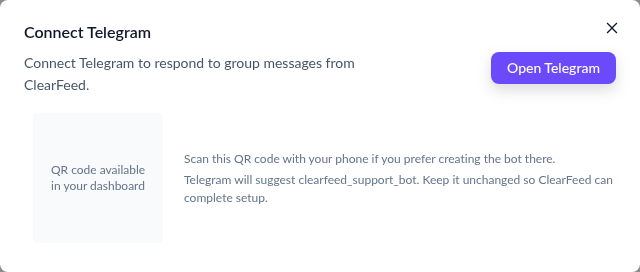
3. Click **Open Telegram**. You can also scan the QR code from a phone.
4. Complete the bot setup in Telegram.
5. Keep the suggested bot username unchanged. ClearFeed uses this username to complete the connection.
6. Keep the ClearFeed window open until the bot is connected.

<figure><img src="/files/mepyqX23E96sjsKXHAGk" alt="Telegram integration card marked Beta in ClearFeed"><figcaption><p>The Telegram integration is marked Beta in Settings.</p></figcaption></figure>

<figure><img src="/files/UgNcuXqHPzmGxIyhjViu" alt="Connect Telegram dialog with Open Telegram and QR code options"><figcaption><p>Create the managed bot from the Connect Telegram dialog.</p></figcaption></figure>

{% hint style="warning" %}
The connection link expires after 15 minutes. Keep the suggested username unchanged and finish the Telegram steps before the link expires.
{% endhint %}

## Create a Telegram collection

A Telegram collection defines the responders and triage channel for its monitored groups.

1. Go to **Collections** in ClearFeed.
2. Click **New → Collection → Customer Collection**.
3. Enter a collection name.
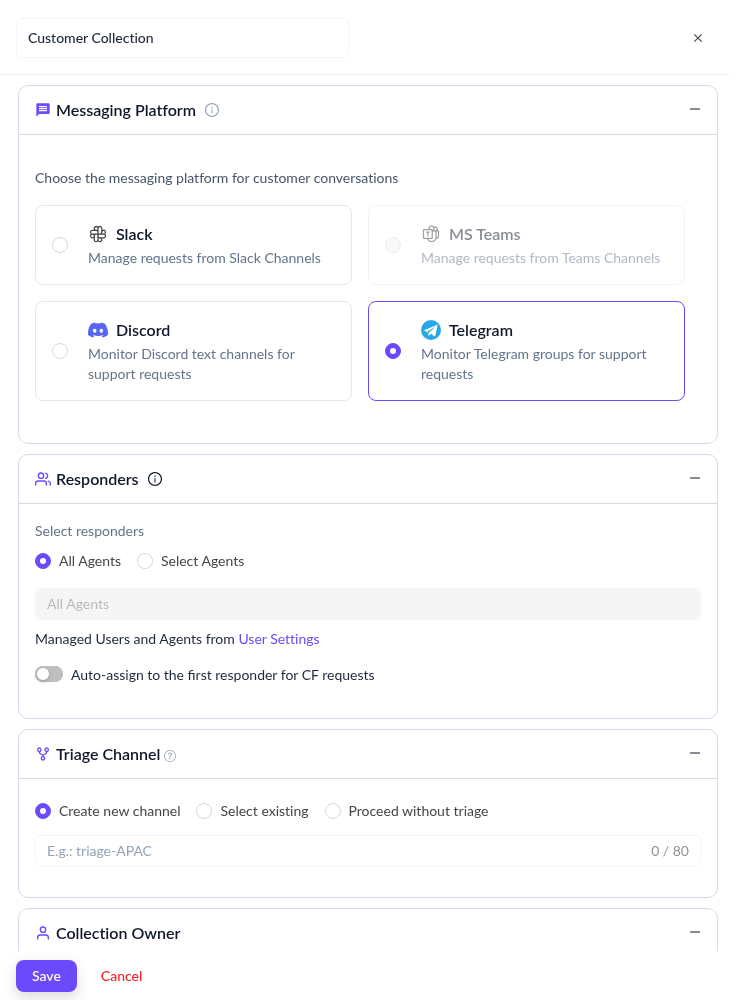
4. Under **Messaging Platform**, select **Telegram**.
5. Under **Responders**, select **All Agents** or choose specific agents. Learn more about [configuring responders](/clearfeed-help-center/clearfeed-helpdesk/responders.md).
6. Under **Triage Channel**, create a Slack channel, select an existing channel, or proceed without triage. See [Triage Channel Setup](/clearfeed-help-center/clearfeed-helpdesk/triage-channel-setup.md) for details.
7. Select the collection owner.
8. Click **Save**.

<figure><img src="/files/JCnGos0aKY0qk8UzTLkU" alt="Customer Collection form with Telegram selected as the messaging platform"><figcaption><p>Select Telegram and configure the collection's responders and triage channel.</p></figcaption></figure>

## Add a Telegram group

Add each Telegram group from the collection where you want its requests to appear.

1. Open the Telegram collection.
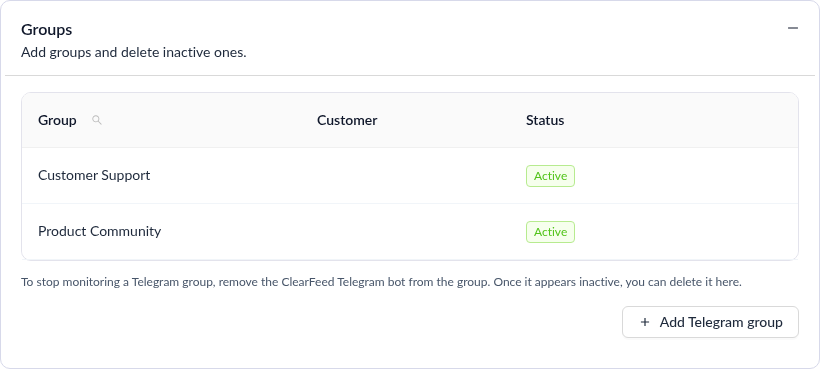
2. Select **Settings** and expand **Groups**.
3. Click **Add Telegram group**.
4. In Telegram, select the group and add the connected bot.
5. Promote the bot to an administrator of the group.
6. Return to ClearFeed and refresh the collection.
7. Confirm that the group has an **Active** status.

<figure><img src="/files/kXNGAiSkSc3mEIPQcKYk" alt="Telegram collection Groups settings showing active groups"><figcaption><p>Active Telegram groups and the Add Telegram group action.</p></figcaption></figure>

{% hint style="warning" %}
An add-group link can be used once and expires after 10 minutes. The bot must remain a group administrator for ClearFeed to monitor messages.
{% endhint %}

ClearFeed supports Telegram groups, supergroups, and forum groups. Telegram channels and private chats cannot be added as monitored sources. You can add multiple groups to a collection, but each group can belong to only one collection.

## Link responder identities

Link the Telegram identity of each agent who replies directly in a monitored group. ClearFeed uses the link to distinguish responders from requesters.

### Map an observed Telegram member

An Admin can map any account user after ClearFeed has observed the Telegram member in a monitored group. Other users can update only their own mapping.

1. Ask the agent to send a text message or caption in a monitored Telegram group.
2. In ClearFeed, go to **Settings → Users and Teams**.
3. Find the agent under **Current Users**.
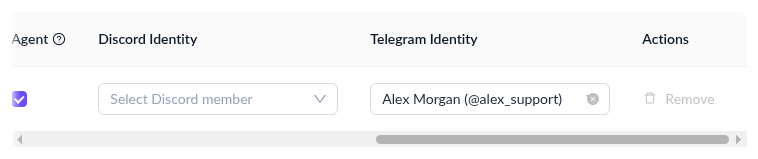
4. In **Telegram Identity**, select the agent's Telegram member.

<figure><img src="/files/LLmn1yxahsTyc6QgdBlf" alt="Telegram Identity column in ClearFeed Users and Teams settings"><figcaption><p>Map a ClearFeed agent to their observed Telegram identity.</p></figcaption></figure>

### Link through the support bot

ClearFeed can also provide an agent with a short-lived personal identity link.

1. Open the personal identity link within 15 minutes.
2. Telegram opens a private conversation with the connected support bot.
3. Select **Start**. Telegram sends a private `/start <token>` message to the bot.
4. Wait for the bot to confirm that the Telegram identity is linked.

Until an identity is linked, messages that the agent sends directly in Telegram are treated as requester messages. Identity linking isn't required for agents who reply only from the ClearFeed Inbox or Triage Channel.

## Work with Telegram requests

After a group becomes active:

* Text messages and captions can create ClearFeed requests.
* ClearFeed doesn't post a message in Telegram when it creates a request.
* Replies from the ClearFeed Inbox or Triage Channel are posted by the connected bot. The responder's name appears at the beginning of the reply.
* In non-forum groups, use Telegram's **Reply** action to keep a message in the intended ClearFeed conversation.
* In forum groups, replies remain in the same Telegram topic.
* Edits to ingested text messages update the corresponding message in ClearFeed.
* ClearFeed-native requests, tickets, statuses, and Triage Channel workflows remain available.

## Manage monitored groups

ClearFeed monitors a group only while the connected bot remains an administrator. Removing the bot or removing its administrator role pauses monitoring. Adding the bot again as an administrator resumes monitoring and preserves the existing ClearFeed history.

To stop monitoring a group, remove the bot from the Telegram group. After the group becomes inactive in ClearFeed, delete it from **Collection Settings → Groups**.

Contact ClearFeed Support if you need to replace the connected bot during the beta.

## Coming in a later release

We are actively working on the Telegram integration, and these features are on our immediate roadmap:

* Media-only messages, attachments in replies, reactions, deletions, and advanced media sync are unsupported.
* Managed-bot setup only; existing BotFather bots or token entry are unsupported.
* One connected Telegram bot per ClearFeed account.
* External ticketing/task integrations and forward sync are unavailable; retain ClearFeed-native request/ticket behavior.
* AI answers in Telegram, emoji workflows, collection automations, welcome messages, CSAT, and Telegram-specific SLA/assignment configuration are unavailable.
* Replies are limited to Telegram's 4,096-character text limit.
* Telegram Collections do not support cloning.