DKIM Setup for Custom Domain
Send outbound ClearFeed emails from your own company domain by verifying it with DKIM, without relying on Google or Microsoft OAuth.
Custom domain authentication lets ClearFeed send outbound emails from your company domain, such as support@yourcompany.com, without relying on Google or Microsoft OAuth for the outgoing send path. ClearFeed signs these emails with DKIM, which helps receiving mail servers verify that ClearFeed is authorized to send on behalf of your domain.
For Web Chat, Portal, and Email ticket notifications, this is useful when you want customer-facing emails to originate from your own support domain instead of a ClearFeed sending address. For Automation Send Email actions, it lets you select a verified domain address as the sender alongside Google and Microsoft authenticated addresses.
You must be an account Admin to add, verify, or remove a custom email domain.
Domain limits:
Each ClearFeed account can be configured with one DKIM-authenticated sending domain at a time.
A sending domain can be DKIM-authenticated in only one account. Related accounts in the same organization (parent, child, or sibling accounts) can also use that verified domain, but an independent, unrelated account cannot authenticate a domain that is already in use.

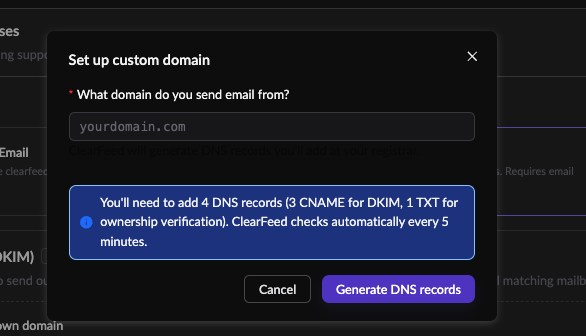
Step 1: Add your sending domain
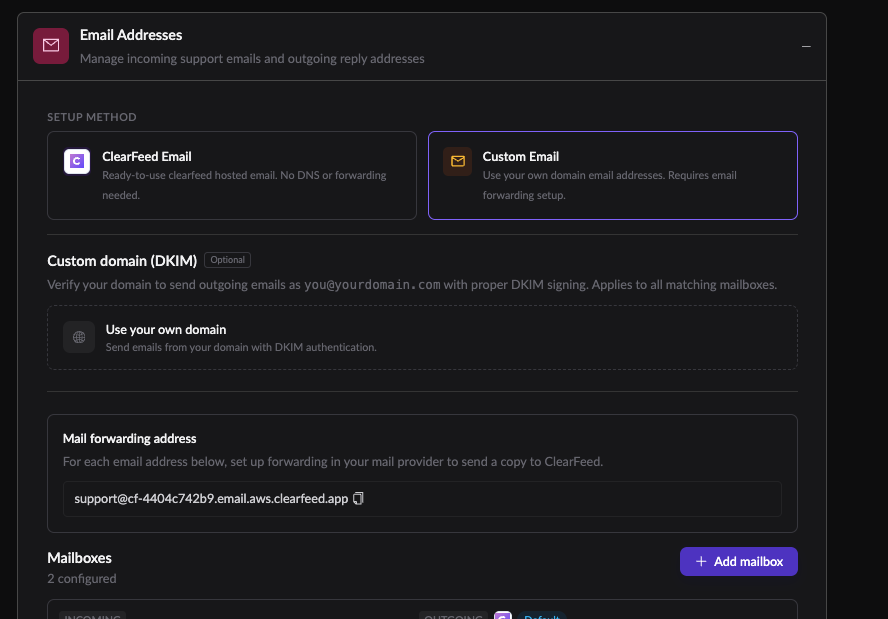
Go to Email Setup → Email Addresses.
In Custom domain (DKIM), choose Use your own domain.
Enter the domain you want to send from, such as
yourcompany.com.Click Generate DNS records.
ClearFeed creates the DNS records required to prove domain ownership and enable DKIM signing.

Step 2: Add the DNS records at your DNS provider
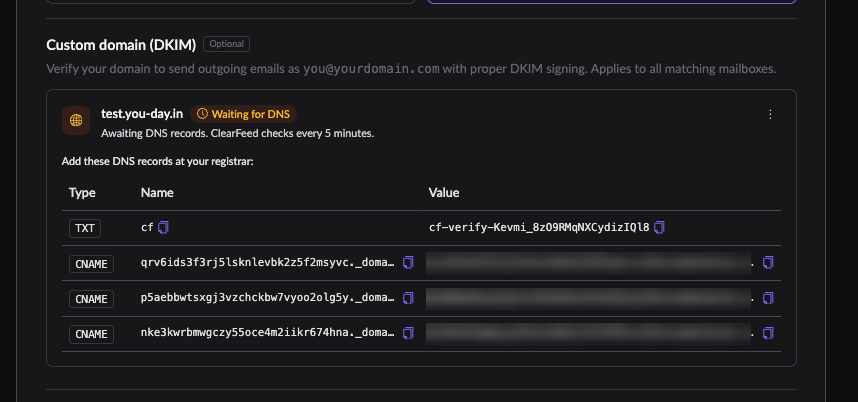
After you generate records, ClearFeed shows the DNS entries you need to add with your DNS provider.
You will need to add:
1 TXT record for domain ownership verification.
3 CNAME records for DKIM signing.

Add all records exactly as shown in ClearFeed. DNS propagation can take time. ClearFeed updates the domain status automatically after verification events are received.
Step 3: Wait for verification
The domain remains in Waiting for DNS or Pending Verification until ClearFeed can verify both the TXT ownership record and the DKIM CNAME records.
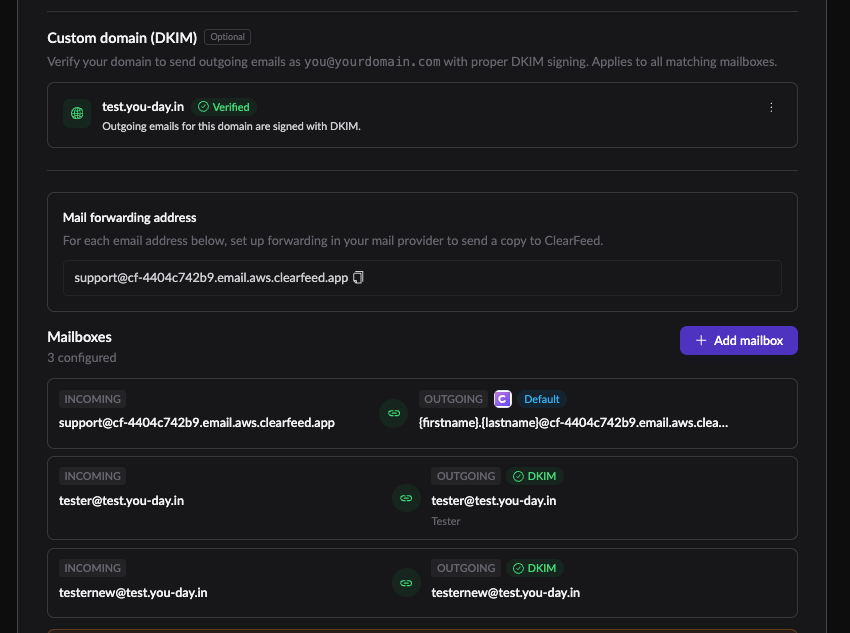
Once verification succeeds, the domain is marked Verified and outgoing emails can be sent from addresses on that domain.

Keep the DNS records in place after verification. If records are removed or become invalid, ClearFeed may pause or fail the domain. For regular email ticketing and notifications, ClearFeed may temporarily fall back to the ClearFeed sending address so delivery does not silently break. Automation Send Email actions do not fall back; they fail if the selected sender cannot be used.
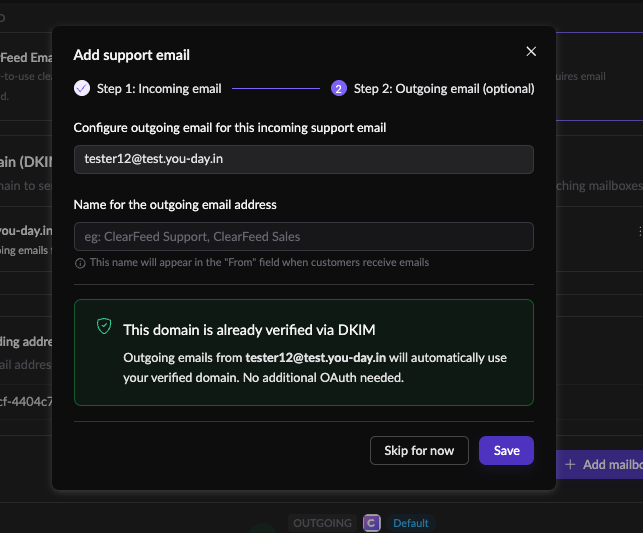
Step 4: Use the verified domain for outgoing emails
After the domain is verified, add or edit a mailbox and enter an outgoing email address using that domain, such as support@yourcompany.com.
When the outgoing address belongs to a verified DKIM domain, ClearFeed automatically uses the verified domain. No additional Google or Microsoft OAuth authentication is needed for that outgoing address.

Domain status reference
Waiting for DNS / Pending Verification
ClearFeed has generated DNS records, but the records are not verified yet.
Add the TXT and CNAME records at your DNS provider, then wait for DNS propagation and automatic verification.
Verified
The domain ownership and DKIM records are verified.
You can use outgoing email addresses on this domain.
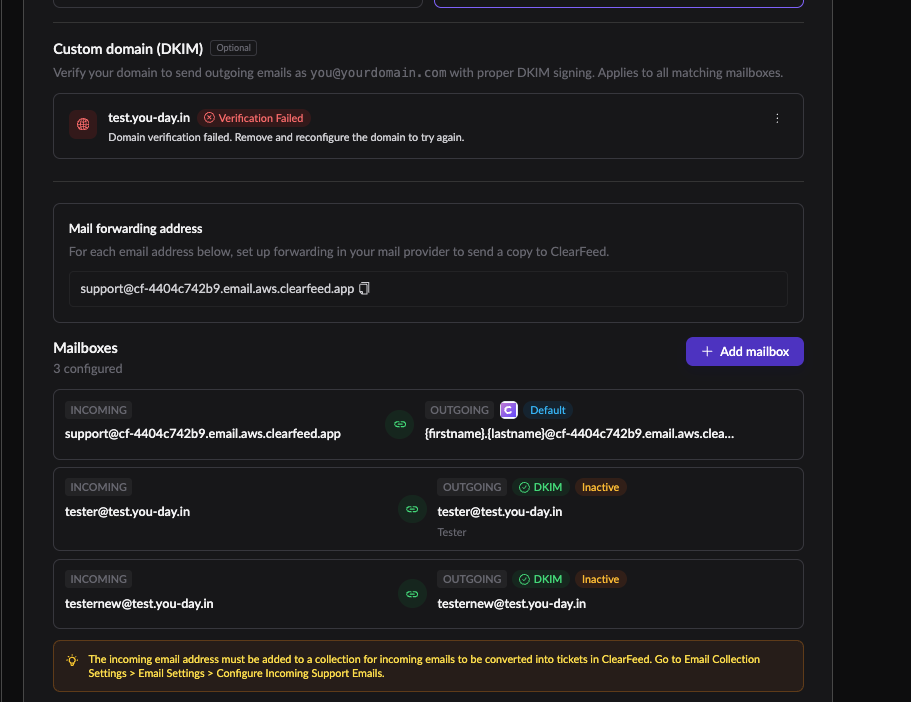
Verification Failed
ClearFeed could not verify the required DNS records within 72 hours.
Review the DNS records, fix any missing or incorrect values, and retry the setup.
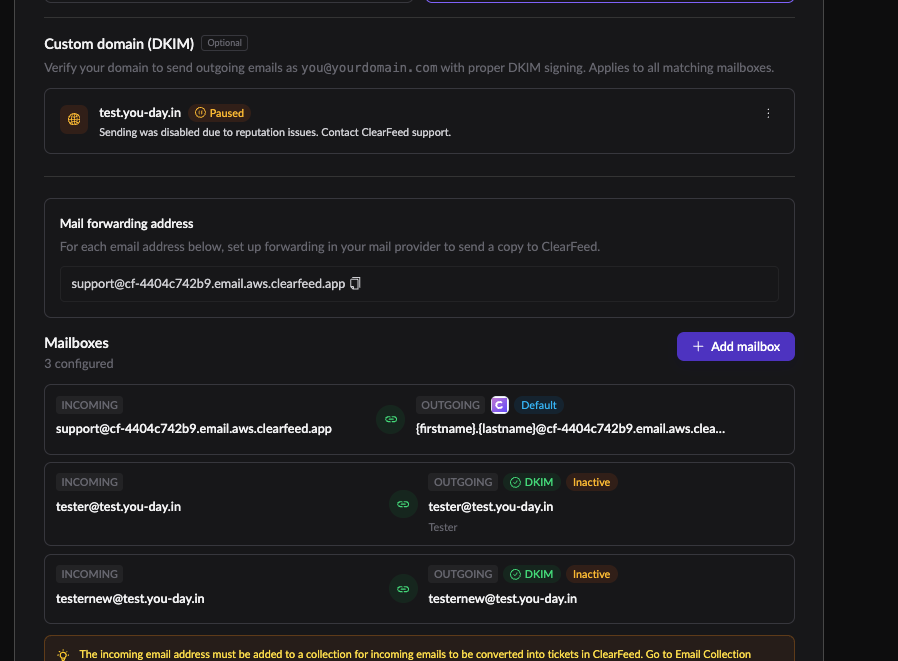
Paused
Sending from this domain has been paused, usually because the domain needs attention.
Contact ClearFeed support before sending from this domain again.


FAQs
What happens if my DKIM DNS records are removed later? Answer: ClearFeed monitors verified domains. If DNS verification fails or sending is paused, admins are notified. For regular email ticketing and notifications, ClearFeed may temporarily fall back to the ClearFeed sending address so customer emails do not silently stop sending. Automation Send Email actions do not use this fallback; they fail if the selected sender cannot be used.
What if I need to send from more than one domain? Can I register additional DKIM domains in child or sibling accounts? Answer: Yes. Since each account can have its own DKIM-authenticated sending domain, you can register additional sending domains across child or sibling accounts. However, this fragments email ticketing across multiple ClearFeed accounts — tickets for each domain are handled only in the account where that domain is authenticated. To keep email ticketing unified, use a single account and sending domain where possible.
Can I use a DKIM-authenticated address for Automation emails? Answer: Yes. After the domain is verified and the outgoing address is available in ClearFeed, you can select that address as the From sender in an Automation Send Email action.
What happens to Automation emails if my DKIM domain is paused? Answer: Automation emails use the sender selected in the action. If that sender is unavailable or the DKIM domain is paused because of verification or reputation issues, the Automation action fails and the failure is shown in the automation execution logs. Automation emails do not fall back to a ClearFeed sending address.
Last updated