> For the complete documentation index, see [llms.txt](https://docs.clearfeed.ai/clearfeed-help-center/llms.txt). Markdown versions of documentation pages are available by appending `.md` to page URLs; this page is available as [Markdown](https://docs.clearfeed.ai/clearfeed-help-center/sources/discord-setup.md).
# Discord
Set up Discord as a channel in ClearFeed
ClearFeed integrates with Discord to bring customer requests from Discord servers directly into your Slack Triage Channels. This creates a unified workflow where your support team can manage and respond to Discord messages without leaving Slack.
{% hint style="info" %}
**Requirements:**
* **Authorization:** A Discord user with the **Manage Server** permission must authorize ClearFeed
* **Server access:** You must be a member of the Discord server you want to connect
{% endhint %}
## How It Works
When customers send messages in Discord:
1. Messages automatically appear in your Slack Triage Channel
2. Support agents respond from Slack
3. Responses sync back to Discord in real-time
4. Conversations remain synchronized across both platforms
5. Requests can be converted to trackable tickets
## Setting Up Discord Channel
### Step 1: Connect Discord Integration
1. Go to **Settings** → [**Integrations**](https://web.clearfeed.app/settings/integrations) in ClearFeed
2. Find and select **Discord**
3. Click **Connect** to start the authorization flow
### Step 2: Authorize ClearFeed Bot
1. You will be redirected to Discord
2. Sign in to Discord if prompted
3. Select the Discord server you want to connect to ClearFeed
4. Review the requested bot permissions:
* Manage Webhooks
* View Channels
* Send Messages
* Embed Links
* Attach Files
* Read Message History
5. Click **Authorize**
Once authorization completes, the ClearFeed bot will be added to your selected server and you will be redirected back to ClearFeed.
{% hint style="info" %}
**Manage Webhooks** is required so ClearFeed can post replies on behalf of your responders, displaying their name and avatar in Discord.
**Embed Links** and **Attach Files** let ClearFeed sync attachments between Slack and Discord.
{% endhint %}
### Step 3: Create Discord Collection
Configure which Discord channels route to Slack:
1. Go to **Collections** in the ClearFeed dashboard
2. Create a new **Collection**
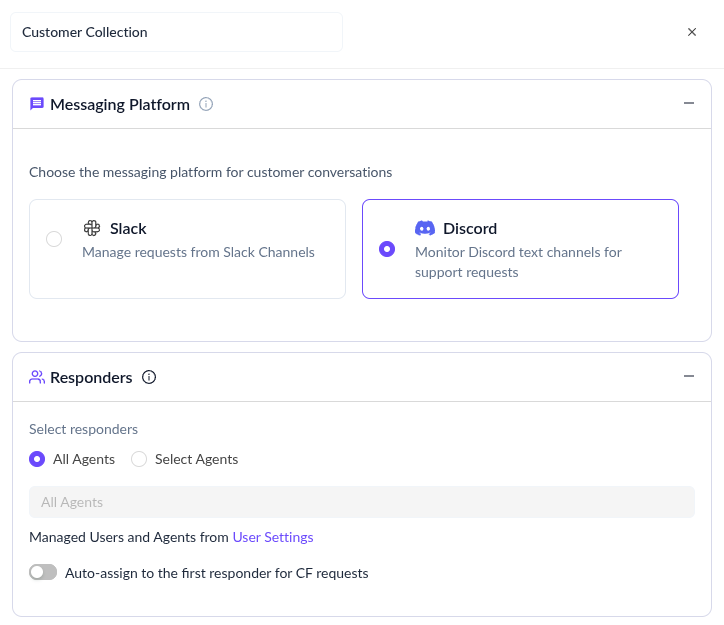
3. When prompted to choose a messaging platform, select **Discord**
4. Select the Discord channels to monitor
5. Choose a [Triage Channel](/clearfeed-help-center/clearfeed-helpdesk/triage-channel-setup.md) in Slack
6. Save the collection
{% hint style="info" %}
ClearFeed supports monitoring **public and private text channels** and **forum channels** in Discord. Every new message in a monitored text channel, and every new forum post in a monitored forum channel, is tracked as a separate request. For private channels, the ClearFeed bot must be added to the channel before it can be monitored.
{% endhint %}
## Map Slack users to Discord identities
Map each Slack teammate who may reply directly in Discord to the same person's Discord identity. ClearFeed uses this mapping to recognize their Discord messages as responder replies.
1. Go to [**Settings → Users**](https://web.clearfeed.app/settings/users) in ClearFeed.
2. Find the Slack teammate you want to map.
3. Make sure the teammate is marked as an **Agent**.
4. In the **Discord Identity** or **Discord / Telegram Identities** column, click **Map identities**. If an identity is already linked, click the existing identity instead.
5. Under **Discord Identity**, select the matching Discord member.
6. Click **Done** to save the mapping.
{% hint style="info" %}
Admins can map any user. Other users can update only their own mapping. Each Discord identity can be linked to only one ClearFeed user.
{% endhint %}
You only need this mapping for agents who reply directly in Discord. Agents who reply only from the Slack Triage Channel or ClearFeed WebApp don't need a Discord identity mapping. To remove a mapping, open the identity editor, clear the **Discord Identity** selection, and click **Done**.
## Working with Discord Requests
Once configured, Discord conversations automatically appear in your Triage channel:
* Customers post messages in monitored Discord channels
* Each new message (or forum post) appears in the Slack Triage channel as a request
* Agents respond from Slack
* Replies are posted back to Discord - for text channels, ClearFeed creates a thread on the original message and posts replies there; for forum channels, replies go into the existing forum post thread
* Replies appear in Discord with the responder's name and avatar (or a shared identity if [anonymized agent replies](/clearfeed-help-center/account-setup/whitelabel-clearfeed.md#anonymizing-agent-replies-with-your-white-labeled-bot) is enabled)
* ClearFeed keeps both platforms synchronized, including message edits and deletions
## FAQs
1. **Can ClearFeed monitor private Discord channels or DMs?**\
**Answer:** Yes, private channels are supported. The ClearFeed bot must be added to each private channel before it can be monitored. DMs and voice channels are not supported.
2. **Can I connect more than one Discord server to the same ClearFeed account?**\
**Answer:** Each ClearFeed account can connect to one Discord server. To connect multiple servers, use [child accounts](/clearfeed-help-center/account-setup/child-accounts.md), with each child account connected to a separate Discord server.
3. **Can the same Discord server be connected to more than one ClearFeed account?**\
**Answer:** No. A Discord server can only be connected to one ClearFeed account at a time.
4. **What kinds of Discord channels are supported?**\
**Answer:** ClearFeed supports **text channels** (public and private) and **forum channels**. Voice channels and DMs are not supported.
5. **How do replies appear in Discord?**\
**Answer:** Replies are posted via Discord webhooks so that the responder's name and avatar are shown on the message. For text channels, the reply is posted inside a thread on the original message. For forum channels, the reply is posted in the existing forum post thread. To show a shared identity instead of individual agents (for example, "Acme Support"), use [anonymized agent replies](/clearfeed-help-center/account-setup/whitelabel-clearfeed.md#anonymizing-agent-replies-with-your-white-labeled-bot). Note: this setting applies to all sources (Slack, Email, Discord, etc.), not just Discord.
6. **Can I create tickets in Zendesk, Freshdesk, or other external systems from Discord requests?**\
**Answer:** Discord collections currently support ClearFeed's native ticketing only. External ticketing systems are not available for Discord collections.
7. **My Discord channels are not showing up in ClearFeed. What should I do?**\
**Answer:** Use the **Refresh channels** option in the channel picker to re-fetch the latest list of channels from Discord. Newly created channels in Discord are also picked up automatically.
8. **How do I disconnect Discord from ClearFeed?**\
**Answer:** Go to **Settings → Integrations**, open the Discord integration, and click **Disconnect**. You can reconnect to the same Discord server at any time.