> For the complete documentation index, see [llms.txt](https://docs.clearfeed.ai/clearfeed-help-center/llms.txt). Markdown versions of documentation pages are available by appending `.md` to page URLs; this page is available as [Markdown](https://docs.clearfeed.ai/clearfeed-help-center/clearfeed-helpdesk/home-dashboard.md).
# Home Dashboard
Create and customize the Support Overview on the ClearFeed Home page.
**Home** is a landing page for Internal Helpdesk and External Helpdesk accounts. It opens the **Support Overview**, where you can combine reporting and Inbox data in one dashboard.
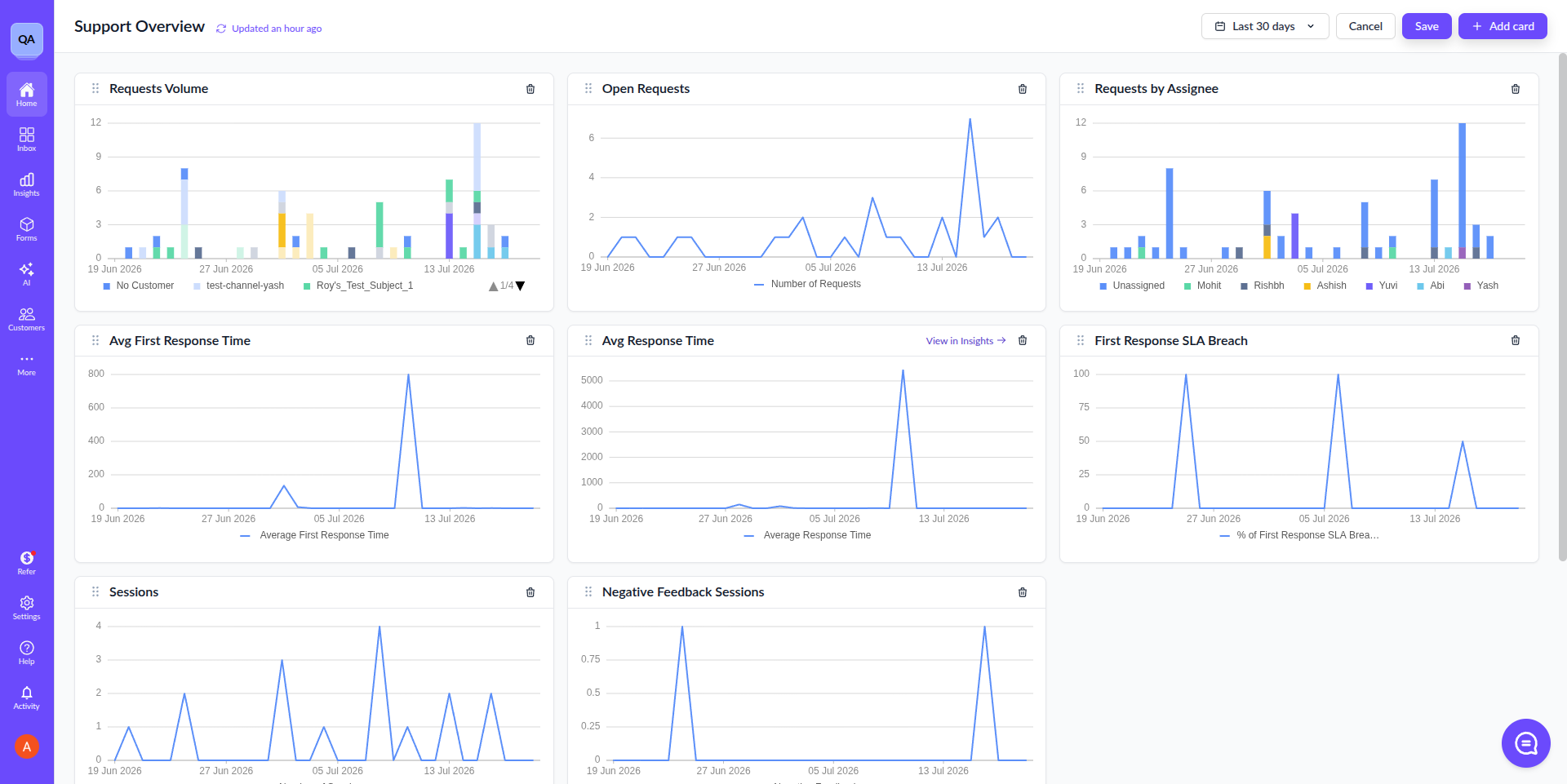
Use the Support Overview to monitor request volume, SLA health, team workload, AI Agent performance, and the requests or tickets your team needs to work on.
## Open and set up the Support Overview
1. In the left sidebar, select **Home**. A dot appears on the **Home** entry until you first open it.
2. If a Support Overview has not been set up for the account, select **Start with recommended cards**.
ClearFeed creates a dashboard with the available recommended cards. You can then add, remove, or reorder cards to fit your team.
The Support Overview dashboard
{% hint style="info" %}
Only admins can access **Home**.
{% endhint %}
## Choose a dashboard time range
The time range applies to every card on the Support Overview. By default, it is set to the last 30 days.
1. Select the time range in the dashboard header.
2. Choose **Last 7 days**, **Last 30 days**, **Last 90 days**, or **Custom range**.
3. For a custom range, select a start and end date, then select **Apply range**. A custom range can span up to 90 days.
4. Select **Save** to keep the new range, or **Cancel** to restore the saved range.
Cards reload for the selected range before you save it. This lets you review the dashboard before making the range permanent.
## Add cards
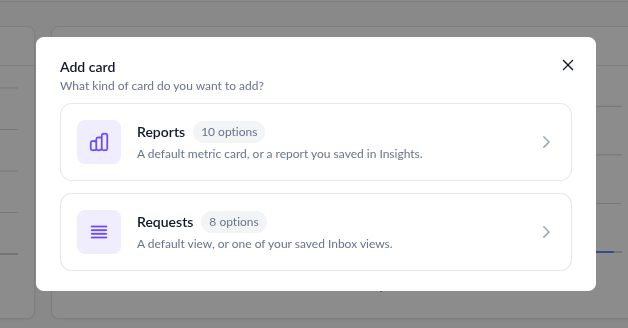
Select **Add card** to open the two-step card picker.
The two-step card picker
You can add up to 30 cards, including more than one card from the same source.
The available card types depend on your Helpdesk edition:
* **Reports**: Add a default metric card or a report saved in [Insights](/clearfeed-help-center/clearfeed-helpdesk/insights.md). Default cards can include:
* **Requests Volume**
* **Open Requests**
* **Requests by Assignee**
* **Avg First Response Time**
* **Avg Response Time**
* **First Response SLA Breach**
* **CSAT Score**
* **Sessions**
* **Deflection Rate**
* **Negative Feedback Sessions**
The cards available to your account depend on its configuration. For example, SLA and CSAT cards appear only when those features are configured.
* **Requests**: In External Helpdesk, add a default request view or a [Custom View](/clearfeed-help-center/clearfeed-helpdesk/views.md) saved under **Team's Views**.
* **Tickets**: In Internal Helpdesk, add a default ticket view or a [Custom View](/clearfeed-help-center/clearfeed-helpdesk/views.md) saved under **Team's Views**.
Saved report cards stay linked to Insights. Request and ticket cards use their source view's filters; card entries are ordered by the most recent message.
Only shared reports and Custom Views under **Team's Views** appear in the card picker.
To add a new report card, first create and save the report in [Insights](/clearfeed-help-center/clearfeed-helpdesk/insights.md).
To add a new request or ticket card, first create and save a Custom View under **Team's Views** in [Views](/clearfeed-help-center/clearfeed-helpdesk/views.md).
{% hint style="info" %}
The card picker excludes personal saved reports and **My Views**. Make the report shared or save the Custom View under **Team's Views** before adding it to the Support Overview.
{% endhint %}
## Edit the dashboard layout
1. Select **Edit**.
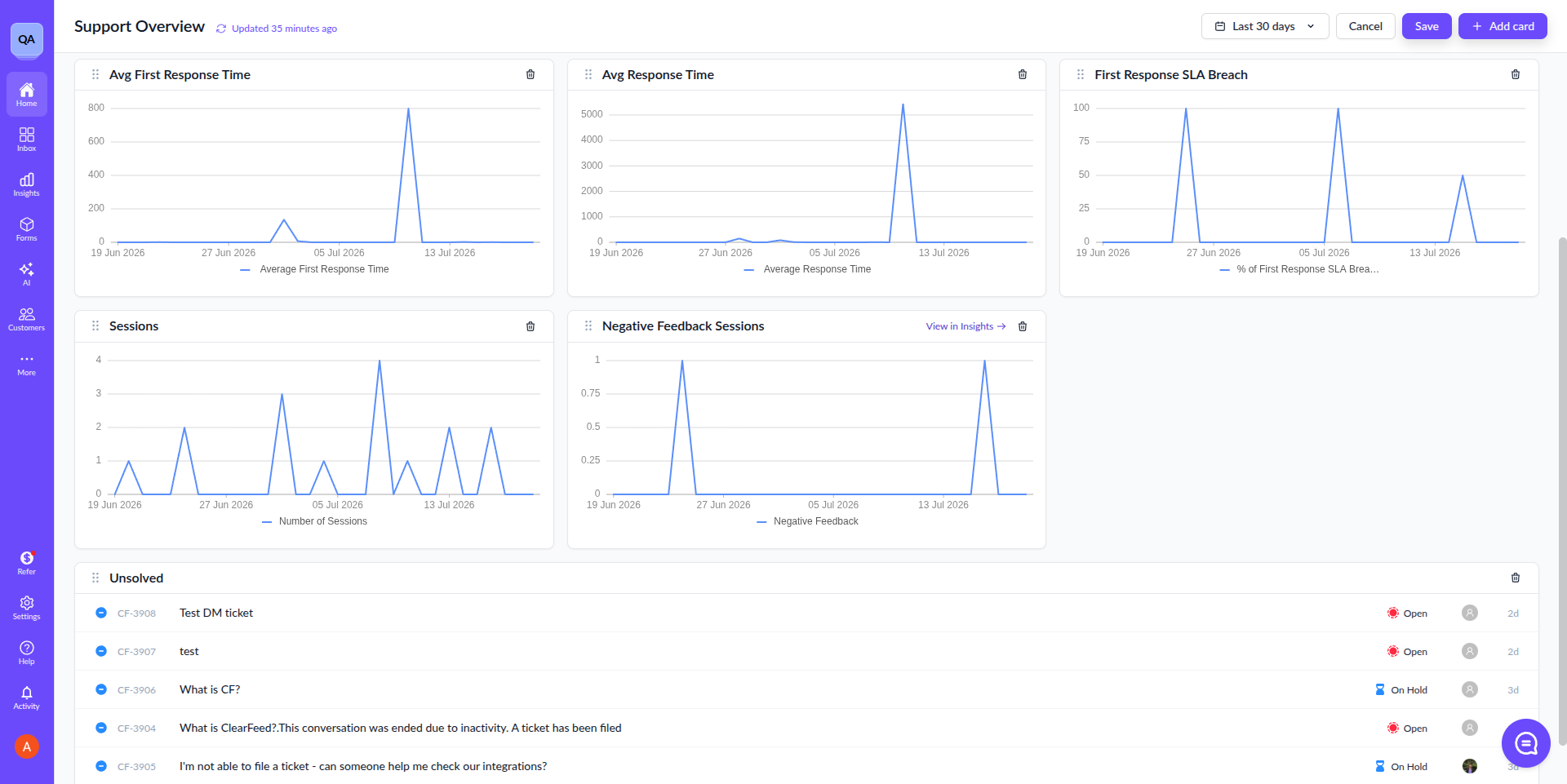
2. Drag a card by its handle to move it.
3. Select the remove icon on a card to remove it.
4. Select **Save** to keep your changes, or **Cancel** to discard them.
Editing the dashboard layout
You can also use **Add card** while editing. Adding, removing, and reordering cards do not update the saved dashboard until you select **Save**.
## Replace unavailable cards
A card source can become unavailable when its report or view is deleted or made private. ClearFeed shows that the card source is no longer available.
Remove the unavailable card, then add a replacement from the card picker.