hubspotLog to HubSpot

ClearFeed allows you to selectively log important Slack conversations as notes to HubSpot Companies or Deals. This is useful when teams need a manual, selective way to log only high-value or sensitive threads to HubSpot.

circle-info

Note:

  • HubSpot integration must be connected to use this feature. Learn how to connect HubSpot here.

How to Log a Note

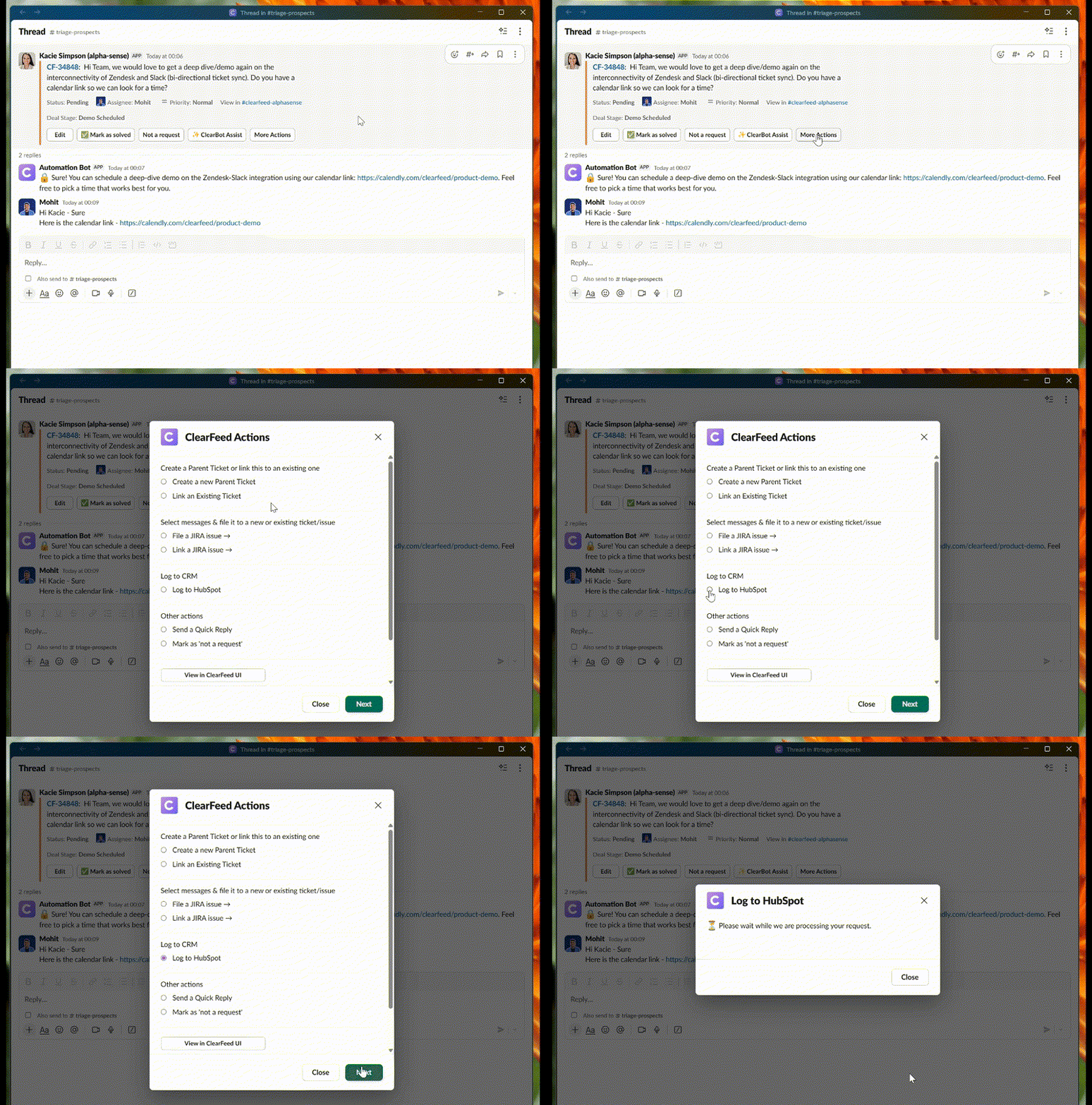
Step 1: Open the Log to HubSpot Action

From the Triage Channel, open a thread and click More Actions → select Log to HubSpot → click Next.

circle-info

This action is also available in the Request Channel: click the three-dot menu → Connect to AppsClearFeed ActionsLog to HubSpot.

Opening the Log to HubSpot action from the Triage Channel
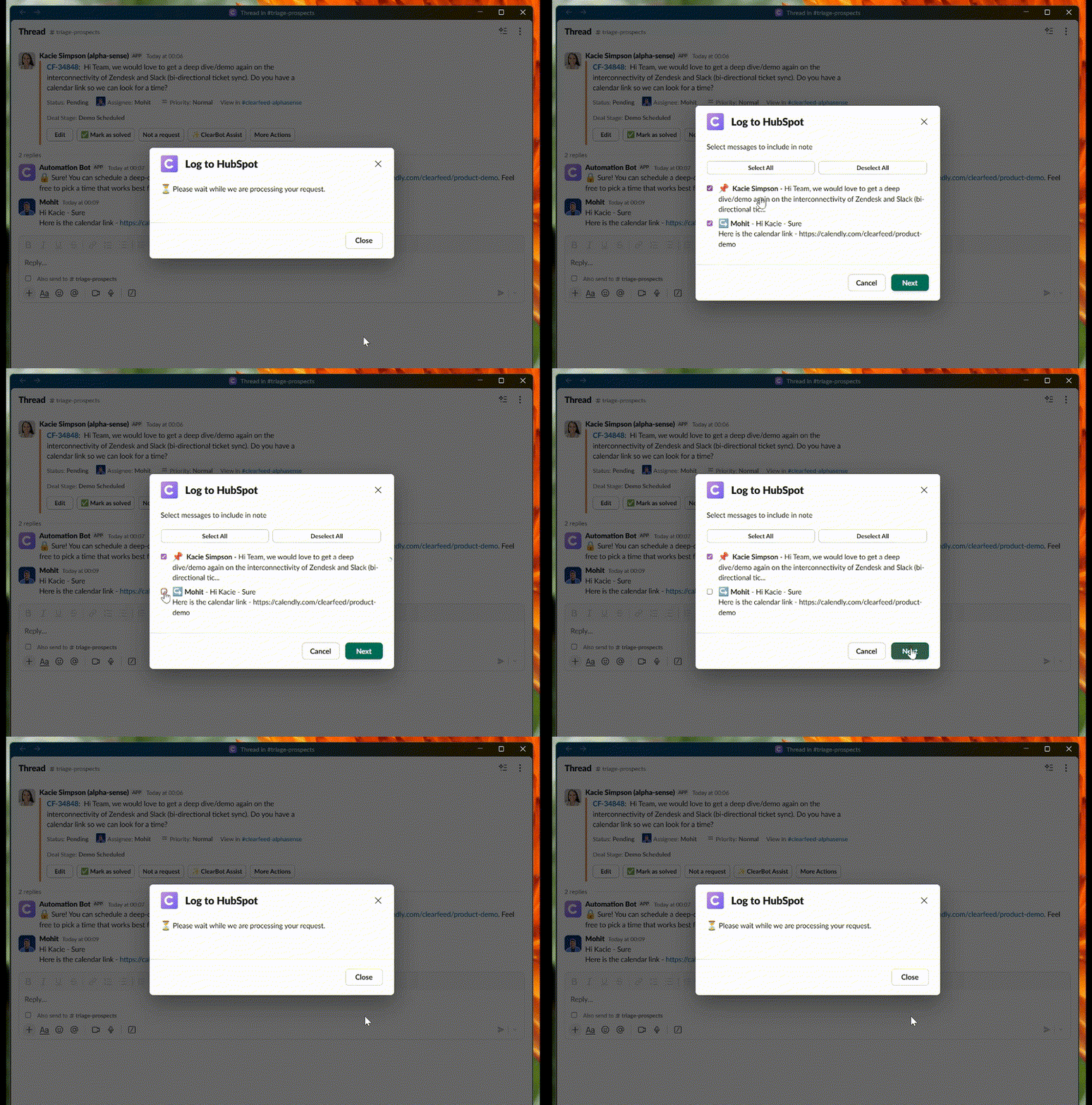
Step 2: Select Messages

A modal displays all messages in the thread. All messages are selected by default. You can:

  • Use Select All or Deselect All to toggle all messages.

  • Select or deselect individual messages using checkboxes.

Click Next to proceed.

Selecting messages to include in the note
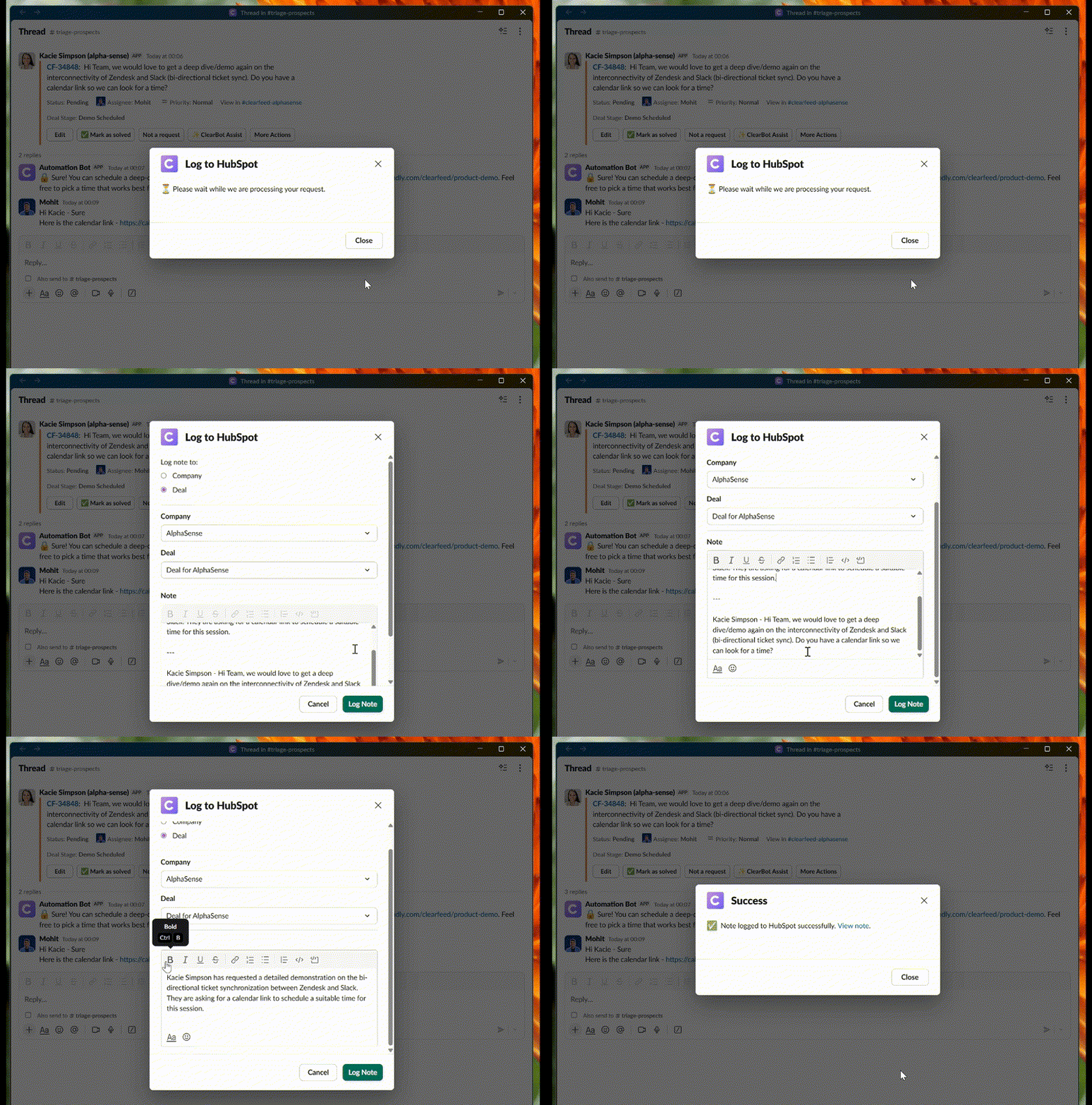
Step 3: Review and Log the Note

After selecting messages, a single modal is displayed where you can:

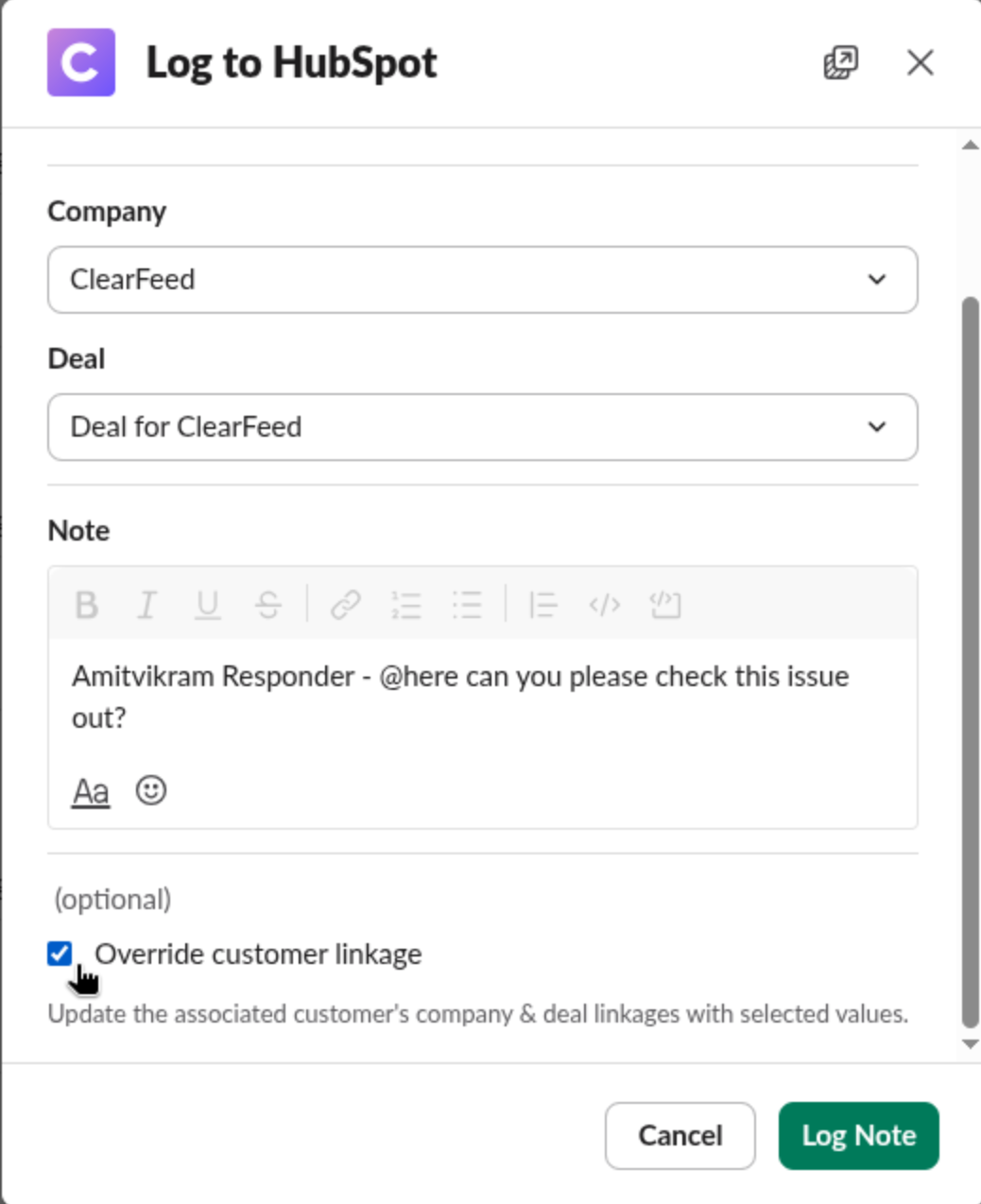
  1. Choose where to log: Select whether to log the note to a Company or a Deal using the radio buttons.

    • If you select Deal, both a Company and Deal dropdown are shown. A company must be selected before choosing a deal.

  2. Company and Deal: These fields may be pre-filled based on existing CRM data. You can search and select any company or its corresponding deals.

  3. Note: An AI-generated summary of the selected messages is automatically populated in the note editor. The note is fully editable — you can modify the summary or write your own content before logging.

Click Log Note to create the note in HubSpot.

Reviewing the AI summary, selecting Company/Deal, and logging the note
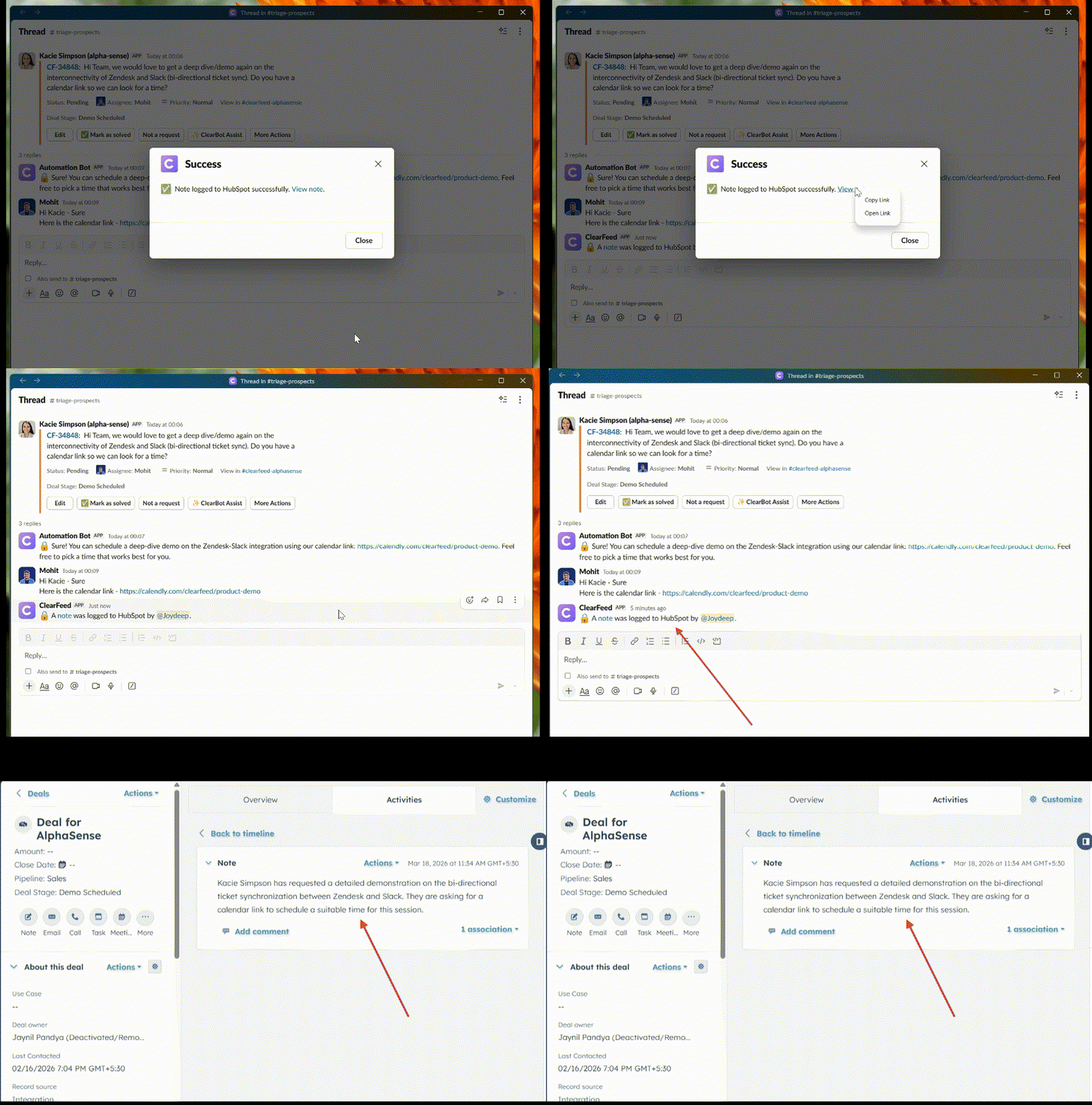
Step 4: Confirmation

On success:

  • A success modal is displayed with a direct link to the note in HubSpot. Click View note to open it.

  • A private comment is posted in the Slack thread indicating that a note was logged, along with a link to the note.

Success confirmation with note link and private comment in the thread

Supported HubSpot Objects

Object
Description

Company

Log a note against a HubSpot Company record

Deal

Log a note against a Deal under a Company

circle-info

When logging to a Deal, the note is created against the deal. When logging to a Company only, the note is created against the company.

FAQs

  1. Do I need CRM Sync set up to use Log to HubSpot? Answer: No. CRM Sync is not a precondition. You can log notes to any company or deal in your connected HubSpot account.

  2. Can I edit the AI-generated summary before logging? Answer: Yes. The note editor is fully editable. You can modify the AI summary or replace it with your own content.

  3. Where can I find the logged note in HubSpot? Answer: The note appears under the Activities tab of the selected Company or Deal in HubSpot. A direct link is also provided in the success confirmation and the private comment posted in the Slack thread.

  4. Why can't I see the Log to HubSpot action? Answer: The action is only visible when the HubSpot integration is connected. Ensure your HubSpot integration is set up under Integrationsarrow-up-right.

Last updated