> For the complete documentation index, see [llms.txt](https://docs.clearfeed.ai/clearfeed-help-center/llms.txt). Markdown versions of documentation pages are available by appending `.md` to page URLs; this page is available as [Markdown](https://docs.clearfeed.ai/clearfeed-help-center/clearfeed-ai/knowledge-sources/indexing-knowledge-sources/zendesk.md).
# Zendesk
Guidelines to add and index your private Zendesk Knowledge Sources
Prerequisite - Integrating with Zendesk
To index your Knowledge Source, you must integrate your Zendesk account with ClearFeed. Begin this on the ClearFeed web app:
1. On the ClearFeed web app, navigate to the `Settings` from the nav bar, and then open the [Integrations](https://web.clearfeed.app/settings/integrations) section.
2. Next, click on the `Connect` button next to Zendesk. This will open a modal.
3. Input your Zendesk sub-domain in the modal and click on the `Connect`.
4. This will redirect you to Zendesk's sign-in page. Fill in your credentials and sign in.
5. After you sign in, you will be redirected to [ClearFeed](https://web.clearfeed.app/settings/integrations), and your integration will be completed.
### **Indexing a Zendesk Knowledge Source**
With the integration complete, you can now index your Knowledge Source:
**Step 1**: **Add your first Knowledge Source**
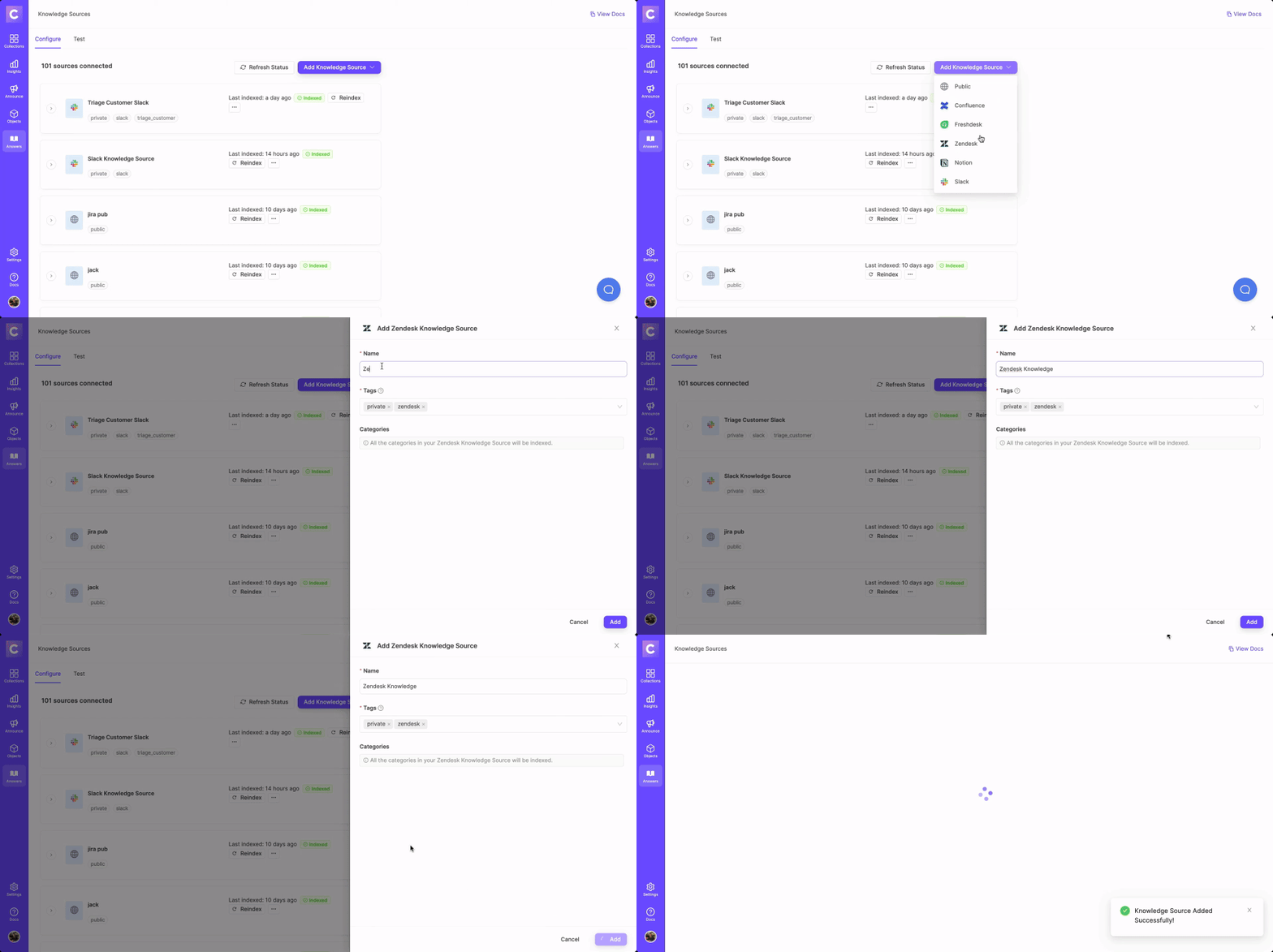
* From the left navigation bar on the ClearFeed WebApp, go to **AI >** [**Knowledge Sources**](https://web.clearfeed.app/knowledge-sources)**.**
* Hover over the "Add Knowledge Source" dropdown at the top right corner to select `Zendesk`.
* A side drawer will appear, prompting you to provide specific details:
* **Name**: Designate a title for this Knowledge Source, which will be displayed on ClearFeed.
* **Tags**: These are identifiers linked with every Knowledge Source, aiding in categorization and structuring. Customize tags based on your needs. **Note**: Z*endesk* will be a default tag.
* **Auto Reindex Regularly:** When enabled, the particular knowledge source will reindex once every 24 hours.
* After saving your addition, the Knowledge Source will either start indexing immediately (reflected by an **In Progress** status) or will be picked soon (reflected with an **Initiated** status). Get more details on Managing Knowledge Sources [here](/clearfeed-help-center/clearfeed-ai/knowledge-sources/managing-knowledge-sources.md).
* **Reindexing Zendesk Docs -** To reindex Zendesk documents, manually reindex the knowledge source by clicking the "Reindex" button next to it.\\
Reindexing Zendesk Docs
### Using AI Agents
Once you've configured the knowledge sources, learn how to build and use AI Agents
{% content-ref url="/pages/BG6lBe8zAALu5HQvWnQQ" %}
[Build AI Agents](/clearfeed-help-center/clearfeed-ai/ai-agents/build-ai-agents.md)
{% endcontent-ref %}
{% content-ref url="/pages/KfSu1GlJW2NmCvxVTv5c" %}
[Use AI Agents](/clearfeed-help-center/clearfeed-ai/ai-agents/use-ai-agents.md)
{% endcontent-ref %}
### **Manage Knowledge Sources**
Once the status of the knowledge source has been indexed, learn more on how to manage the knowledge source below.
{% content-ref url="/pages/4mEyGIe8R45x3rjcY7ug" %}
[Manage](/clearfeed-help-center/clearfeed-ai/knowledge-sources/managing-knowledge-sources.md)
{% endcontent-ref %}