# Notion

<details>

<summary>Prerequisite - <strong>Integrating with Notion</strong></summary>

To index your Knowledge Source, you must integrate your Notion account with ClearFeed. Begin this on the ClearFeed web app:

1. Navigate to `Settings` from the nav-bar, and proceed to the [Integrations](https://web.clearfeed.app/settings/integrations) tab.
2. Within the list of available integrations, locate and select **Notion.**
3. Press the `Connect` button which will redirect you to Notion's sign-in page. Fill in your credentials and sign in. This step will be skipped if you are already signed in to your Notion account.
4. Select the pages that should be accessible by ClearFeed
5. Successful integration redirects you back to ClearFeed's web app, where a confirmation message is displayed.

{% hint style="info" %}

* Only the **Notion pages explicitly selected** during integration setup will be available in the **Knowledge Source editor**.
* Pages not selected will **not appear** and cannot be used while adding/managing Knowledge Source.
  {% endhint %}
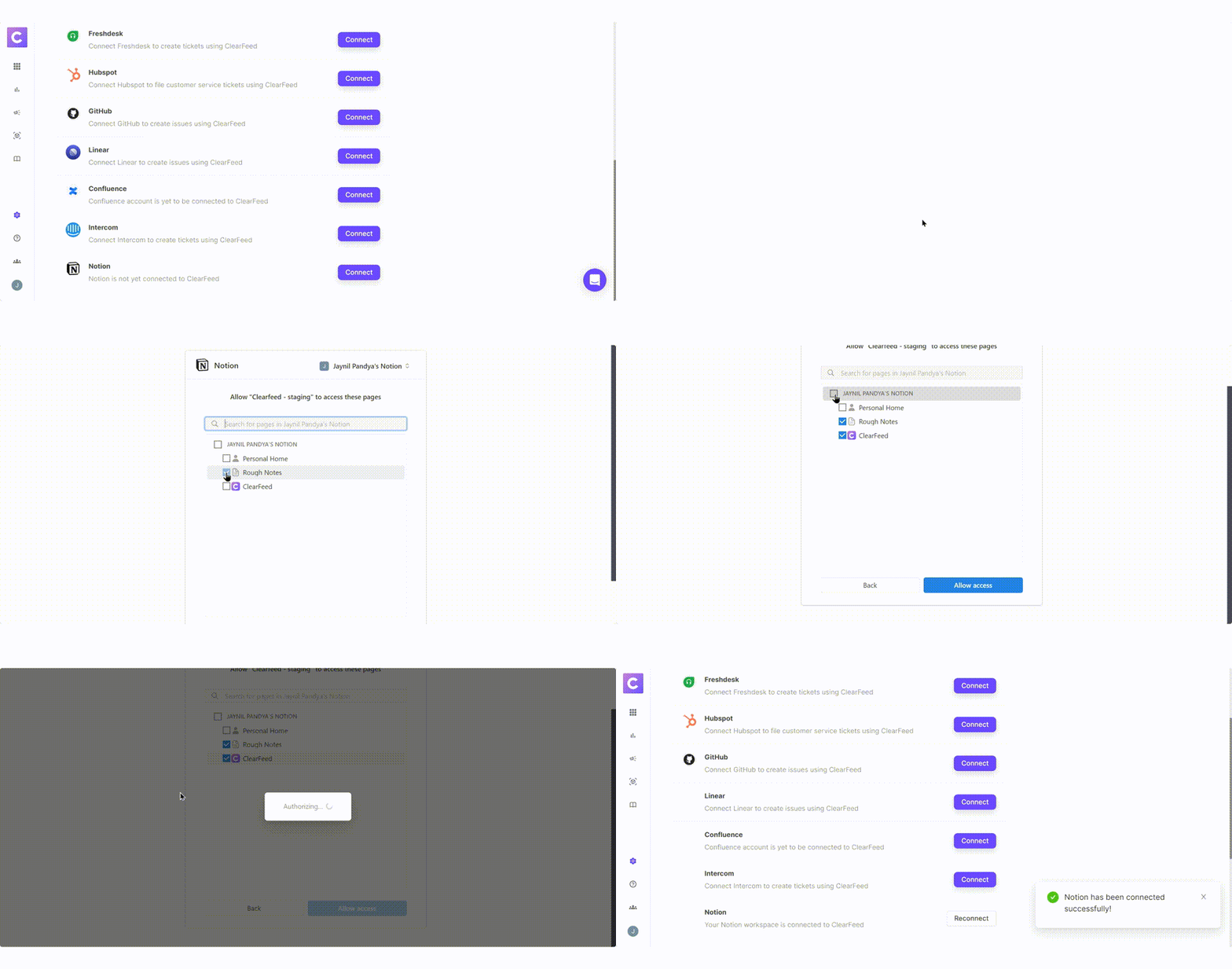
<figure><img src="https://3455705434-files.gitbook.io/~/files/v0/b/gitbook-x-prod.appspot.com/o/spaces%2FE2O2wTaNovd6fXpEuLKz%2Fuploads%2Fgit-blob-24d69a6714a0433bd44cfcb5f1f0efde7d679aa7%2FNotion%20Integration.gif?alt=media" alt=""><figcaption><p>Integrating with Notion</p></figcaption></figure>

</details>

### Indexing Notion Knowledge Source

With the integration complete, you can now index your Knowledge Source

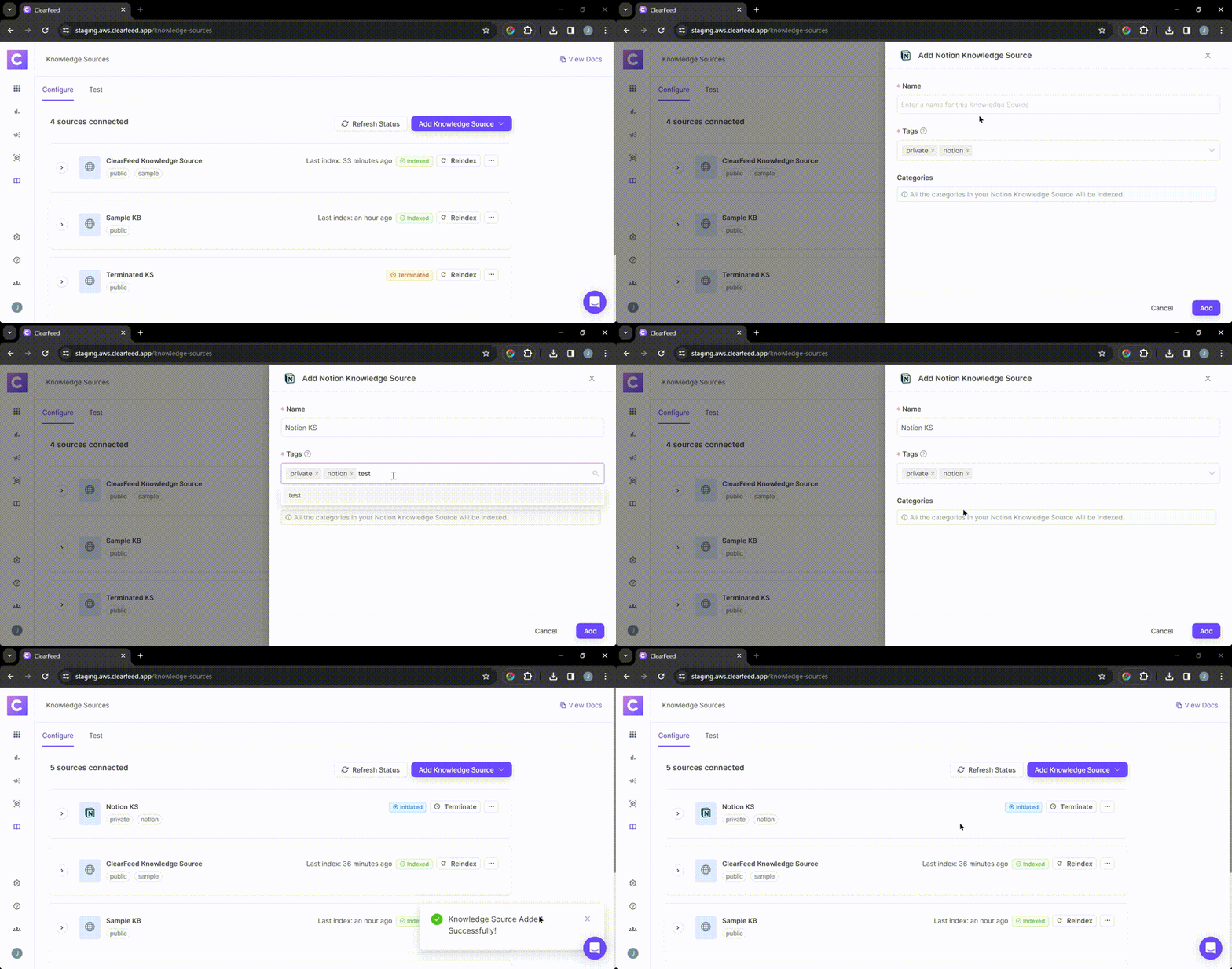
<figure><img src="https://3455705434-files.gitbook.io/~/files/v0/b/gitbook-x-prod.appspot.com/o/spaces%2FE2O2wTaNovd6fXpEuLKz%2Fuploads%2Fgit-blob-0de7844110c30dd13bc6346c23ca3c2470c560a8%2FNotion%20KS_.gif?alt=media" alt="" width="563"><figcaption><p>Indexing Notion Knowledge Source</p></figcaption></figure>

**Step 1**: **Add your first Knowledge Source**

* Navigate to **AI >** [**Knowledge Sources**](https://web.clearfeed.app/knowledge-sources) from the left sidebar in the ClearFeed WebApp.
* Select `Notion` from the "Add Knowledge Source" dropdown menu in the top right corner.
* Complete the configuration form in the side drawer:
  * **Name**: Enter a descriptive title for this Knowledge Source
  * **Tags**: These are identifiers linked with every Knowledge Source, aiding in categorization and structuring. (*Notion* will be included by default)
  * **Pages**: Select either:
    * All Pages - to index your entire Notion workspace
    * Specific Pages - choose individual pages from the multi-select menu. You can index specific child pages directly without first selecting their root pages.&#x20;
  * **Auto Reindex Regularly**: Enable this option to automatically update the knowledge source every 24 hours
* After saving your addition, the Knowledge Source will either start indexing immediately (reflected by an **In Progress** status) or will be picked soon (reflected with an **Initiated** status). Get more details on Managing Knowledge Sources [here](https://docs.clearfeed.ai/clearfeed-help-center/clearfeed-ai/knowledge-sources/managing-knowledge-sources).
* **Reindexing Notion Docs -** To reindex Notion documents, manually reindex the knowledge source by clicking the "Reindex" button next to it.

{% hint style="info" %}
**Note:**

* If new pages are added in Notion, or if some pages were not selected during the initial setup, you can update your Knowledge Source by reconnecting the Notion integration in ClearFeed. During reconnection, choose the pages you want to include, and they will appear in the Knowledge Source editor when you create or update a Notion-based source.
* For very large Notion workspaces (thousands of pages), indexing may take longer and can sometimes fail due to system timeouts. ClearFeed applies default limits on indexing duration and page count. If your workspace is unusually large or you encounter repeated indexing failures, contact ClearFeed support — we can extend limits or adjust configurations for your account.
* You can only select top-level pages in the page selector. Subpages cannot be selected as separate root pages inside ClearFeed, but their content will still be indexed as part of the selected parent page.
  {% endhint %}

<figure><img src="https://3455705434-files.gitbook.io/~/files/v0/b/gitbook-x-prod.appspot.com/o/spaces%2FE2O2wTaNovd6fXpEuLKz%2Fuploads%2Fgit-blob-12dd5aa9df24845044a073105b873206b0cbb1ec%2FScreenshot%202024-06-07%20at%201.46.15%20AM.png?alt=media" alt="" width="563"><figcaption><p><strong>Reindexing Notion Docs</strong></p></figcaption></figure>

### Using AI Agents

Once you've configured the knowledge sources, learn how to build and use AI Agents

{% content-ref url="../../ai-agents/build-ai-agents" %}
[build-ai-agents](https://docs.clearfeed.ai/clearfeed-help-center/clearfeed-ai/ai-agents/build-ai-agents)
{% endcontent-ref %}

{% content-ref url="../../ai-agents/use-ai-agents" %}
[use-ai-agents](https://docs.clearfeed.ai/clearfeed-help-center/clearfeed-ai/ai-agents/use-ai-agents)
{% endcontent-ref %}

### **Manage Knowledge Sources**

Once the status of the knowledge source has been indexed, learn more on how to manage the knowledge source below.

{% content-ref url="../managing-knowledge-sources" %}
[managing-knowledge-sources](https://docs.clearfeed.ai/clearfeed-help-center/clearfeed-ai/knowledge-sources/managing-knowledge-sources)
{% endcontent-ref %}

## FAQs

1. **What happens if my Notion admin is removed from ClearFeed?**\
   **Answer:** The integration **remains intact** even if the Notion admin is removed from your ClearFeed account.
2. **How can I update permissions or add new pages to the Knowledge Source?**\
   **Answer:** To update permissions or include new pages in your Knowledge Source, follow these steps:

   1. Invite the Notion admin back via [**User Settings**](https://web.clearfeed.app/settings/users).
   2. Ask them to **Reconnect Notion** from [**Integrations**](https://web.clearfeed.app/settings/integrations).
   3. Select the pages you want included in the Knowledge Source.
   4. Once reconnection is successful, the admin can be removed again.

   Always verify that all necessary pages are selected during reconnection to ensure no content is missing from the Knowledge Source.