> For the complete documentation index, see [llms.txt](https://docs.clearfeed.ai/clearfeed-help-center/llms.txt). Markdown versions of documentation pages are available by appending `.md` to page URLs; this page is available as [Markdown](https://docs.clearfeed.ai/clearfeed-help-center/clearfeed-ai/knowledge-sources/indexing-knowledge-sources/google-drive.md).
# Google Drive
Use Documents, PDFs and Sheets from Google Drive to answer questions on Slack
{% hint style="info" %}
**Note:** Only the user who set up the Google Drive integration can configure a Google Drive Knowledge Source.
{% endhint %}
Prerequisite - Integrating with Google Drive
To index your Knowledge Source from Google Drive, first connect your Google Drive account to ClearFeed:
1. Go to `Settings` from the nav-bar, and open the [Integrations](https://web.clearfeed.app/settings/integrations) tab.
2. In the list of integrations, find **Google Drive** and click **Connect**.
3. You’ll be redirected to the Google sign-in page. Select the account you want to index files from.
4. Grant ClearFeed permission for accessing your Google Drive.
5. After granting access, you’ll be redirected back to ClearFeed, and the integration will be complete.
## **Indexing** Files from Drive
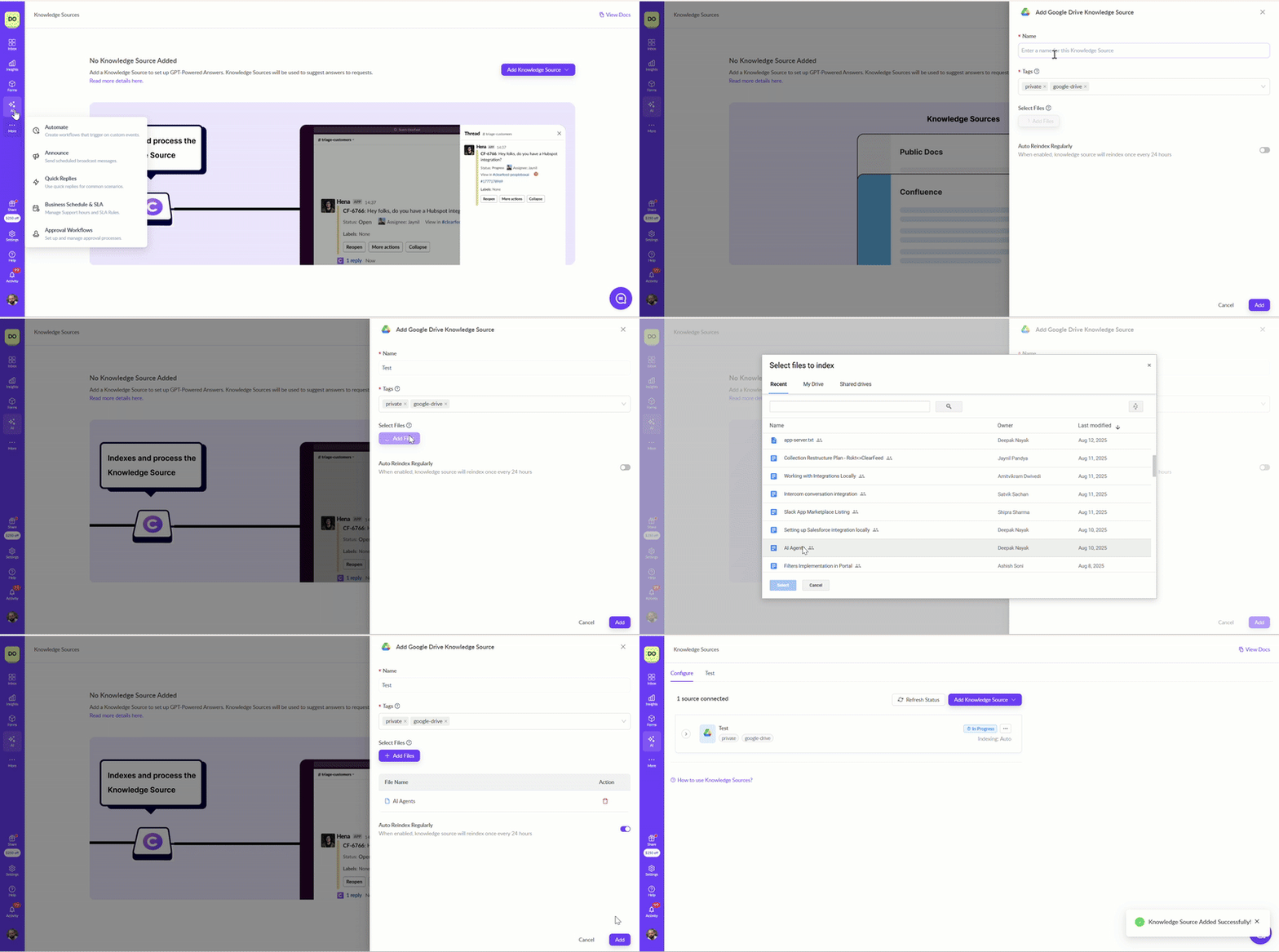
With the integration complete, you can now index documents from your Google Drive account to be used as a source of knowledge for answering questions using below steps:
1. In the ClearFeed WebApp, go to **AI →** [**Knowledge Sources**](https://web.clearfeed.app/knowledge-sources) from the left navigation bar.
2. Hover over the **Add Knowledge Source** dropdown in the top-right corner and select **Google Drive**.
3. A side drawer will appear. Fill in the following details:
* **Name** – The display title for this Knowledge Source in ClearFeed.
* **Tags** – Identifiers to categorize and organize the Knowledge Source. *Google Drive* will be added as a default tag, but you can add more based on your needs.
* **Files** – Select the files to index.
* Supported spreadsheet formats include Google Sheets, XLSX, CSV, and TSV.
* You can choose multiple files from the same folder.
* Selections are cleared when navigating to another folder.
* To pick files from multiple folders, finish selecting from the current folder, click **Add Files**, and repeat.
* **Auto Reindex Regularly** – Enable to automatically reindex this Knowledge Source every 24 hours.
4. Click **Save**. The Knowledge Source will begin indexing immediately (status: *In Progress*) or be queued to index soon (status: *Initiated*). For more details, see [**Managing Knowledge Sources**](/clearfeed-help-center/clearfeed-ai/knowledge-sources/managing-knowledge-sources.md).
Adding and managing files from Drive
### Using AI Agents
Once you've configured the knowledge sources, learn how to build and use AI Agents
{% content-ref url="/pages/BG6lBe8zAALu5HQvWnQQ" %}
[Build AI Agents](/clearfeed-help-center/clearfeed-ai/ai-agents/build-ai-agents.md)
{% endcontent-ref %}
{% content-ref url="/pages/KfSu1GlJW2NmCvxVTv5c" %}
[Use AI Agents](/clearfeed-help-center/clearfeed-ai/ai-agents/use-ai-agents.md)
{% endcontent-ref %}
### **Manage Knowledge Sources**
Once the status of the knowledge source has been indexed, learn more on how to manage the knowledge source below.
{% content-ref url="/pages/4mEyGIe8R45x3rjcY7ug" %}
[Manage](/clearfeed-help-center/clearfeed-ai/knowledge-sources/managing-knowledge-sources.md)
{% endcontent-ref %}
## Migrating a deprecated Google Drive Knowledge Source to new Knowledge Source
If you have an older Google Drive Knowledge Source, recreate it using the steps above to move it to ClearFeed's native Google Drive indexing. Select the same files that were used in the old Knowledge Source.
Once the new Google Drive Knowledge Source has been created and indexed successfully, you can delete the old Google Drive Knowledge Source. Deleting the old Knowledge Source only removes it from ClearFeed; it does not delete content from Google Drive.