Confluence
Guidelines to add and index your private Confluence Knowledge Source
Prerequisite - Integrating with Confluence
To index your Knowledge Source, you must integrate your Confluence account with ClearFeed. Begin this on the ClearFeed web app:
Navigate to
Settingsfrom the nav-bar, and proceed to the Integrations tab.Within the list of available integrations, locate and select Confluence.
Click the
Connectbutton to open the input modal.Provide the following details:
Confluence email of the user generating the access key
Select the Token Type:
Classic: API Key / Personal Access Token (PAT) for the Confluence account
Scoped: The token must include the following scopes which are required to access spaces and pages for KS indexing.
read:space:confluence
read:page:confluence
Note: ClearFeed will only read the pages/spaces you select when creating a Knowledge Source. We do not index all Confluence data by default.
Upon entering these details, click the
Connectbutton within the modal.Successful integration redirects you back to ClearFeed's web app, where a confirmation message is displayed.

Indexing a Confluence Knowledge Source
With the integration complete, you can now index your Knowledge Source:

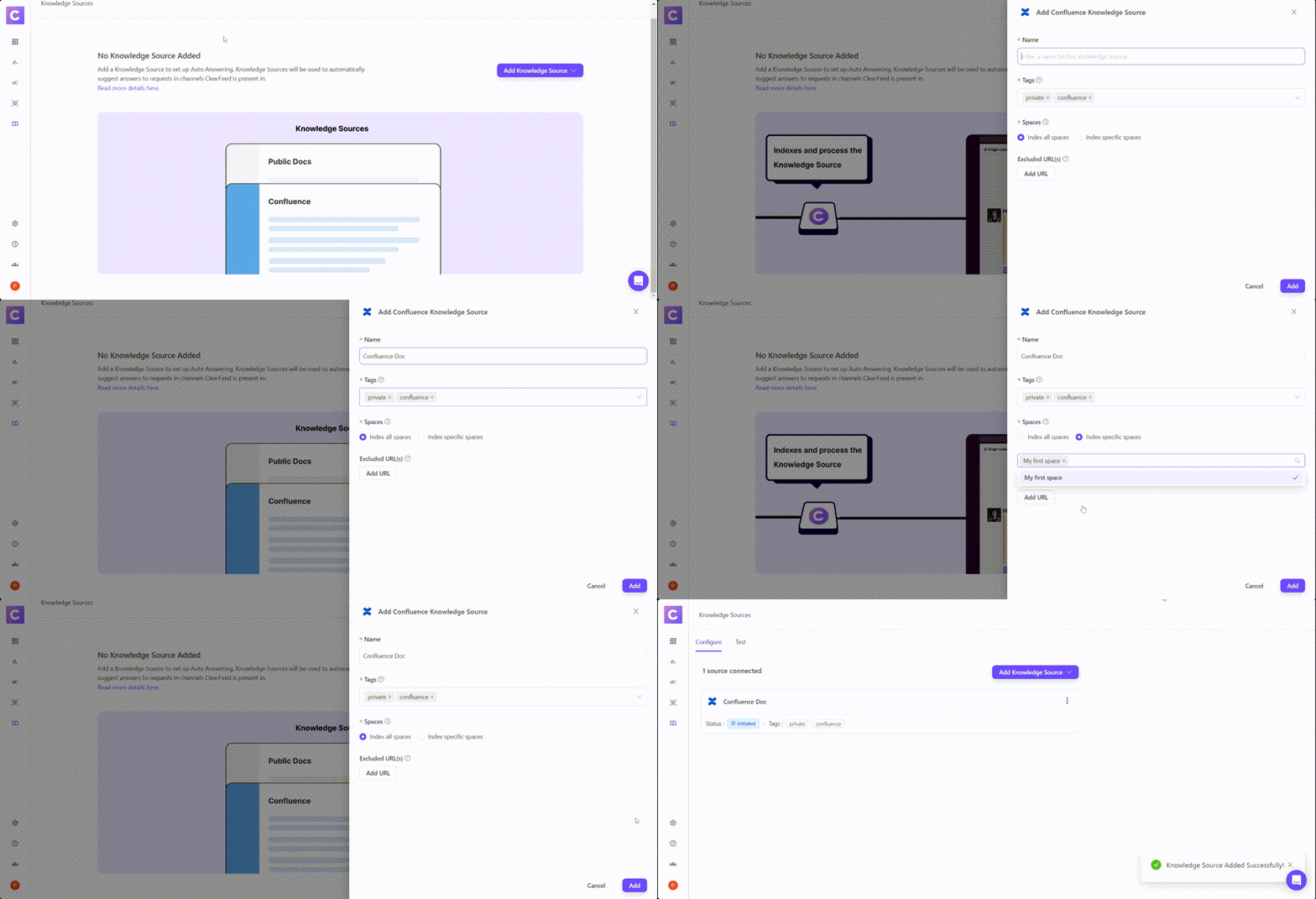
Step 1: Add your first Knowledge Source
From the left navigation bar on the ClearFeed WebApp, go to AI > Knowledge Sources.
Hover over the "Add Knowledge Source" dropdown at the top right corner to select
Confluence.A side drawer will appear, prompting you to provide specific details:
Name: Assign a title for the Knowledge Source to be displayed on ClearFeed.
Tags: Use tags to categorize and structure each Knowledge Source. Customize these based on your needs.
Spaces: Choose the Confluence spaces you'd like to index. The options include:
Indexing all spaces.
Indexing specific spaces.
We currently support creating Knowledge Bases from below categories of Confluence spaces:
Global
Knowledge Base
Collaboration
Index pages where URL: To index specific URLs from the selected Spaces, click "Add Condition" to filter them. You can use conditions like "Starts with", "Does not start with", "Contains", and "Does not contain". If you want to index all URLs in the selected Spaces, you can skip this step.
Auto Reindex Regularly: When enabled, the particular knowledge source will reindex once every 24 hours.
After saving your addition, the Knowledge Source will either start indexing immediately (reflected by an In Progress status) or will be picked soon (reflected with an Initiated status). Get more details on Managing Knowledge Sources here.
Reindexing Confluence Docs - To reindex Confluence documents, manually reindex the knowledge source by clicking the "Reindex" button next to it.

Reindexing Confluence Docs
Using AI Agents
Once you've configured the knowledge sources, learn how to build and use AI Agents
Build AI AgentsUse AI AgentsManage Knowledge Sources
Once the status of the knowledge source has been indexed, learn more on how to manage the knowledge source below.
ManageLast updated