> For the complete documentation index, see [llms.txt](https://docs.clearfeed.ai/clearfeed-help-center/llms.txt). Markdown versions of documentation pages are available by appending `.md` to page URLs; this page is available as [Markdown](https://docs.clearfeed.ai/clearfeed-help-center/clearfeed-ai/ask-ai.md).
# Ask AI
Ask questions and analyze support data with AI Agents in the ClearFeed WebApp.
**Ask AI** lets you chat with ClearFeed AI Agents without leaving the WebApp. Use it to answer questions, work with request or ticket context, and analyze support data.
{% hint style="info" %}
Ask AI requires the **AI Pack** for your account. If you do not have the AI Pack, you must upgrade to it to use Ask AI - ClearFeed shows an upgrade prompt instead of the chat. See [AI Pack](/clearfeed-help-center/pricing-and-billing/pricing.md#ai-pack) for plan and pricing details.
Ask AI is not currently available for Microsoft Teams accounts.
{% endhint %}
## Open Ask AI
You can open Ask AI from these locations:
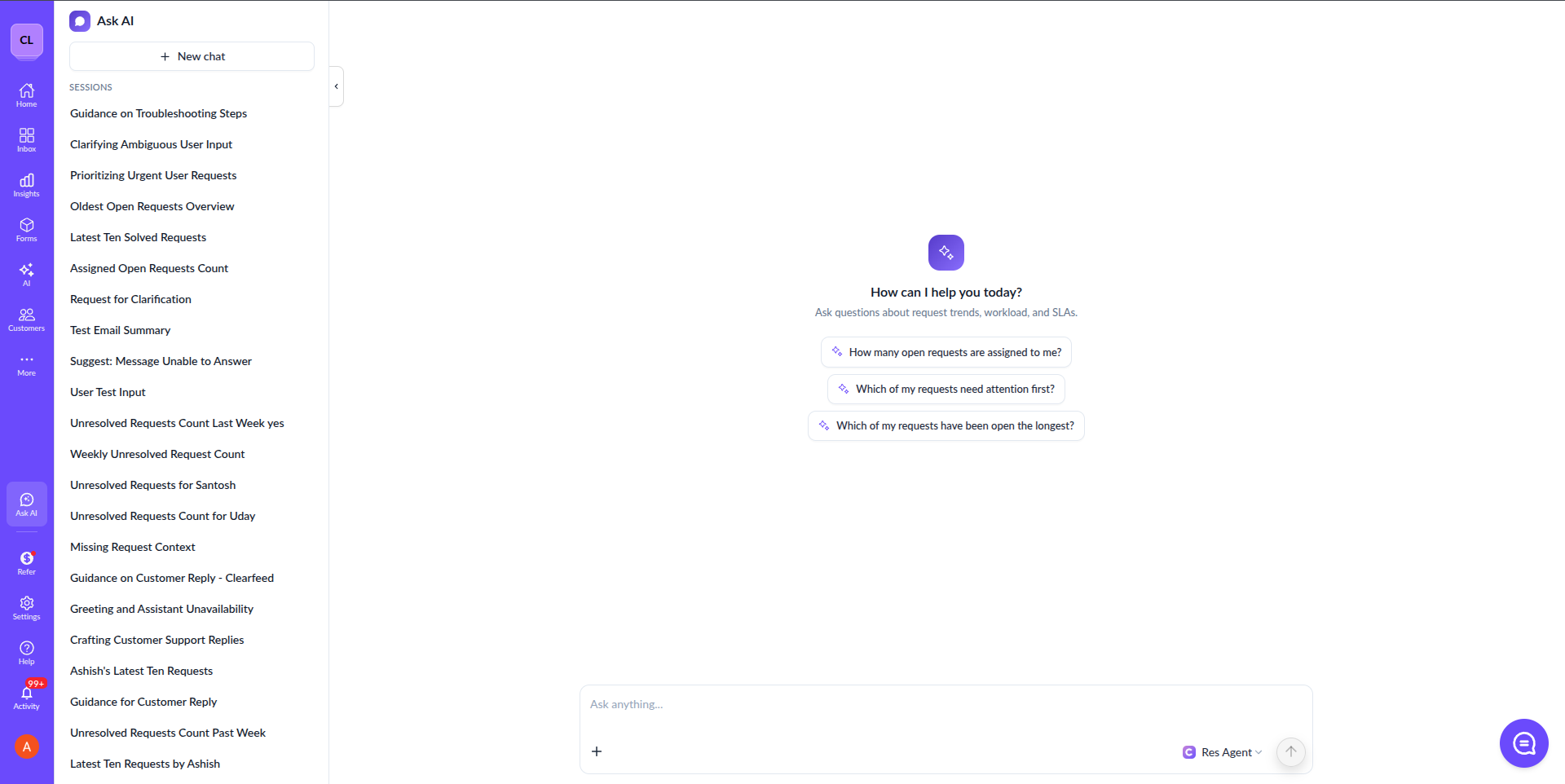
* **Ask AI page**: Select **Ask AI** near the bottom of the left navigation. This page includes your conversation history.
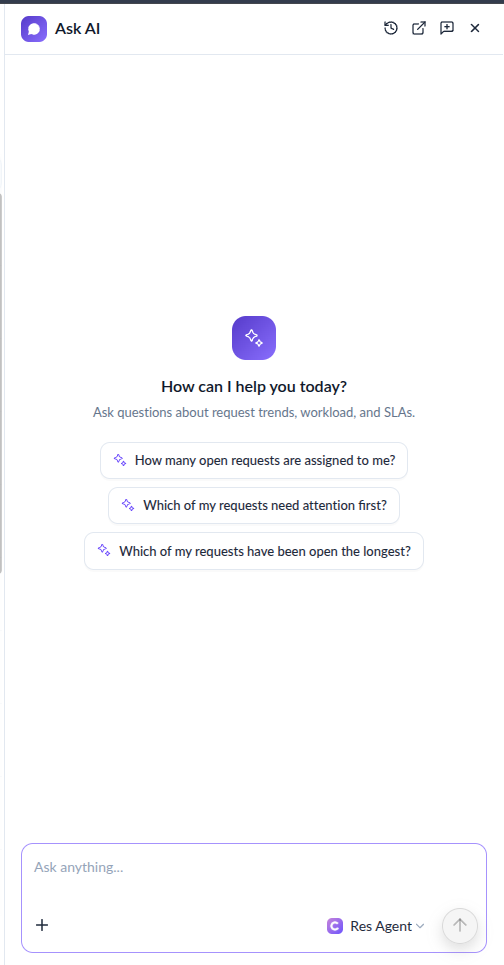
* **Ask AI panel**: Select **Ask AI** in a supported page header to chat while working elsewhere in the WebApp.
* **Home**: Enter a question in the Ask AI field on the Support Overview. ClearFeed starts the conversation and opens it on the Ask AI page. Only admins can access [Home](/clearfeed-help-center/clearfeed-helpdesk/home-dashboard.md).
The Ask AI page, with the Sessions list on the left
The Ask AI panel, open beside another WebApp page
The Ask AI field on Home, with the AI Agent selector
The Ask AI panel is resizable. The page beside it adjusts as you resize, open, or close the panel.
## Choose an AI Agent
ClearFeed preselects an eligible AI Agent. Review the selection or choose another agent before sending your first message.
| AI Agent | What it does | Who can use it |
| ------------------ | ---------------------------------------------------------------------------------------------- | --------------------------- |
| **Answer Agent** | Answers questions using its Knowledge Sources, tools, and any attached requests or tickets. | Admins, Managers, and Users |
| **Insights Agent** | Answers questions about requests or tickets, trends, workload, SLAs, and other ClearFeed data. | Admins and Managers |
You cannot switch AI Agents after a conversation starts. Start a new chat to use a different agent.
If no eligible agent is available, an Admin or Manager can create or enable one in [Agent Studio](/clearfeed-help-center/clearfeed-ai/ai-agents/build-ai-agents.md). Users should contact an Admin or Manager.
## Start a conversation
1. Open Ask AI from the panel, the Ask AI page, or Home.
2. Select an AI Agent.
3. Optional: Select the **+** icon to attach request or ticket context.
4. Enter your question.
5. Press **Enter** or select **Send**.
6. Ask follow-up questions in the same conversation.
Use **Shift+Enter** to add a line break without sending the message.
## Attach requests or tickets
Attach up to five requests or tickets when the AI Agent needs their recent conversation context and ticket details.
Attached context stays with the conversation. It is included in later messages until you remove it. Before sending your next message, use a context chip to remove an attachment or select **+** to add another one.
## Manage conversations
The Ask AI page keeps your previous conversations in the **Sessions** list. From this page, you can:
* Resume a conversation.
* Start a new chat.
* Rename a conversation from its options menu.
* Move to another conversation while an answer is being generated.
The panel also provides access to recent conversations, a **New chat** action, and an option to open the current conversation on the Ask AI page.
Closing the panel or navigating to another WebApp page does not delete the conversation. Return to Ask AI and select the conversation to continue it.