> For the complete documentation index, see [llms.txt](https://docs.clearfeed.ai/clearfeed-help-center/llms.txt). Markdown versions of documentation pages are available by appending `.md` to page URLs; this page is available as [Markdown](https://docs.clearfeed.ai/clearfeed-help-center/advanced-recipes/setting-up-dynamic-approvers-using-okta.md).
# Setting up Dynamic Approvers using Okta
Configure dynamic approvers in ClearFeed using Okta integration for automated approval routing
This guide walks you through configuring **dynamic approvers** in ClearFeed using Okta. With this setup, approvers (e.g., a requester's manager) are automatically determined via Okta and injected into approval workflows—eliminating manual selection and ensuring consistent routing.
***
## Overview
Dynamic approvers in ClearFeed are implemented using:
1. [**Ticket Fields**](/clearfeed-help-center/clearfeed-helpdesk/custom-fields.md) → to store the approver (e.g., Manager)
2. [**Forms**](/clearfeed-help-center/clearfeed-helpdesk/forms.md) → to collect request data
3. [**Automations**](/clearfeed-help-center/clearfeed-helpdesk/automations.md) (Pre-Approval) → to fetch approver details dynamically from Okta
4. [**Approval Workflows**](/clearfeed-help-center/clearfeed-helpdesk/approval-workflows.md) → to route approvals using the dynamically populated field
**Flow Summary:**
* User submits a request via a form
* An automation runs **before approval workflows**
* Okta is queried to fetch the requester's manager
* The manager is populated into a ticket field
* Approval workflow uses this field to assign the approver
***
## Prerequisites
* [Okta integration](/clearfeed-help-center/integrations/okta.md) configured in ClearFeed
* Requester email in ClearFeed matches their email in Okta
* Access to ClearFeed WebApp to configure Ticket Fields, Forms, Automations, and Approval Workflows
***
## Step 1: Create a "Manager" Field
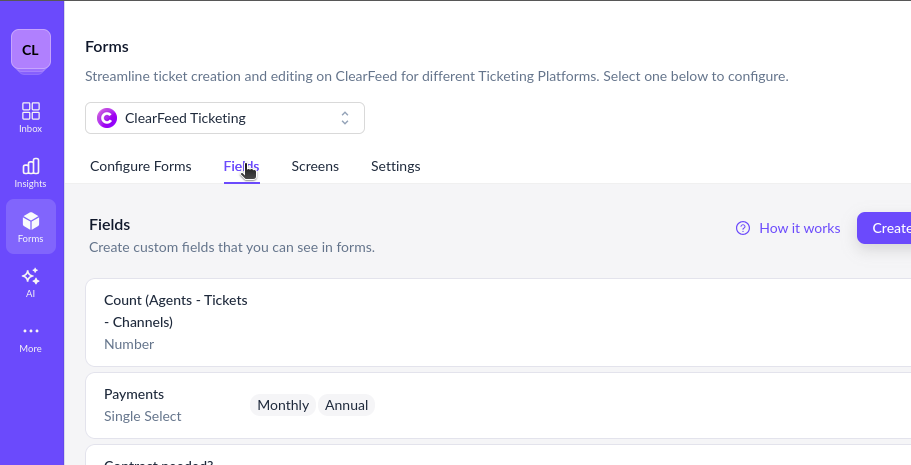
1. Navigate to [**Ticket Fields**](/clearfeed-help-center/clearfeed-helpdesk/custom-fields.md)
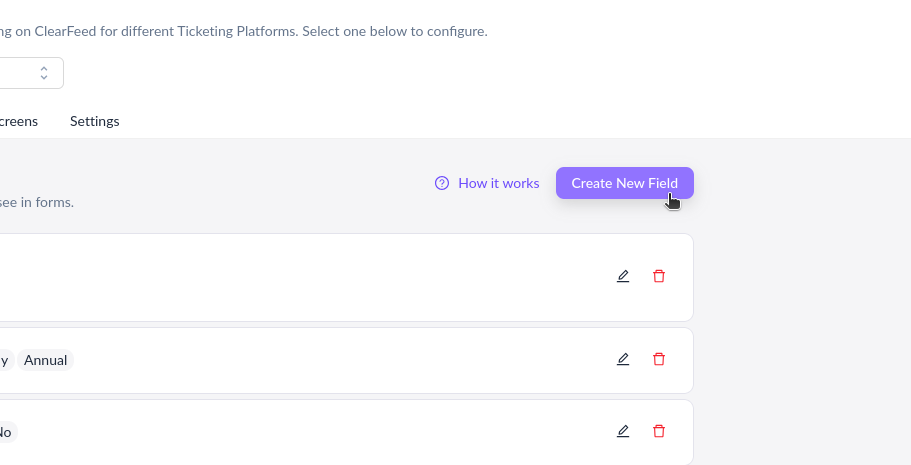
2\. Click \*\*Create New Field\*\*
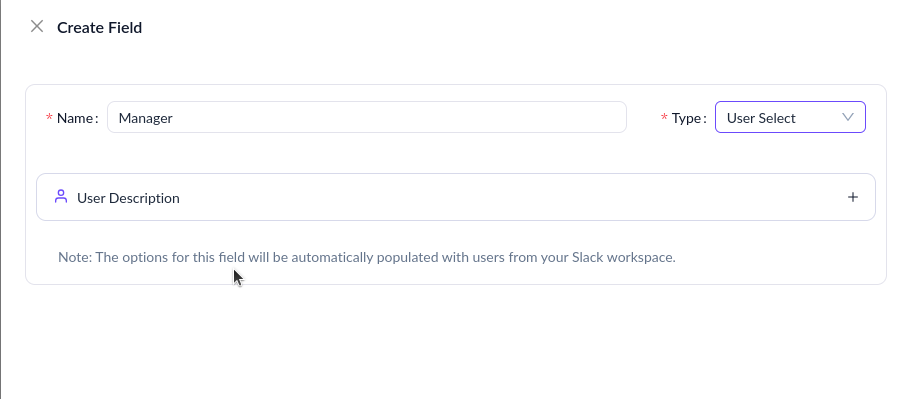
3. Configure the field and click Save:
* **Name:** Manager
* **Type:** User Select
{% hint style="info" %}
**Note:** This field will store the dynamically fetched approver. The User Select field type is required for dynamic approvers in approval workflows.
{% endhint %}
***
## Step 2: Add the Field to a Form
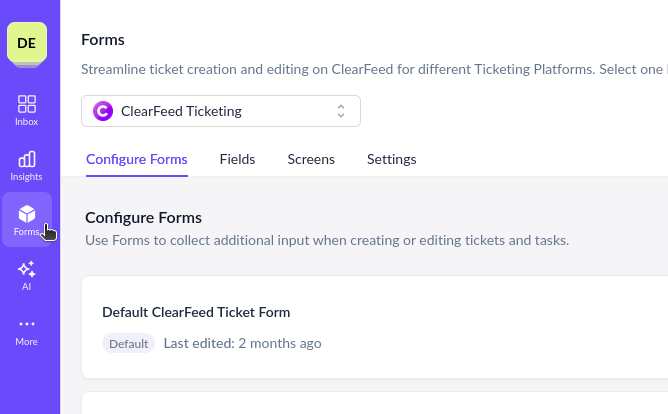
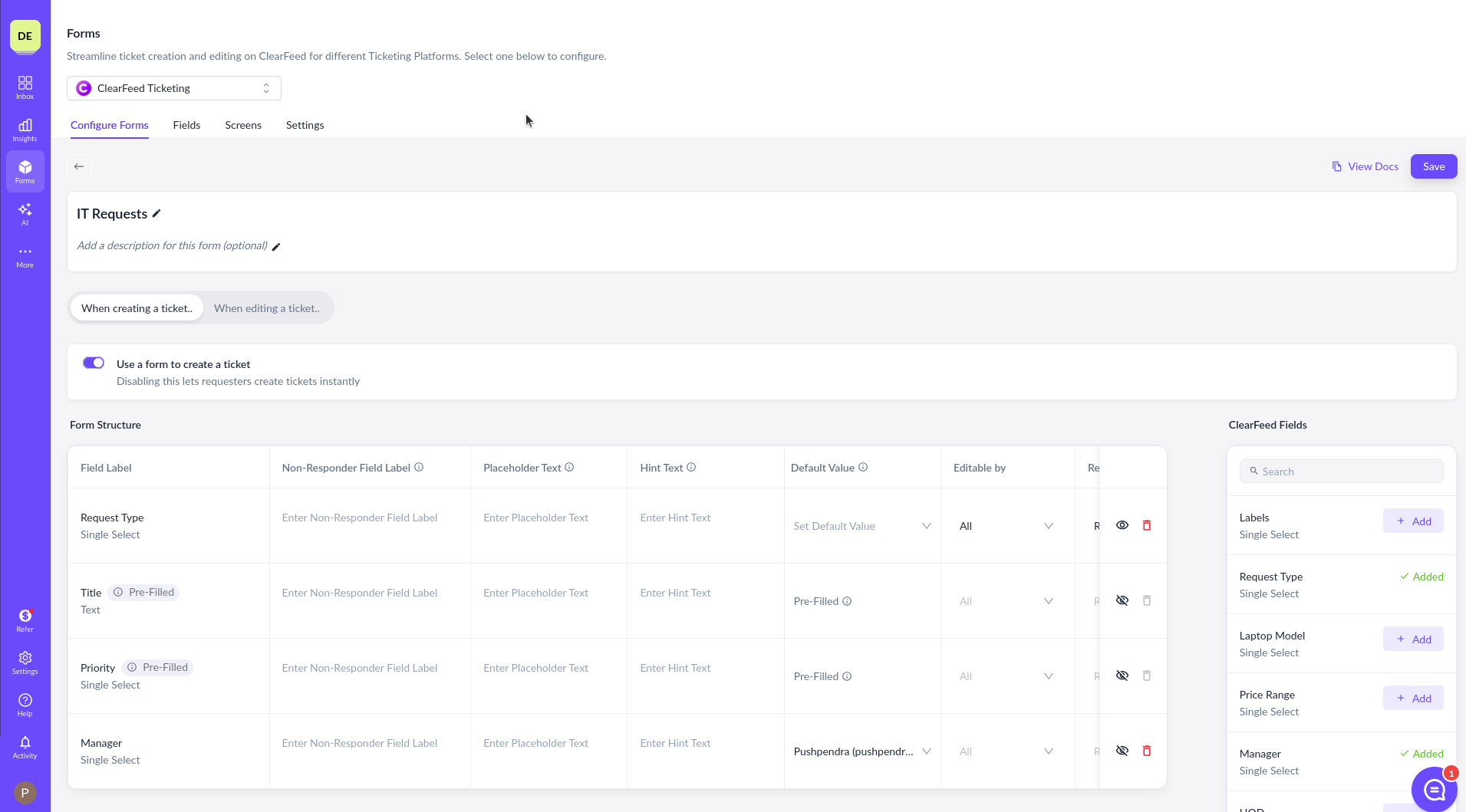
1. Go to [**Forms**](/clearfeed-help-center/clearfeed-helpdesk/forms.md) and click **Add Form**
2\. Create a new intake form (or edit an existing one)
3\. Add the \*\*Manager\*\* field to the Create form
### Optional: Hide the Field
* You can mark the field as **hidden** so users don't see or edit it
* Since the field is hidden, users will never see it—it will be populated automatically by the automation
* Keep **Editable by** set to **All** (required for dynamic approvers)
{% hint style="warning" %}
**Important:** For the Manager field to work as a dynamic approver, it must be:
* Added to the Intake Form
* Configured to be editable by **All** (not only by responders)
{% endhint %}
***
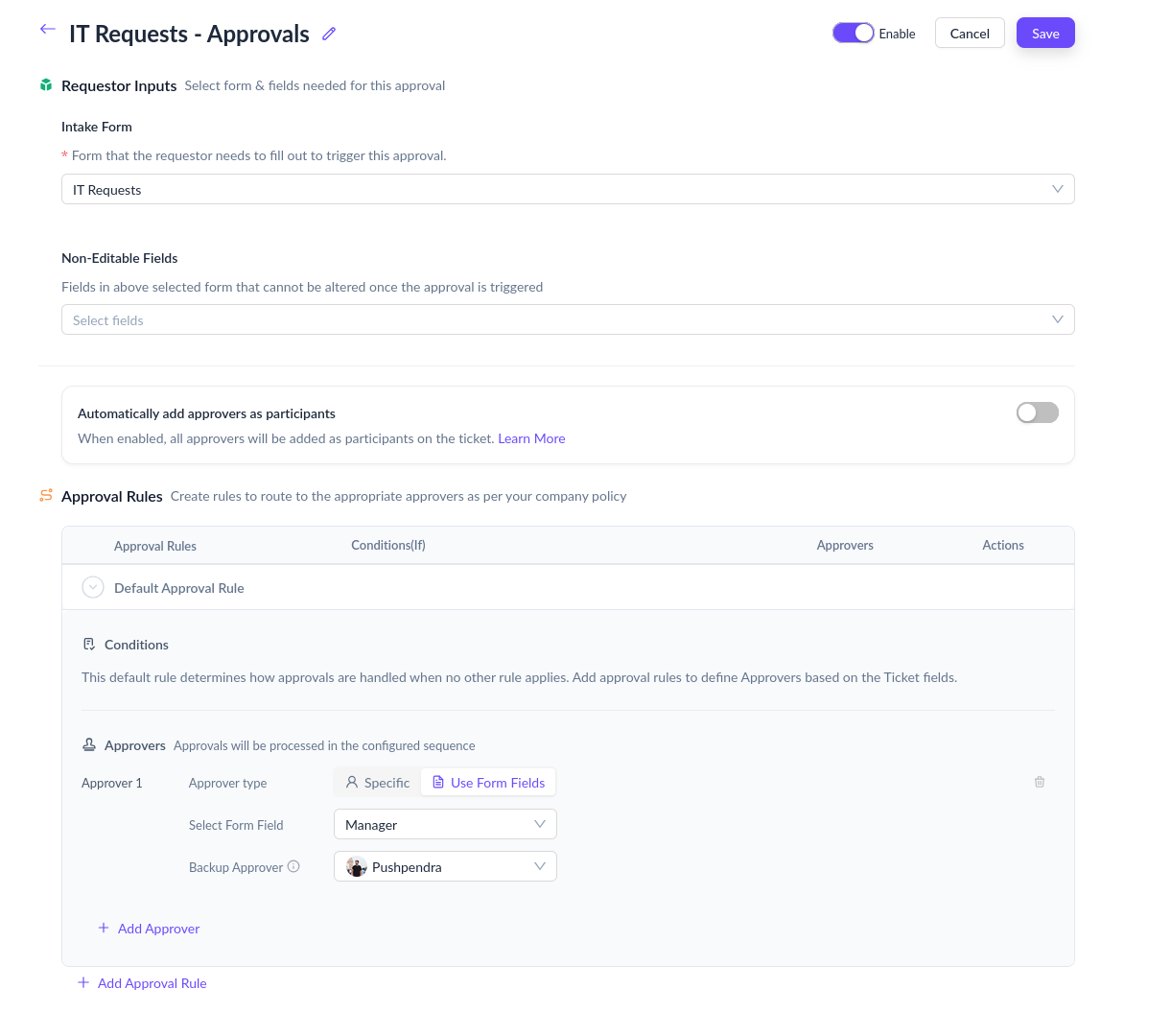
## Step 3: Configure the Approval Workflow
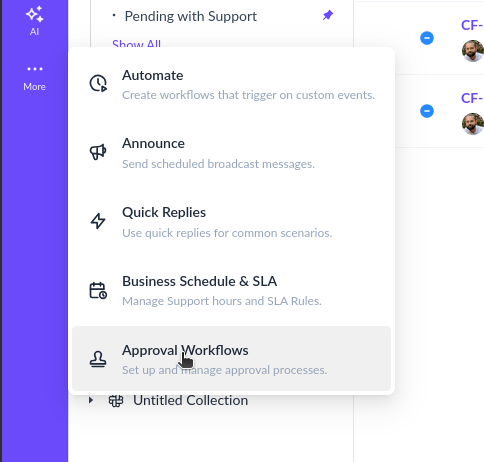
1. Navigate to [**Approval Workflows**](/clearfeed-help-center/clearfeed-helpdesk/approval-workflows.md)
2. Click **Create Approval Workflow** and enter a name
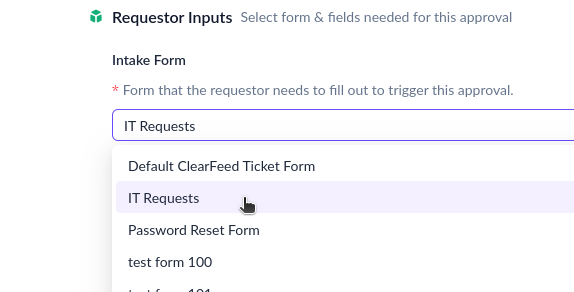
3. Select the **Intake Form** created above
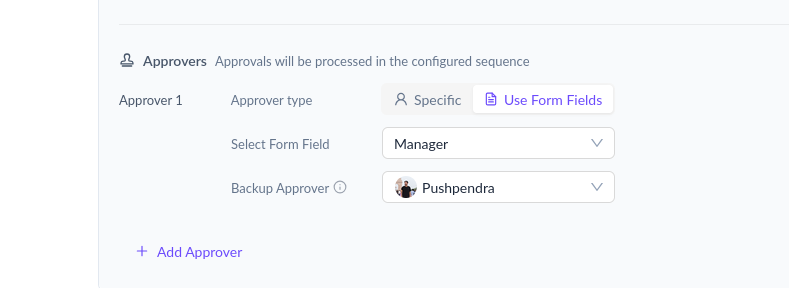
4. In the **Approver configuration**, choose **From Form Field → Manager**:
5. Set a **Backup Approver** (required)
{% hint style="info" %}
**Note:** The backup approver is used if the Manager field is not populated for any reason (e.g., missing Okta data, field left empty).
{% endhint %}
***
## Step 4: Create the Automation (Core Step)
This automation dynamically fetches the manager from Okta **before approvals are triggered**.
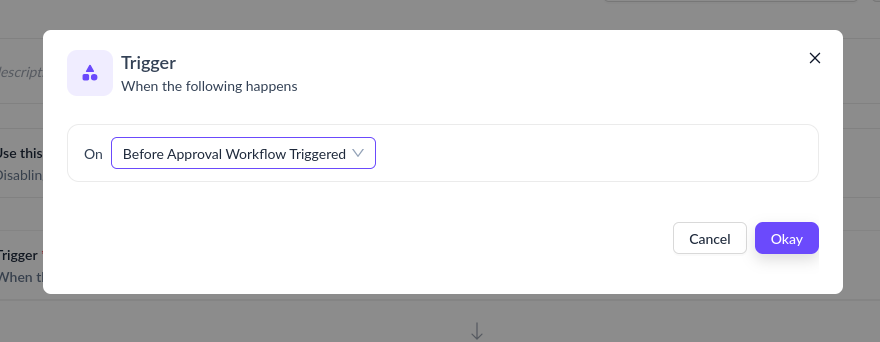
### 4.1 Choose Trigger
1. Navigate to [**Automations**](/clearfeed-help-center/clearfeed-helpdesk/automations.md) and create a new automation
2. Select trigger: **Before Approval Workflow Triggered**
{% hint style="info" %}
**Why this trigger?** This trigger runs synchronously before the approval workflow is initiated. The automation must complete before approvals begin, ensuring the Manager field is populated when the workflow evaluates approvers.
{% endhint %}
***
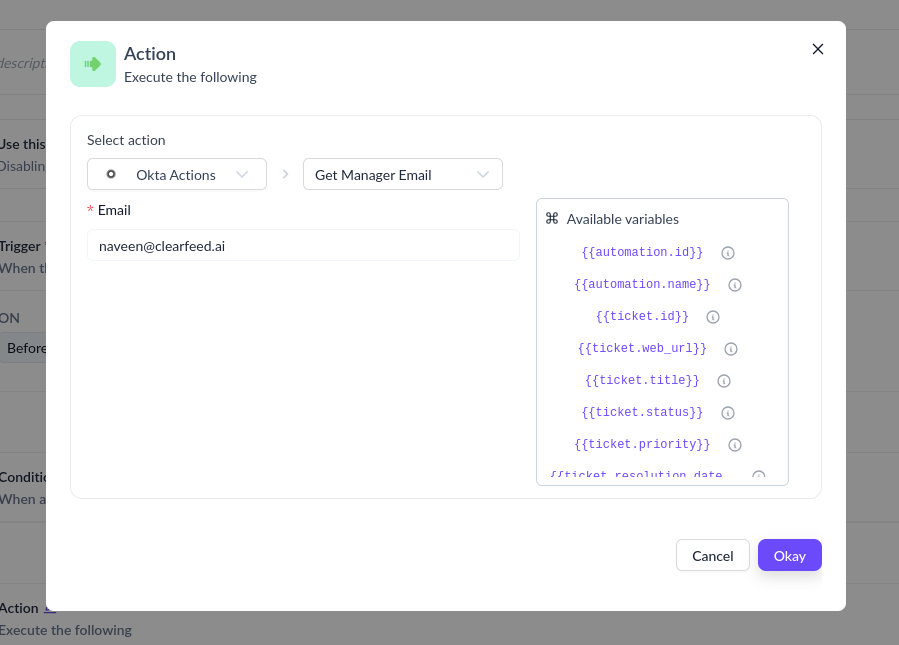
### 4.2 Add Okta Action
1. Add action: **Okta Integration**
2. Select recipe: **Get Manager Email**
3. Configure input:
* **Requester Email** → map to `{{request.requester.email}}`
**What this does:**
* Queries Okta using the requester's email
* Returns the manager's email as output
***
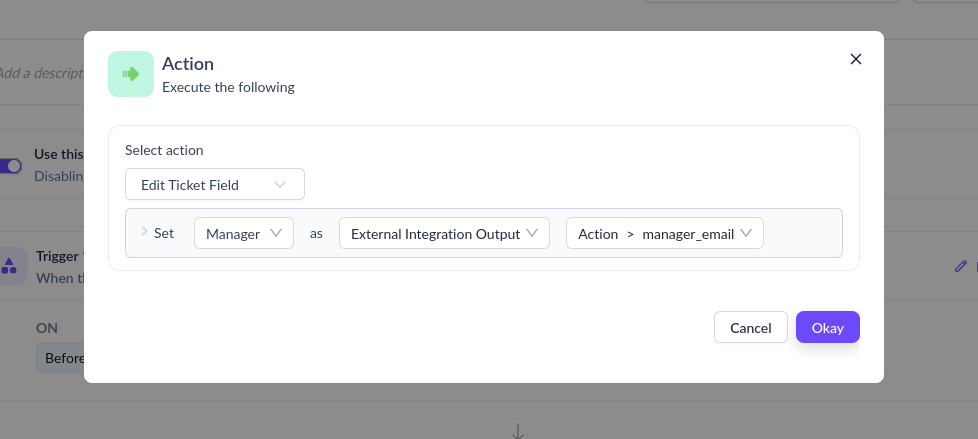
### 4.3 Populate the Manager Field
1. Add action: **Set Field**
2. Field: **Manager**
3. Value source:
* Select **External Integration Output**
* Choose: **Manager Email** from the Okta action
{% hint style="success" %}
The **Set Field** action supports populating User Select fields using External Integration Output. The email returned from Okta is automatically resolved to a matching user profile in ClearFeed.
{% endhint %}
***
### 4.4 Save Automation
Save and activate the automation. This completes the dynamic enrichment step.
***
## Step 5: Test the Setup
1. Submit a ticket using the configured form
2. Do **not** manually select the Manager field (leave it empty or hidden)
3. Verify:
* Ticket is created
* Manager field is automatically populated with the requester's manager
* Approval request is sent to the correct manager via Slack
***
## How It Works (End-to-End)
View the complete execution flow
1. User submits a request using the intake form
2. The **Before Approval Workflow Triggered** automation runs:
* Fetches the requester's manager email from Okta
* Updates the Manager field on the ticket
3. The approval workflow triggers:
* Evaluates routing rules
* Uses the Manager field as the dynamic approver
4. The manager receives an approval request in Slack
5. If the Manager field is empty or Okta lookup fails, the backup approver is used
***
## Notes & Best Practices
### Use Hidden Fields
* Keep the Manager field hidden for a cleaner user experience
* Since users never see the field, they can't manually override it
* Set a default value (ClearFeed requires this for hidden fields)
### Always Set a Backup Approver
* Protects against missing or mismatched Okta data
* Required for all dynamic approvers in ClearFeed
* Ensures approvals continue even if the lookup fails
### Ensure Email Consistency
* Requester email in ClearFeed must match Okta exactly
* The lookup is based on email identity matching
* Test with actual user emails to verify the integration
### Extend the Pattern
You can reuse this pattern for other dynamic approver scenarios:
* **Department-based approvers** — Fetch department head from Okta
* **Role-based approvals** — Use Okta groups to determine approvers
* **Multi-level approval chains** — Fetch multiple levels of management
***
## Variations
### Using Slack Instead of Okta
If your organization maintains manager data in Slack user profiles:
* A similar automation can be built using Slack user attributes
* Contact ClearFeed support to enable Slack-based lookup
### Adding Conditional Logic
Use automation conditions to apply dynamic approvers only in specific scenarios:
* Example: Only fetch manager for "Access Request" type tickets
* Use form fields in conditions to control when the automation runs
***
## FAQs
1. **What happens if the manager is not found in Okta?**\
**Answer:** The backup approver configured in the approval workflow will be used instead. This ensures the approval process continues without interruption.
2. **Can I use multiple dynamic approvers in the same workflow?**\
**Answer:** Yes, you can configure multiple levels with dynamic approvers. Each level can use a different User Select field, and each field can be populated via automation using different Okta actions or logic.
3. **Does the automation run if the requester manually selects a manager?**\
**Answer:** Yes, the automation will always run when triggered. If you want to respect manual selections, add a condition to skip the automation when the Manager field is already populated.
4. **Can I use this with external ticketing systems like Jira or Zendesk?**\
**Answer:** This pattern works with ClearFeed's native approval workflows. If you're using external ticketing systems, approvals are typically handled in those systems rather than through ClearFeed.
***
## Summary
By combining:
* **Pre-approval automations** (`Before Approval Workflow Triggered`)
* **Okta data enrichment** (`Get Manager Email` action)
* **Dynamic approval fields** (User Select fields in forms)
…you can fully automate approval routing in ClearFeed without requiring users to manually select approvers.
This pattern is especially useful for:
* Software access requests
* Procurement workflows
* HR or onboarding approvals
* Manager approvals for time-off requests